 New article up: Checking Your Disks For Problems
Checking Your Disks For Problems
Computer stuff...
New article up: Checking Your Disks For Problems
How To Check Your Disks For Problems
Windows contains a few utilities to correct disk and system file errors.
These are often used by Geeks and techs as a way to quickly eliminate a cause of problems and/or after cleaning a virus from a system.
Note – With NTFS file systems these tools do not need to be, and should not be run unless a problem is suspected.
Check Disk
The most commonly used is Check Disk (a.k.a. – chkdsk, or disk check).
This checks the file system for errors. This can also be useful if the system was shut down unexpectedly due to a power loss.
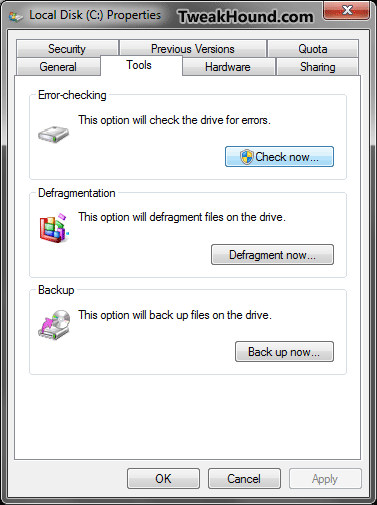
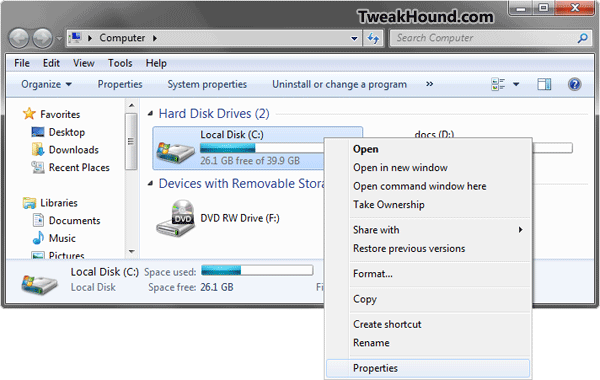
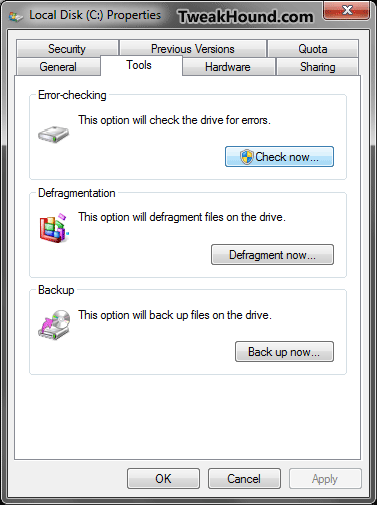
To run it open Computer > right-click on the partition you wish to check and choose Properties > click the Tools tab > in the Error-checking section click the Check now… button.
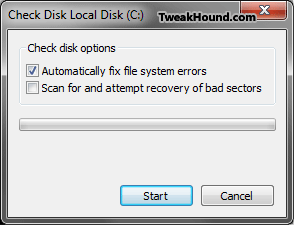
In the Resulting screen ensure the Automatically fix file system errors box is checked, then click start.
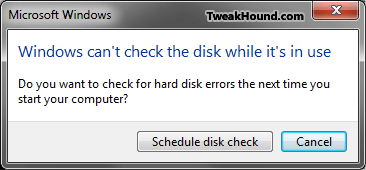
If this is your Windows partition you’ll need to reboot for the scan to take place.
To find info on the previous scan go to Administrative Tools > Event Viewer > Windows Logs > Application > in the Source column find a line with 1-Wininit for drives scanned on reboot or 2-Chkdsk for drives scanned while running Windows.
System File Checker
The second tool is System File Checker (a.k.a. – SFC)
This checks for and replaces corrupt system files. This of course is only for your Windows drive or partition.
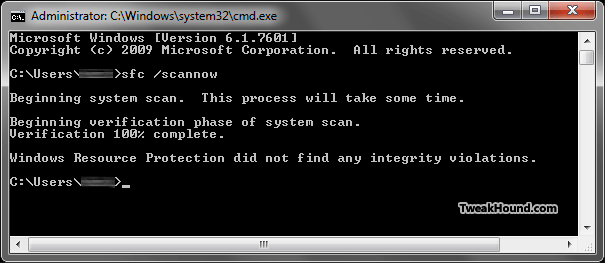
To run it open a Command Windows as admin (in the Search box type cmd > in the results right-click on cmd.exe and choose Run as administrator).
In the resulting window type sfc /scannow (if you are like me and want to see whats up before fixing any issues then use sfc /VERIFYONLY).
To view the results of this scan go to C:\Windows\Logs\CBS\CBS.log.