
TweakHound - Tweaking Windows Vista, page 3
Visual Tweaks
Visual Effects
Press the Windows + Pause Break keys > in the left pane click on Advanced system settings.
In the resulting window, in the Performance section click the Settings... button.
In the Visual Effects pane check your options. I uncheck all except:
-Enable desktop composition
-Smooth edges of screen fonts
-Use drop shadows for icon labels on the desktop
-Use Visual Styles on windows and buttons
Click Apply
All the options:
Animate controls and elements inside windows
Animate windows when minimizing and maximizing
Enable desktop composition
Enable transparent glass
Fade or slide menus into view
Fade or slide ToolTips into view
Fade out menu items after clicking
Show preview and filters in folder
Show shadows under menus
Show shadows under mouse pointer
Show thumbnails instead of icons
Show translucent selection rectangle
Show window contents while dragging
Slide open combo boxes
Slide taskbar buttons
Smooth edges of screen fonts
Smooth-scroll list boxes
Use a background image for each folder type
Use drop shadows for icon labels on the desktop
Use visual styles on windows and buttons
***Note - The values below are the ones I can find that change individually.
To change all the values to the settings above using regedit you must use these AND the UserPreferencesMask value below.
Reg Values:
; Visual Effects Settings
[HKEY_CURRENT_USER\Software\Microsoft\Windows\CurrentVersion\Explorer\Advanced]
"WebView"=dword:00000000
"IconsOnly"=dword:00000001
"ListviewAlphaSelect"=dword:00000000
"ListviewShadow"=dword:00000001
"ListviewWatermark"=dword:00000000
"TaskbarAnimations"=dword:00000000
[HKEY_CURRENT_USER\Control Panel\Desktop]
"DragFullWindows"="0"
"FontSmoothing"="2"
[HKEY_CURRENT_USER\Control Panel\Desktop\WindowMetrics]
"MinAnimate"="0"
[HKEY_CURRENT_USER\Software\Microsoft\Windows\DWM]
"CompositionPolicy"=dword:00000000
; Unfortunately these values are all stored together, to use the settings above use this:
[HKEY_CURRENT_USER\Control Panel\Desktop]
"UserPreferencesMask"=hex:90,12,03,80,10,00,00,00
Aero
One of the things that makes Vista...well...Vista, is the new Aero interface.
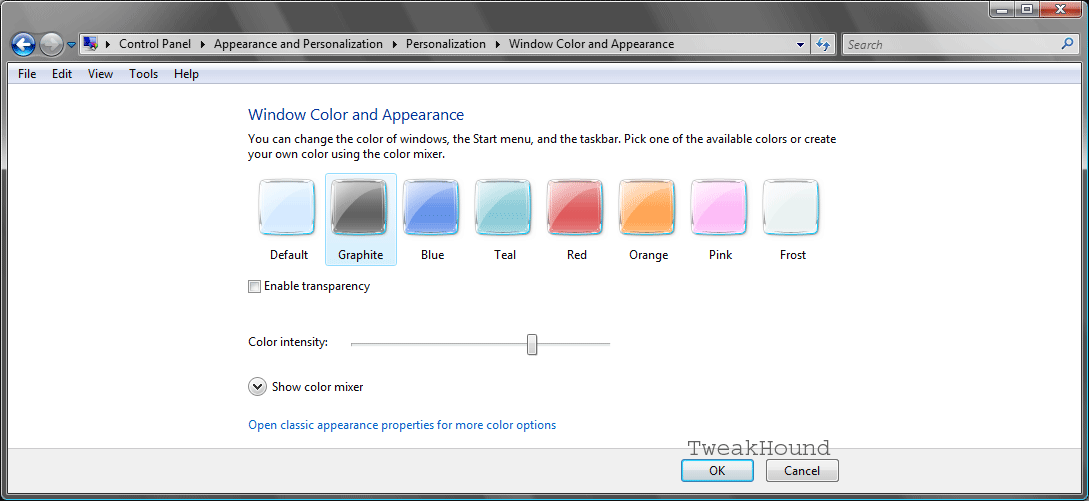
The Aero Options Screen (click for a larger image)
Disable Transparency
This can make Aero a little "snappier". Right-click in an empty space on your desktop, choose Personalize > click on Window Color and Appearance > uncheck Enable transparency. While you're there you can change the look of Aero by choosing a color, I use Graphite.
Reg Value:
[HKEY_CURRENT_USER\Software\Microsoft\Windows\DWM]
"ColorizationOpaqueBlend"=dword:00000001
Disable Aero
While most of you know the key to tweaking a machine for performance involves the culmination of numerous tweaks I feel I should inform you that many benchmarks have shown no real correlation between disabling Aero altogether and increased performance. I do not disable Aero.
Right-click in an empty space on your desktop, choose Personalize > click on Window Color and Appearance > click on Open classic appearance properties for more color options > under Color scheme: choose Windows Vista Basic > click Apply and OK.
Reg Value:
[HKEY_CURRENT_USER\Software\Microsoft\Windows\DWM]
"Composition"=dword:00000000
Here is a differing opinion on Aero: Aero Theme is bad, disable it
Tweaking Windows 7
Installing Windows 7
TweakHound's Super XP Tweaking Guide - SP3 Final
Tweaking Windows Vista
The Right Way To Install Windows XP
Installing Windows Vista
The
Freeware XP Machine
The Vista
Freeware Machine
Windows XP
Backup Strategies For Home Users
Windows Vista Backup Strategies For Home Users
Installing
Suse Linux 10.3
How To Samba With openSUSE 11.2 and Windows

I use True Image 2011 for all my OS backups and Disk Director 11.0 for all my partitioning requirements.
TweakHound readers often get a discount off Acronis Products. Check the links for more info.