 Several folks had specific questions about how I went about setting up my laptop.
For those who do not want to click on the link above here is where this starts:
A refurb Alienware 15.
Main specs (full specs below):
Intel Core i7-4710HQ
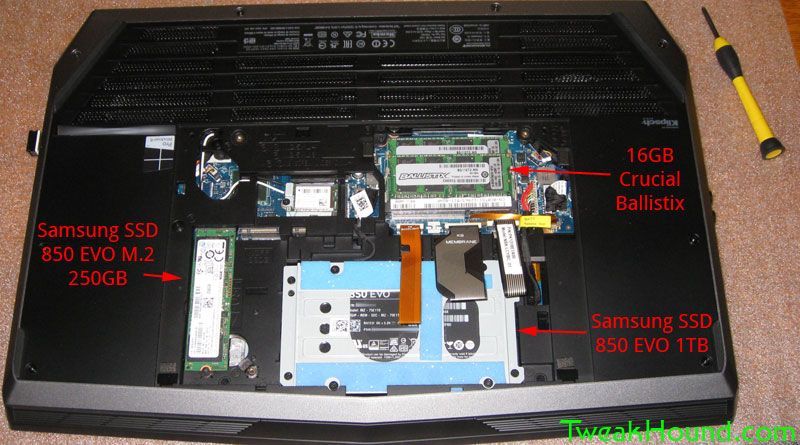
16GB Crucial Ballistix RAM
Samsung SSD 850 EVO M.2 250GB (OS)
Samsung SSD 850 EVO 1TB (data)
NVIDIA GeForce GTX 980MI wanted something bare enough to upgrade parts (no sense paying for stuff I don’t need/want). The laptop came with a 1TB standard HD and 16GB ram. I swapped these out for the parts above and the old parts will go into upgrading another laptop.
The laptop also came with Windows 8.1 Pro installed along with a WindowsRE / Alienware Respawn setup (4 partitions). Since I do my backups with Acronis TI I had no need of that. So, when I swapped in the drives I installed Windows 7 Ultimate. I consider this install temporary as this laptop will patiently await Win10.
Q – Why did you install Windows 7? (the answer to this answers the rest of the questions folks had)
Short answer: I like it better.
Long answer: My initial thought was to keep Windows 8.1. I had a new SSD so I could reinstall Win 8.1 from DVD or backup and restore via Acronis True Image. I chose to try the latter first.
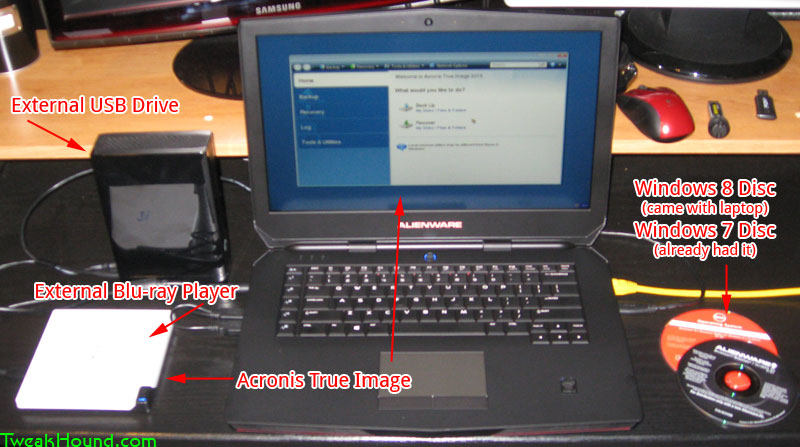
With the standard hard drive still installed I first stripped the bloatware that came installed. This included the Steam client and McAfee (see here and download the McAfee Consumer Product Removal (MCPR) tool). Then I updated drivers from the Dell site, plus chipset/rst/graphics from Intel and Nvidia. Next I fully updated Win 8.1 and then cleaned and defragged. Then used Acroinis True Image to backup to an external USB drive, swapped in the new SSD, booted up and used Acronis True Image to restore the image I just made to the new SSD. After using it for a day I decided to see how Windows 7 performed.
Installing Windows 7:
I already have both new SSD’s installed so I wiped both and pulled the 1TB drive for the initial install. This avoids confusion and mistakes both on my part and Windows too.
I already had a Windows 7 Alienware disk and Windows 8.1 Pro has downgrade rights so I’m good there.
I downloaded all the drivers I would need. All were the same downloads as Windows 8.1 with the addition of the Intel USB 3.0 driver.
I decided I wanted not to use UEFI so I switched that off in the BIOS (added legacy option). Why? First, I don’t need it. Second, I’m going to be traveling some this summer. I have a multi-boot USB flash drive with all my repair / backup tools on it and half that stuff works better without UEFI on.
Now, 2 folks wrote in saying they couldn’t install Windows 7 from a USB flash drive on a laptop that came with Windows 8.1 (many laptops now come without CD/DVD drives). Usually this comes down to the fact that Windows 7 has no USB 3.0 support. There are several workarounds depending on your laptop. These can range from changing USB settings in the BIOS to slipstreaming them in. Or you can do what I did and just use an external DVD player to install Windows 7 from.
After getting Windows 7 installed it seemed to perform on par with 8.1 so I decided to keep it, for now. I’ve stated before that Windows 8.1 is, at it’s core, a better OS than Windows 7. But now Win10 is on the horizon and I’ve a feeling that Windows 8.1 is all but dead to Microsoft. I will most likely install Win10 on this laptop at some point after the official release.
If anyone else has any questions, give me a holler.
–