 Ars Technica – Microsoft accused of adding spy features to Windows 7, 8
By now we are all aware that by default Win10 sends a lot of info to Microsoft. Folks have found Windows 7 & 8 are doing it too.
Well, kinda. Let me explain. Microsoft added 2 updates that collect more info.
1 – KB3022345 superseded by KB3068708 superseded by KB3080149 adds the Diagnostics Tracking Service.
2 – KB3075249 seems to monitor UAC prompts (hopefully to make it less annoying)
Ars Technica says that unles you have CEIP enabled these don’t do much if anything.
So if these updates are a concern:
1 – Ensure CEIP is disabled (should’ve paid attention during install?):
For Windows 7:
Turn off settings that were recommended during Windows 7 setup
Turn off the Customer Experience Improvement Program
This program helps Microsoft improve Windows. Without interrupting you, it collects information about your computer hardware and how you use Windows.
-Open Action Center by clicking the Start button Picture of the Start button, clicking Control Panel, and then, under System and Security, clicking Review your computer’s status.
-In the left pane, click Change Action Center settings.
-Under Related settings, click Customer Experience Improvement Program settings.
-Select No, I don’t want to participate in the program and then click Save Changes. Administrator permission required If you’re prompted for an administrator password or confirmation, type the password or provide confirmation.
Turn off the Help Experience Improvement Program and search string collection
By participating in this program, you can help Microsoft improve the quality and relevance of the Help experience. The program collects the words and phrases that you type into the Help search box. This “search string” information helps improve search results in Help. To turn off the Help Experience Improvement Program, do the following:
-Click the Start button Picture of the Start button, and then click Help and Support.
-On the toolbar in Windows Help and Support, click Options, and then click Settings.
-Under Help Experience Improvement program, clear the Join the Help Experience Improvement program check box, and then click OK.
For Windows 8/8.1
(Pics because I can’t find an official MS opt out guide page.)
Go to Control Panel\All Control Panel Items\Action Center\Change Action Center settings
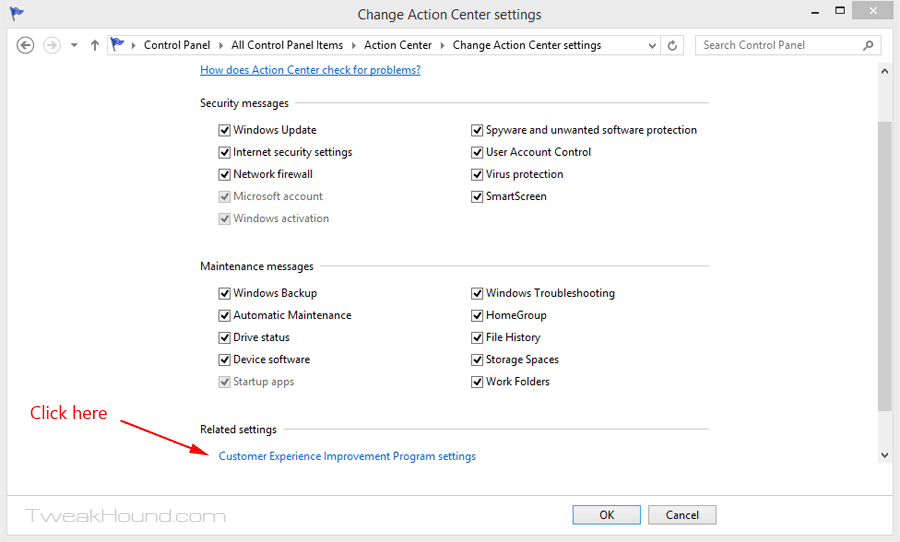
Click: Customer Experience Improvement Program
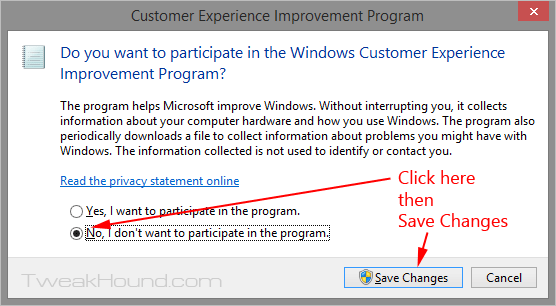
Click “No…” then Save Changes.
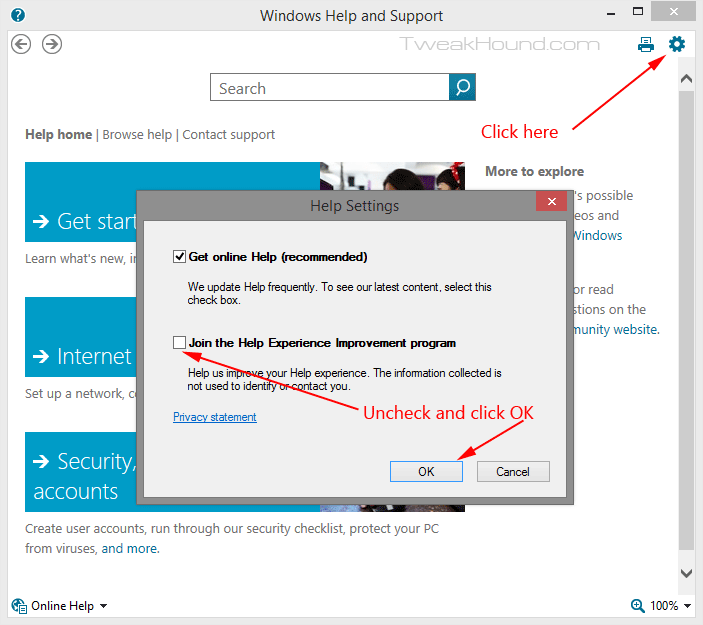
Turn off the Help Experience Improvement Program and search string collection
Search > Help & Support > click the gear icon in the upper right > Uncheck “Join…” > click OK
*note – I don’t believe uninstalling and hiding these updates will do any good as they keep getting superseded.
– – – – – – – – – –
2 – Disable Diagnostics Tracking Service
(For both Windows 7 and 8)
Press the Windows + R keys > type services.msc > find and double-click Diagnostics Tracking Service > Stop it and change startup type to Disabled.
– – – – – – – – – –
3 – OPTIONAL, Disable UAC
(I do not want to argue this. Been there, done that. Written a long, long time ago: Windows 7 UAC – Quick notes on why I disable it.)
To Disable UAC:
– Type or copy and paste UserAccountControlSettings.exe into the Start menu search box (or Run box).
– In the resulting window, move the slider all the way to the bottom.
– Reboot
-END-