
A reader wrote to ask me if and what I use for network scanners for my home network. I thought some of you might find this info useful.
On Windows I mostly use Nirsoft tools. They are free, wicked fast, and do not need to be installed.
I just fire these up when needed, or sometimes when I’m bored.
The tools I use are:
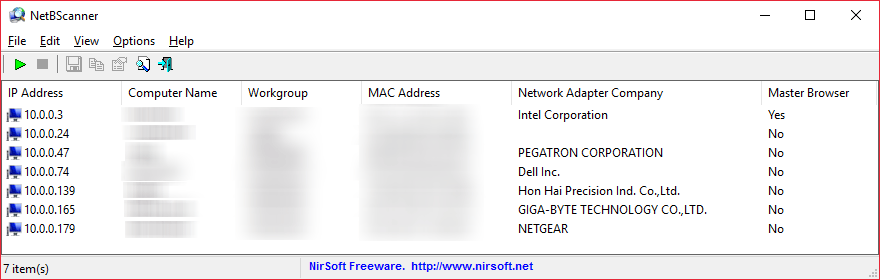
NetBScanner
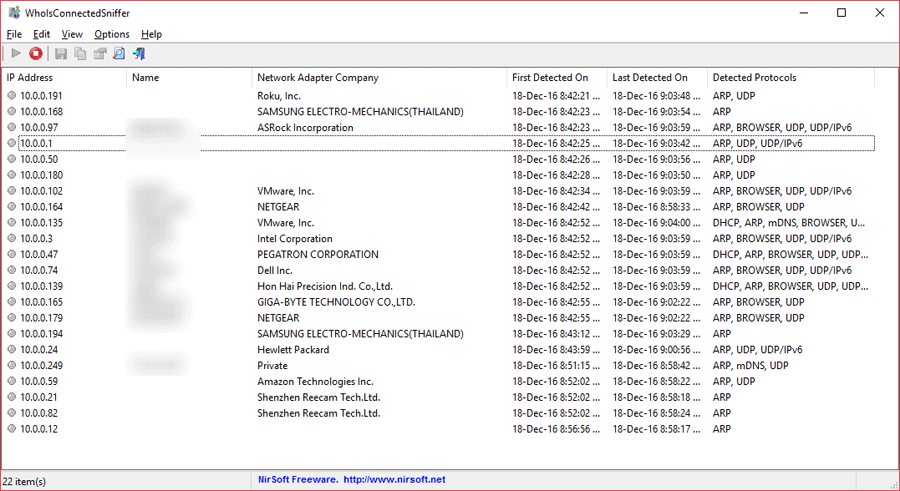
WhoIsConnectedSniffer
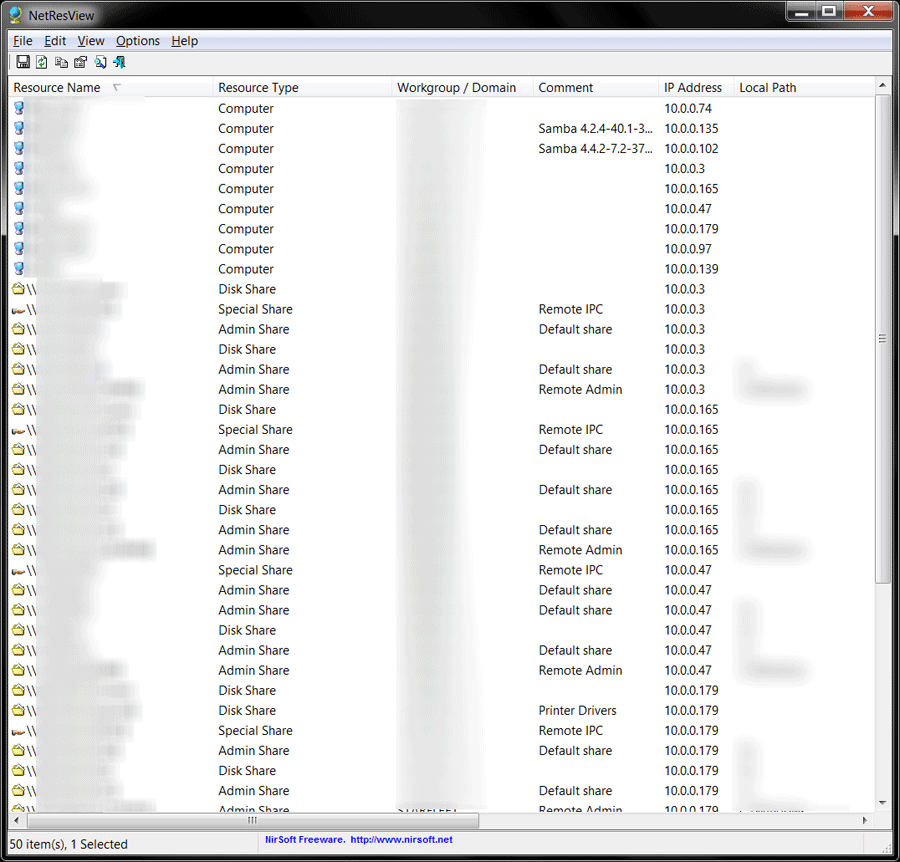
NetResView
WifiInfoView
You just download these files, extract them, and double-click the exe files.
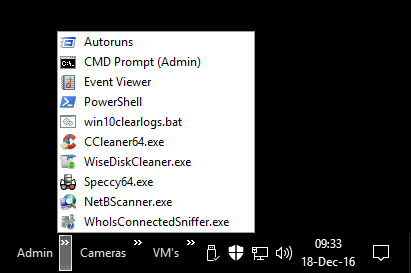
I even include some of these in my Admin menu in my taskbar:
NetBScanner
Official description:
NetBScanner is a network scanner tool that scans all computers in the IP addresses range you choose, using NetBIOS protocol. For every computer located by this NetBIOS scanner, the following information is displayed: IP Address, Computer Name, Workgroup or Domain, MAC Address, and the company that manufactured the network adapter (determined according to the MAC address). NetBScanner also shows whether a computer is a Master Browser. You can easily select one or more computers found by NetBScanner, and then export the list into csv/tab-delimited/xml/html file.
I am not doing this currently but in the past I’ve run this as a Scheduled Task run every 10 minutes or so.
I used this as the base command: NetBScanner.exe /scan /IPAddressFrom 10.0.0.0 /IPAddressTo 10.0.0.255
WhoIsConnectedSniffer
Official description:
WhoIsConnectedSniffer is a network discovery tool that listens to network packets on your network adapter using a capture driver (WinpCap or MS network monitor) and accumulates a list of computer and devices currently connected to your network. WhoIsConnectedSniffer uses various protocols to detect the computers connected to your network, including ARP, UDP, DHCP, mDNS, and BROWSER.
For every detected computer or device, the following information is displayed: (Some of the fields might be empty if the information cannot be found inside the packets) IP Address, MAC Address, name of the device/computer, description, Operating System, Network Adapter Company, IPv6 Address…As you may know, NirSoft already provides other tools (Wireless Network Watcher, NetBScanner) that scan the network and show the computers that are currently connected. As opposed to the other tools, WhoIsConnectedSniffer doesn’t perform any scanning and it doesn’t send any packet to the other computers. WhoIsConnectedSniffer only listens to the packets sent by other computers and devices, analyzes them and then displays the result on the main window.
WhoIsConnectedSniffer also provides some information that the other tools cannot get, like operating system, description text of the computer, IPv6 address.
FYI – I use the WinPcap driver. (see the bottom of this software’s page)
NetResView
Official description:
NetResView is a small utility that displays the list of all network resources (computers, disk shares, and printer shares) on your LAN. As opposed to “My Network Places” module of Windows, NetResView display all network resources from all domains/workgroups in one screen, and including admin/hidden shares.
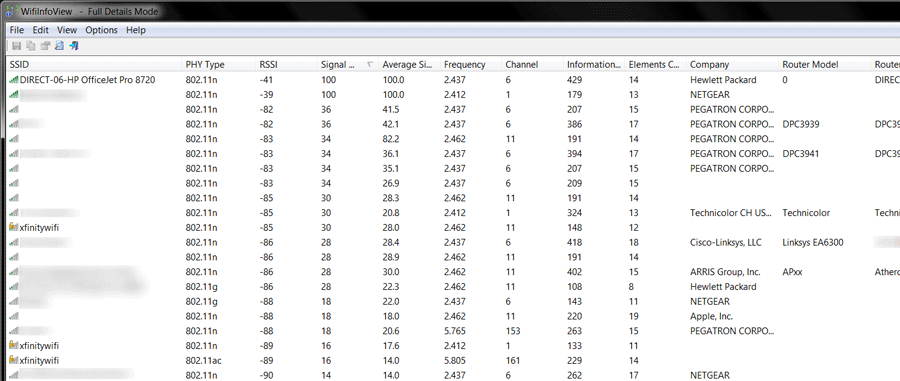
WifiInfoView
Official description:
WifiInfoView scans the wireless networks in your area and displays extensive information about them, including: Network Name (SSID), MAC Address, PHY Type (802.11g or 802.11n), RSSI, Signal Quality, Frequency, Channel Number, Maximum Speed, Company Name, Router Model and Router Name (Only for routers that provides this information), and more.
I hope you find something useful here.
-END-