 I get a few emails a month about dual / multi-booting, hosed bootloaders, “my X hardware doesn’t work with Z operating system”, “my X program doesn’t work with Z operating system”, etc. While I certainly understand there are folks who want direct OS/hardware interaction I believe far too many people choose to dual-boot when they don’t have to.
The answers to your problems and OS curiosities may be Virtual Machines (VM’s for short). With today’s powerful machines you’ve got plenty of resources to spare for VM’s.
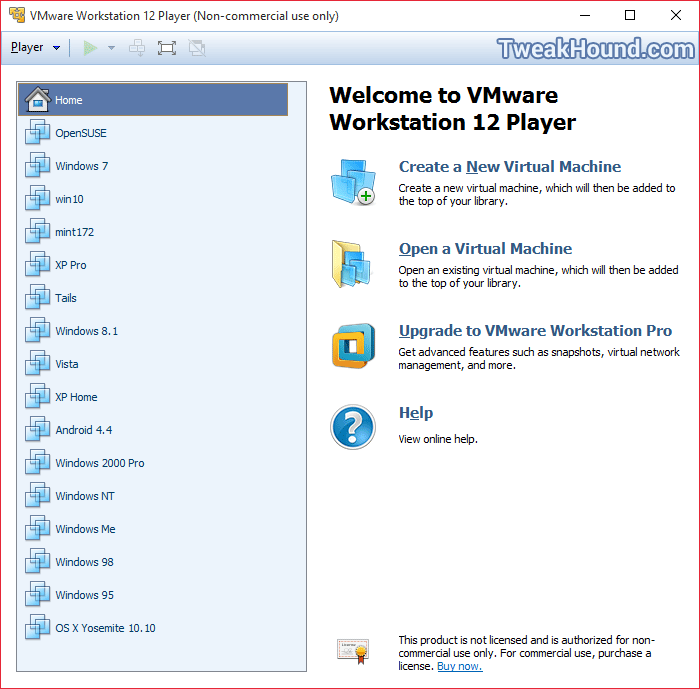
You can run just about everything in a VM. Here are mine:
What is a Virtual Machine?
A virtual machine (VM) is an operating system OS or application environment that is installed on software which imitates dedicated hardware. The end user has the same experience on a virtual machine as they would have on dedicated hardware.
A virtual machine is a software computer that, like a physical computer, runs an operating system and applications. The virtual machine is comprised of a set of specification and configuration files and is backed by the physical resources of a host. Every virtual machine has virtual devices that provide the same functionality as physical hardware and have additional benefits in terms of portability, manageability, and security.
The software that runs your VM’s is called a hypervisor or virtualization software.
There are 2 main options for VM’s that are multi-platform both as host and guest. (Host is the main OS you run, guest is the OS you use as a Virtual Machine.)
VirtualBox is a free and open source hypervisor. It does a good job with Windows XP and Linux but I’ve found it a little lacking with post-XP Windows OS’s.
VMware Workstation Player is free for personal use virtualization software. I prefer it to VirtualBox.
Some advantages of running a VM are:
Testing – Try an OS before you install it.
Bootloader – Stays as is. BIOS, UEFI, Secure boot? Not an issue.
Drivers – Far less an issue in VM’s. Usually if it works in your host it will work in your guest.
Security – You can setup your guest to be more secure than your host for doing your daily web surfing. You can even configure it with no net access at all.
Backup – It is as easy as copying your VM folder somewhere else.
Take it with you – You can move/copy your VM to another machine without issue.
How I use VM’s:
As many of you know I am constantly testing and tweaking Windows, Linux, and other software and I mostly use VM’s for this.
I use Windows (7 & 10) as the main OS on most of my boxes.
I do the majority of my internet activities with a Linux VM (mostly openSUSE but some Mint). I do this because IMHO it is easier than the other way around. Linux is far more versatile than Windows, it’ll run on almost anything.
All the VM’s that I want to interact with my network do so flawlessly (full Windows network sharing and printing).
I mostly use 32-bit versions for the guest OS. Since I do so much work in my openSUSE VM I use 64-bit for that.
Tips: ***If you’ve got a tip, PLEASE post it!
1 – Get more memory for your computer. I’m currently running a minimum of 16GB and a max of 32GB.
2 – SSD’s are an awesome place to put your VM’s. Don’t put your VM’s on your C: drive.
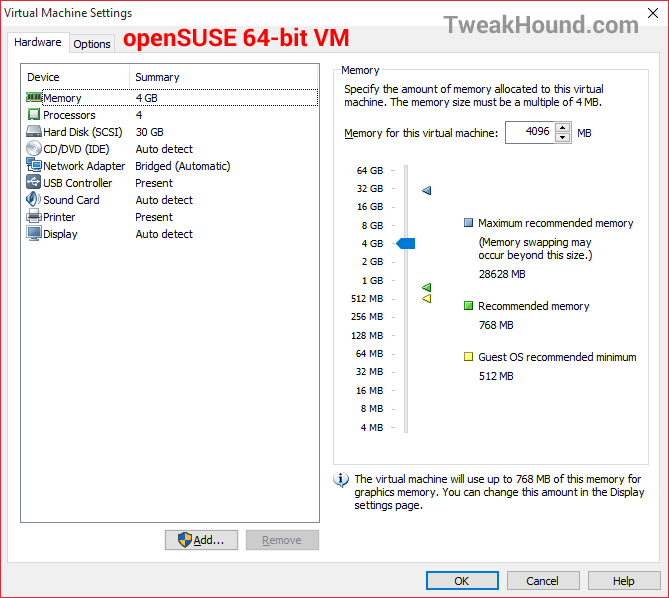
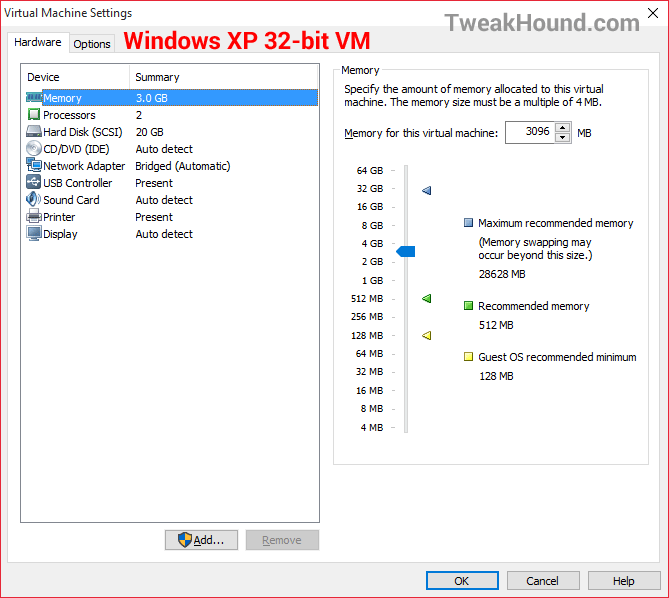
3 – For XP and newer OS’s I give a minimum of 3GB memory.
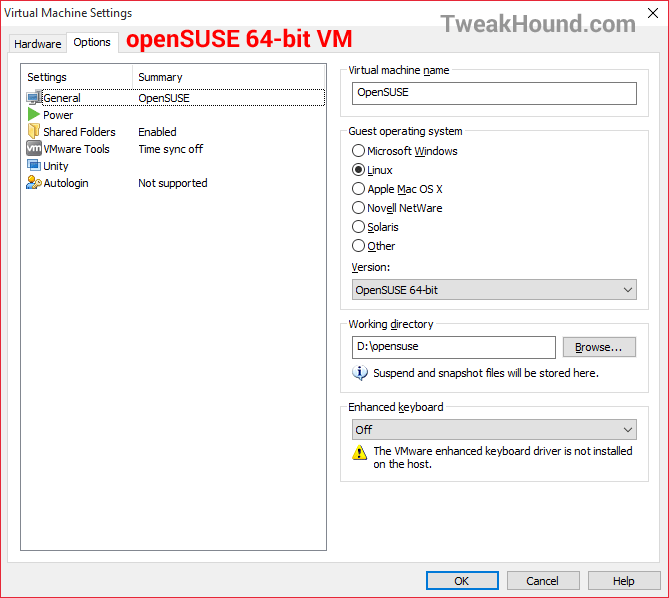
4 – I find networking (windows/samba) to function better with Bridged networking.
5 – Install the “drivers”. These you install in the guest after you install the OS:
– Virtualbox come with Guest Editions
– VMware comes with VMware Tools.
To install in VMware Tools in Windows:
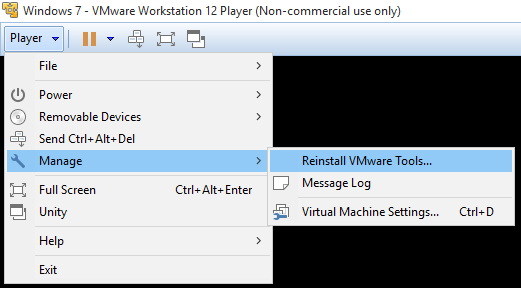
Go to the top menu bar and click Player > Manage > Install / Reinstall VMware Tools…
If it does not autorun then open My Computer and launch it from the CD. Reboot when finished.
To install in VMware Tools is Linux (how I do it):
Go to the top menu bar and click Player > Manage > Install / Reinstall VMware Tools….
Open the mounted CD there will be a VMware tools .tar.gz file. Copy it to your downloads folder and extract it. You should now have a vmware-tools-distrib folder. Open a terminal window in that folder and su/sudo. Type ./vmware-install.pl --default . When it is done reboot.
6 – If you’ve got a question just about every scenario has been asked and answered. Try the forums or Google search:
VMware Player forums
VMware Workstation Player Documentation
VirtualBox forums
VirtualBox manual
7 – Install it as you would any OS. Also, you can download pre-made images at OSBoxes.org.
PICS:
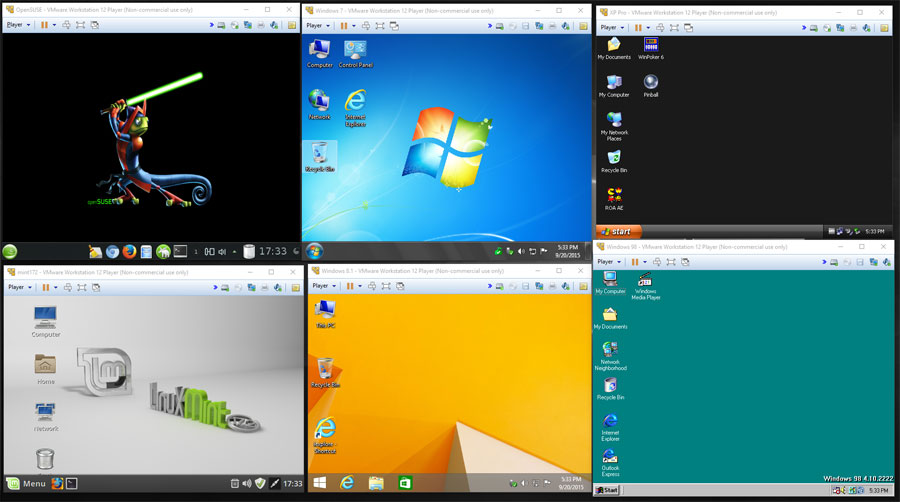
Running at the same time on my Win 10 computer:
openSUSE 13.2, Windows 7, Windows XP
Linux Mint Cinnamon 17.2, Windows 8.1, Windows 98
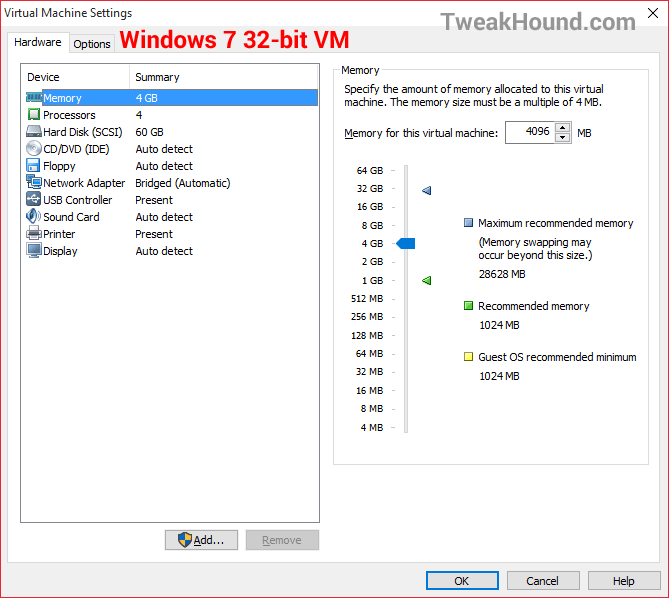
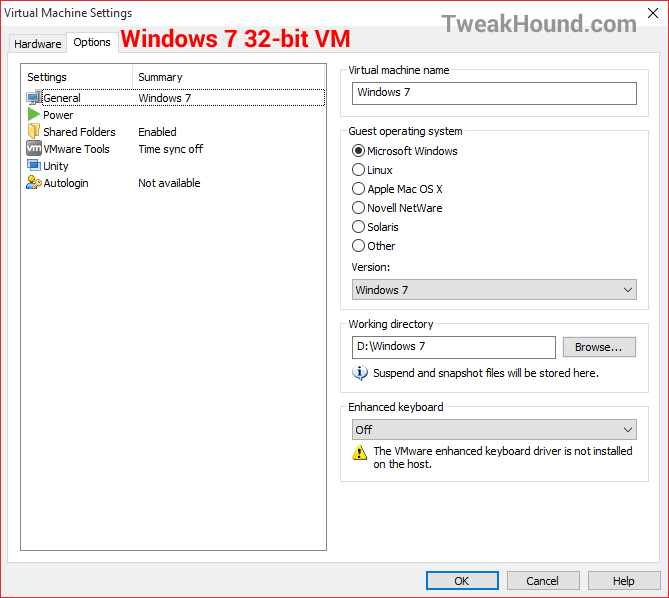
Some of my configuration screens
Windows 7:
openSUSE:
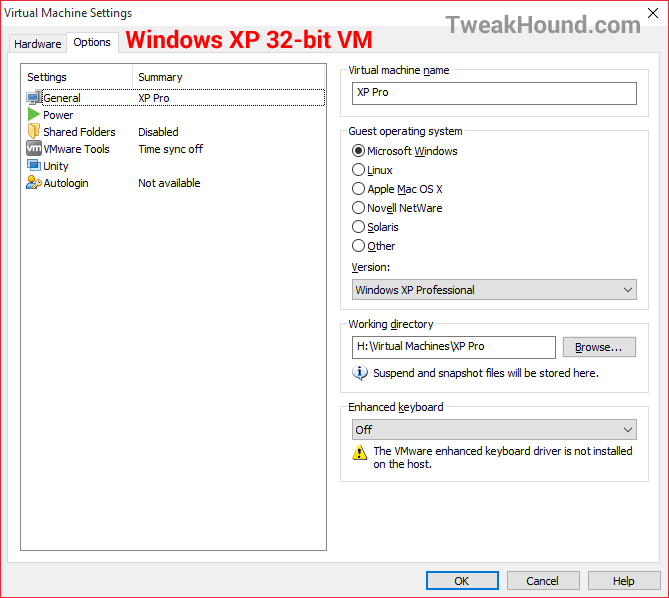
Windows XP:
-END-
I use dual booting as it works for me. Especially when it comes down to the different file formats from older operating systems such as; 16, 32 & 64bits. Some of my older programs will not run under the newer OS’s, even in compatibility mode. So I have XP to take care of that. If I want to get online with XP, I will close all unnecessary ports, a good anti-spyware and antivirus software installed. I will also monitor if any software uses my computer “to call home”. A great firewall is essential for safety. I use both, a host and hardware firewall. I also use mac filtering within my router.