
Edit – Not continuing this. No feedback.
****THIS IS BETA UNTIL FURTHER NOTICE****
Feedback wanted!
*Possibly NSFW adult language and, *gasp*, opinions follow***
This guide is designed to show you how I set up my system for gaming.
It is for GAMING ONLY though this could possibly benefit audio/video rigs too.
This guide is intended for advanced users only. I am not going to walk you through every step or show you how to edit a registry, or services, or find your network settings, etc. If you can’t do this stuff on your own then this guide is too advanced for you.
If you think gaming tweaks are all about FPS then this guide is not for you.
The Obvious, Blah, Blah, Blah
Most of you already know this but it has to be said.
Horsepower. With modern games it’s all about horsepower. You cannot get a stock 1969 VW Beetle to perform like a stock 2016 Hennessey Venom GT no matter how hard you try. If you want the best game play on modern games then break out your wallet, get an overclockable motherboard, buy a new-ish Intel I7 (unlocked), get the best graphics card you can afford (preferably one that is factory overclocked), at least 16GB of memory, and an SSD or 2. One click in my UEFI/BIOS on my old ASRock Z77 Extreme 4 takes my I7 3770k from a 3.9 turbo to 4.7 turbo. This resulted in a 10% bump in my PCMark score. There ain’t no amount of OS tweaks gonna do anything close to that.
My point is this. If you think tweaking Windows 10 is going to magically transform your computer you’re mistaken and I ain’t selling that snake oil. IMHO anyone who states otherwise is not to be trusted.
So, Why This Guide? Why Tweak At All?
To get Windows the hell out of the way of my games.
This guide should give a tiny boost to game play, keep Win10 from firing up crap in the background that rob resources, keep that crap off your network, and secure your PC a little more.
Also because I have seen some ” gaming tweak guides” out there that range from inept to moronic.
***
BACK UP YOUR COMPUTER WITH A SYSTEM IMAGE BEFORE DOING ANYTHING IN THIS GUIDE.
Don’t be fracking whining at me when you hose something and can’t recover.
I’m not kidding y’all. No backup, no sympathy.
***
The Install
Did you read the statement above? Did you follow that advice?
I have always had a separate install just for gaming. With operating systems before Win10 this involved duplicating an install via Ghost and later on Acronis True Image. With Win10 it is easy.
– Shrink the drive Windows is currently installed on.
– Install Win10 again in that new space. If it was activated on that same machine before it will activate again.
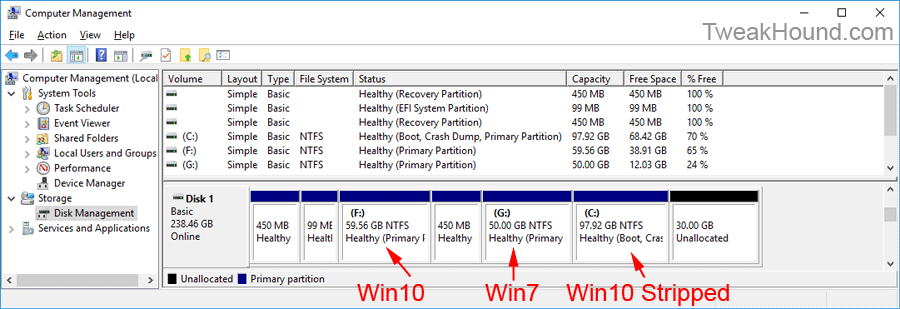
– I use EasyBCD to manage my booting. It’s just easier.
– Install all drivers, fully update Win10.
– Make another system image.
– Install your games. I prefer installing them to a different partition on a different SSD but this IS NOT a performance tweak. Make another system image.
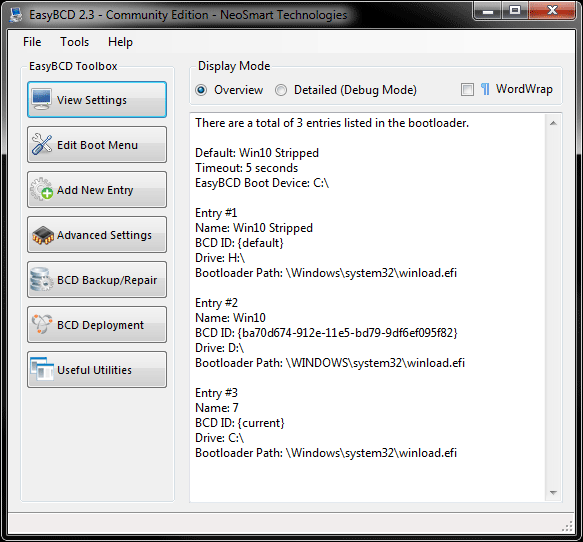
My OS Drive
EasyBCD
First Tweaks
Follow Tweaking Windows 10 to the letter. Everything below depends on you following this. These tweaks are all safe and will help you setup your system properly.
Power Plan
High. All options to Off, Disabled, Never, or Maximum. Disable hibernate.
Make another system image (getting the point?)
Now We Are Gonna Break Shit
No, seriously. We are going to break all kinds of functionality and features. This is the “game only” portion. You are going to essentially be left with Windows 10 that is darn near Windows 7 with the ability to play DX12 games and without the ability the share files, print, etc.
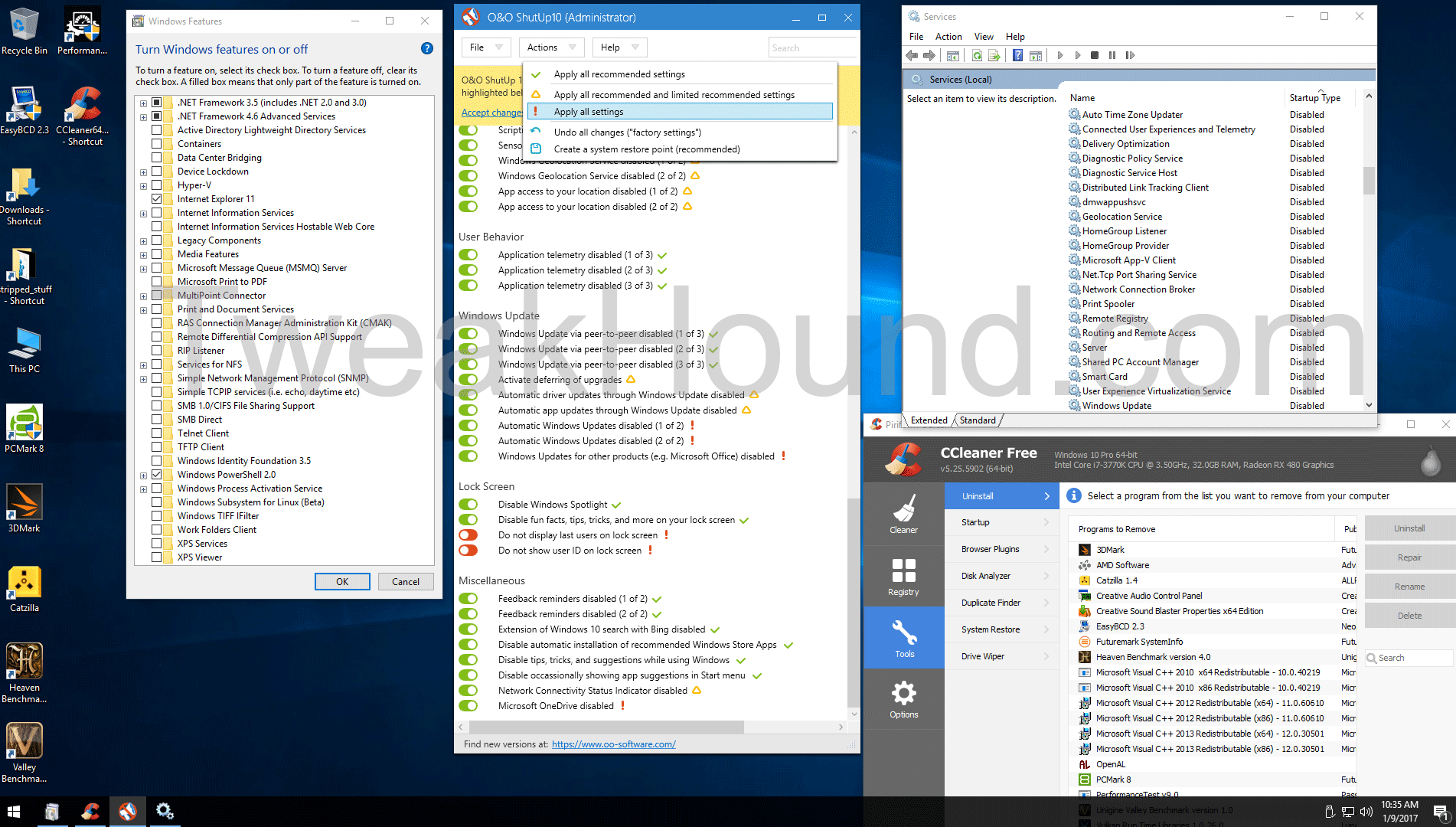
Click on this pic for full-sized image so you can see the settings discussed below.
Uninstall Unneeded Features
Control Panel\All Control Panel Items\Programs and Features > Turn Windows features on or off.
Install .Net 3.5 if you think you might need it.
Uninstall everything else except .Net 4.X and Windows Powershell.
See, I told you we were gonna break shit!
Uninstall Apps
Use CCleaner (portable) > Tools and uninstall every single app you don’t use and the Windows Store too if you don’t use it.
Be a frigging responsible adult about this and think before you uninstall stuff. For example, obviously if you use Xbox stuff you need those and if you need those you need the Store stuff.
O&OShutup10
Use Actions > All Settings. My preference is to then enable the following because I find the results annoying:
– Do not display last users on lock screen
– Do not show user ID on lock screen
Disable Services
Some of these are disabled by default, some of these were disabled by O&OShutup10. The Homegroup stuff shouldn’t fire up anyway but I ditch it because as an ex-network guy I hate the Homegroup with the fire of a thousands suns.
I disable:
Auto Time Zone Updater
Connected User Experiences and Telemetry
Delivery Optimization
Diagnostic Policy Service
Diagnostic Service Host
Distributed Link Tracking Client
dmwappushsvc
Geolocation Service
HomeGroup Listener
HomeGroup Provider
Microsoft App-V Client
Net.Tcp Port Sharing Service
Network Connection Broker
Print Spooler
Remote Registry
Routing and Remote Access
Server
Shared PC Account Manager
Smart Card
User Experience Virtualization Service
Windows Update
Network
If you have WiFi and Ethernet then disable the one you aren’t using.
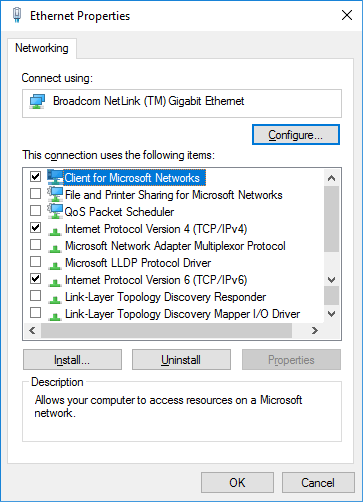
On the remaining card via that cards properties I disable everything except:
– Client for Microsoft Networks
– Internet Protocol Version 4
– Internet Protocol Version 6
YMMV, some cards have other protocols attached to them. What I have is below:
.
.
.
.
.
.
-END (for now)-
Good work so far, looking forward to the final version.
That is cool, however I’d appreciate a guide that is more “conservative”, so that I can use it for all purposes, I could sacrafice convenience for huge gains in games, but stopping or disabling printer spooler service to get additional 2 MB free RAM or 0.1 FPS is kind of pointless from my perspective.
It would just be nice to have 2 versions – the extreme one and the “acceptable” one. But that’s your guide, of course :).
“I’d appreciate a guide that is more “conservative”, so that I can use it for all purposes,”
Seriously? WTH? https://www.tweakhound.com/2015/12/09/tweaking-windows-10/
This one is:
a/ not aimed at performance – your own words
b/ does not even roughly state if there are any and if so then how big gains
Again, just watching, still at Windows 7 (W10 Insider since the very beginning and I really cannot start to like it, while I bought W7 the second they started selling it) but kind of checking if should jump to 10 or not.
a/ The guide you are looking for died with Windows XP.
b/ see a/
Interesting, looking forward to more.
I’ve been thinking about dualbooting same OS for gaming, but I’m not so sure if it is worth the inconvenience, nevertheless I have few questions:
-What are the real gains from disabling most services? Some benchmarks would be nice
-Do you have to activate the Windows every time you switch between system images?
-Isn’t it technically separate OS(thus it needs separate license)?
-Do you plan on touching on the subject of DPC Latency in this guide?
I’m not sure how to divide ~250GB drive for this purpose.
-50/50 %
-50GB for W10/ 200GB for W10stripped // or the other way around
-Can I share program files/games between both systems without conflict?
If yes, then i guess 50(W10)/50(stripped)/150(program files) should be fine.
There are benchmarks on this site for the little they are worth. I cannot benchmark you computer checking for updates to Windows, or programs, or apps, or the weather, or news…
If you follow the guide to the letter then 50GB would be fine, or 50/50 because your docs/pics/games/etc are on a separate drive.
DPC, no. I would have to have ever had an issue with this and I never have.
Activation, no.
good tips. release the latest one.tnx