
• Skip to primary navigation
  • Skip to main content
  • Skip to primary sidebar

TweakHound

Computer stuff...

  • Home
  • Windows XP
  • Windows Vista
  • Windows 7
  • Windows 8
  • Windows 10
  • Windows 11
  • Linux
  • Tweak Guides
  • Site Info
    • About
    • About Me
    • TweakHound’s World
    • Contact
    • My Computers
    • Old Articles
    • Privacy Policy
    • Old Index
    • Advanced Search

Windows 10 Creators Update, Windows Update Changes

thpinpostlogo

April 9, 2017, 10:26(EDT) By Eric (a.k.a. TweakHound)

***This is kinda a note-to-self thing in preparation for a new version of Tweaking Windows 10 (no, there is no time table for this). Thought y’all might find it useful.
Feedback wanted.

It should be noted. If you want any kind of control of Windows Update you need to be using Win10 Pro not Win10 Home.
The settings below are not present in Win10 Home.
Thanks to Chris for the reminder.

Location
Settings > Update & security > Advanced options
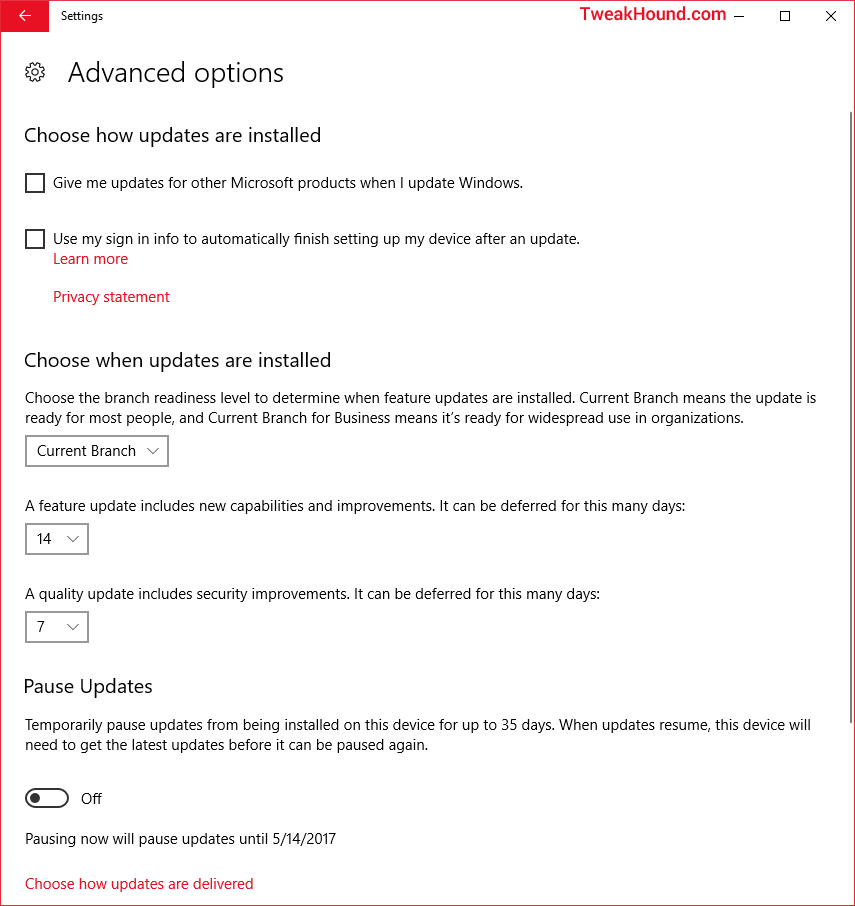
Branches
There are 2 main options; Current Branch and Current Branch for Business.
Current Branch (CB) standard settings are the normal setings you are used to. “Feature updates are available as soon as Microsoft releases them“.
Current Branch for Business (CBB) feature updates are delayed “about 4 months“.

Types Of Updates
Quality Updates – Security updates and some bugfixes. Think of this as the standard Patch Tuesday updates.
Feature updates – Big changes like the Anniversary or Creators updates. Akin to Service Packs or perhaps Update Rollups in older windows versions.

Deferring Updates
Quality Updates can be deferred up to 30 days
Feature Updates can be deferred up to 365 days
AND
You can add 35 days to both of these by using the Pause Updates button.

My Recommendation
Minimum 7 days, maximum 30 days delay on Quality Updates.
Minimum 14 days, maximum 180 days delay on Feature Updates.
You must monitor Ask Woody for when/if these updates are OK.
In particular, watch his MS-DEFCON level.

Maximum Deferral
Now, my understanding is the Pause Update delay is on top of the the Branch setting. So using the CBB option you can delay 4 months then you can apply the max of 365 days for Feature updates. This would mean 4 months + 365 days deferral.

Exclude drivers From Quality Updates
Not applicable to Windows 10 Home. (Unchanged from previous Win10 versions. Here for FYI.)
[HKEY_LOCAL_MACHINE\SOFTWARE\Policies\Microsoft\Windows\WindowsUpdate]
“ExcludeWUDriversInQualityUpdate”=dword:00000001

Sources:
https://technet.microsoft.com/en-us/itpro/windows/whats-new/whats-new-windows-10-version-1607
https://technet.microsoft.com/en-us/itpro/windows/update/waas-overview
https://technet.microsoft.com/en-us/itpro/windows/update/waas-configure-wufb

Tagged With: Windows 10

Reader Interactions

Comments

  1. Chris says

    April 9, 2017, 14:07(EDT) at 14:07

    Dont get those settings in Win 10 Home

    • Eric (a.k.a. TweakHound) says

      April 9, 2017, 16:00(EDT) at 16:00

      Noted. Thanks.

      • Kelly says

        April 9, 2017, 17:29(EDT) at 17:29

        Right, from Choose when updates are installed down is a no go for Home.

      • Chris says

        April 10, 2017, 15:25(EDT) at 15:25

        No problem Eric. All the best with your fund raiser! 🙂

  2. Dan says

    April 10, 2017, 00:10(EDT) at 00:10

    hi you up to doing Tweaking Windows 10 Redstone 2 Guide:)

    • Eric (a.k.a. TweakHound) says

      April 10, 2017, 07:07(EDT) at 07:07

      Yes. I just don’t know when it will be finished.

  3. James says

    April 11, 2017, 08:35(EDT) at 08:35

    Eric, I have a strange problem for you to think about during the fundraising. I updated both computers to the Creators Version. The laptop (W10 home 32 bit) went perfectly. The desktop (W10 pro 64 bit) is odd. The LogOn screen is grey, not the default colour. I can change it to show the Lock Screen image (which looks even worse) but not change the colour, which seems determined to stay grey.

    Oh, and fingers crossed that your spam filter likes me

    • James says

      April 16, 2017, 15:07(EDT) at 15:07

      Found the solution, although why it happened I don’t know.

      If I select “Automatically pick an accent colour from my background” the log on screen is grey, If I manually select a colour it goes to that colour, even if the hex code is the same.

      Odd

      • Eric (a.k.a. TweakHound) says

        April 16, 2017, 15:26(EDT) at 15:26

        That is odd but with Win10 odd is becoming the new normal.

Primary Sidebar

Popular Articles

Windows 10

Tweaking Windows 10

My Windows 10 Tweaks

Windows 10 Privacy Settings

Win10 Diagnostics Tracking Service Gone?

Windows 10 Advanced Disk Cleanup

Win10 Customize Installation Options

Windows 10 Dark Theme

Win10 Wallpapers, Graphics, etc.

All Windows 10 Articles

Windows 8

Tweaking Windows 8.1

Advice On Installing Windows 8.1

Clean Install Windows 8.1

Cleanup After Windows 8.1 Upgrade

Create Shutdown, Restart, Logoff Tiles For Windows 8

Tweaking Windows 8

Install Windows 8 – Clean Install With Upgrade Media

Install Windows 8 – Upgrade

Windows 8 – Cleaning Up After You’ve Upgraded

Windows 8 Freeware Machine

Windows 8 SSD Settings, Etc.

How To Resize Your Windows 8 Partition

Create Windows 8 Recovery Media

Windows 8 – Elevated Command Prompt

How To Fix The Windows Bootloader

Windows 7

Installing Windows 7

Tweaking Windows 7

Windows 7 Diagnostics Tracking Service

The Windows 7 Freeware Machine

The Windows 7 Pagefile And Running Without One

Bad Tweaks

SSD Tweak Guide (sort of)

The noguiboot (no GUI Boot) Tweak

NtfsMemoryUsage=2 Tweak

More Windows 7 articles here.

Windows Vista

Installing Windows Vista

Tweaking Windows Vista

More Windows Vista articles here.

Windows XP

eXPired - The Last Windows XP Guide You'll Ever Need

The Right Way To Install Windows XP

Super XP Tweaking Guide

The Freeware XP Machine

Bad Tweaks

More XP Articles here and here.

Backup

Backup Article Greatest Hits – Vol. 1

Other

Cataloging Your Music Collection

Finding Good Album Art

Converting Vinyl Records To Digital Music – A Non-Audiophiles Guide

Windows All-In-One Recovery Flash Drive

SSD Tweak Guide (sort of)

Raidmax Blackstorm Case Review

Disk Partitioning

Ditch Those CD's! A Guide To Using USB Flash Drives

Checking Your Disks For Problems

Bad Tweaks

More articles here

Tags

Android Backup Beer Computer Hardware Computer News Cool Tools Freeware How-To's Linux Off Topic openSUSE Playlists Privacy Security Software This Site vacation Veterans Windows 7 Windows 8 Windows 10 Windows 11 Windows Vista Windows XP

TweakHound - Optimize Your Computing Experience! TweakHound - Optimize Your Computing Experience!

Copyright 2002-2025 by Eric Vaughan All material contain here is the property of the materials owner. Windows, Windows XP, Windows Vista, Windows Seven, Windows 8, Windows 10, Windows 11, Microsoft, and all associated logos are trademarks/property of Microsoft. You may not use or copy any material from tweakhound.com without expressed written permission. Hotlinking to any material within this site is forbidden. Privacy Policy