
Just a quick how-I-do-it.
I do 80% of my internet activity in my Mint VM.
If you’ve got another VM then back your stuff up before continuing.
This usually just involves copy/paste.
I use Firefox mainly in this VM.
You can use a profile from Windows or Linux.
Backup Firefox profile:
How do I find my profile?
– Click the (hamburger) menu button , click Help and select Troubleshooting Information. The Troubleshooting Information tab will open.
– Under the Application Basics section next to Profile Directory, click Open Directory. Your profile folder will open.
Copy that entire folder somewhere.
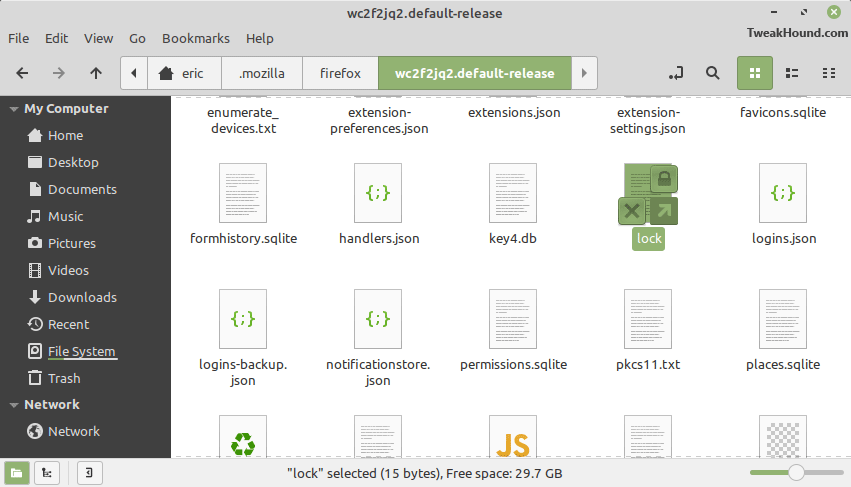
* In Mint you need to delete the lock file in that directory to be able to copy it.
Download Linux Mint: https://linuxmint.com/download.php
Download VMware Workstation 16.1.0 Player and install it. Reboot
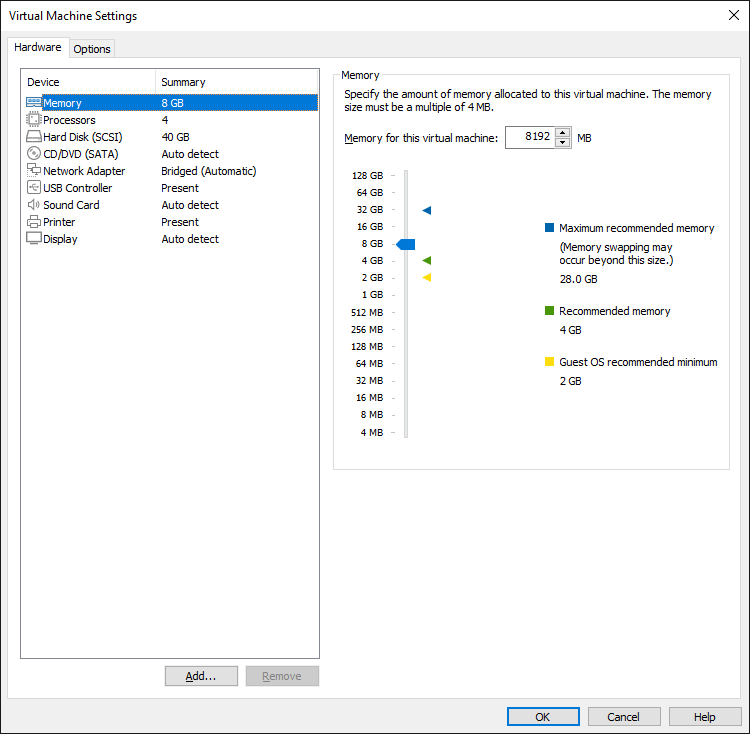
Open VMware > Create a New Virtual Machine > Installer disc image file (iso) > Version = Ubuntu 64-bit > Name it and pick a location. I put my VM on a separate SSD > I use 40GB because I do a lot of downloading, I prefer to Store virtual disk as a single file > Customize Hardware… The defaults for disk size (20GB) are fine. I’ve got 32GB of physical RAM so giving this VM 8GB is fine. The recommended size of 4GB is cool too. I use Bridged for my network connection as it replicates a physical machine though some would argue that NAT is more secure: VMware – Understanding Common Networking Configurations
During install I check the option to install multimedia codecs.
After install then Shut Down not Reboot. Edit virtual machine settings and change CD to Use physical drive.
Most Linux distros include some kind of VMware support. Often this is Open VM Tools which IMHO have never been any good. On first boot I install VMware Tools. This allows better interaction between the VM and Windows: Overview of VMware Tools
Installing and Upgrading VMware Tools
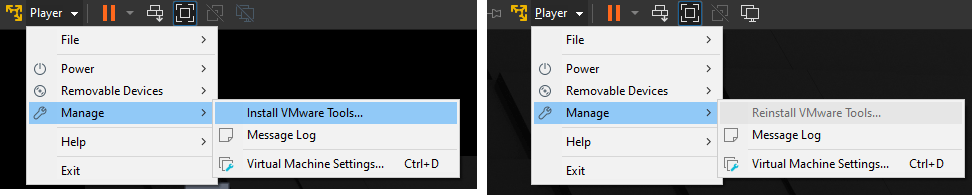
Go to: Player menu > Manage > Install VMware Tools or Reinstall VMware Tools.
If the option is greyed out then power off the VM and Edit virtual machine settings and Delete the CD drive and then add new one.
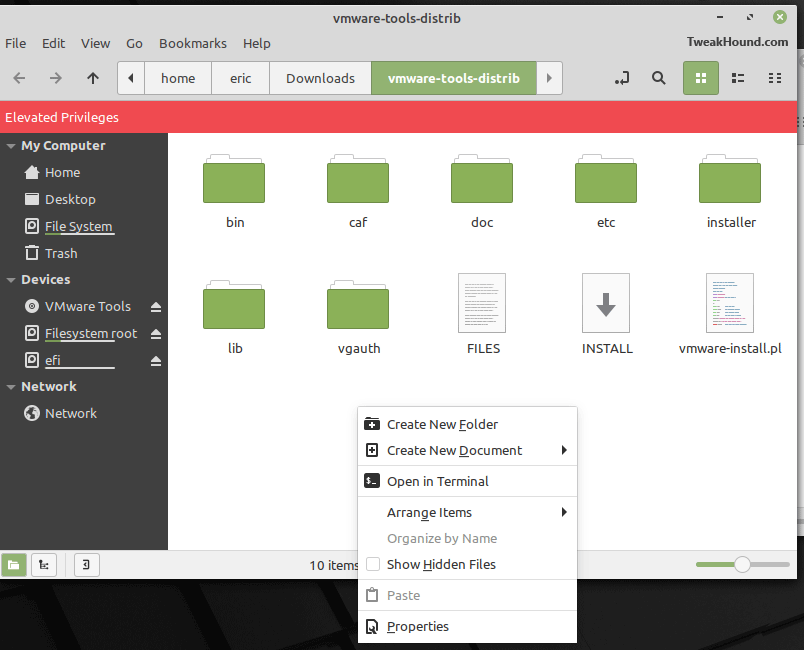
This will load what looks like a CD and the file explorer should come up. Copy the VMwareTools-xxxx-tar.gz file to your Downloads folder and then right-click Extract Here.
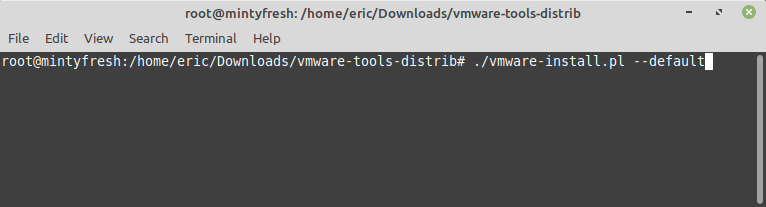
This will create a vmware-tools-distrib folder. Right-click on the folder and Open as Root then enter your password. Now right-click inside that folder and choose Open in Terminal.
Enter the following ./vmware-install.pl –default press Enter. Reboot when completed.
Next I install Chromium and Bleachbit.
Then I copy my backed up Firefox folder to the new Firefox folder.
– Launch and then close Firefox
– copy profile folder to: home directory > .mozilla > Firefox
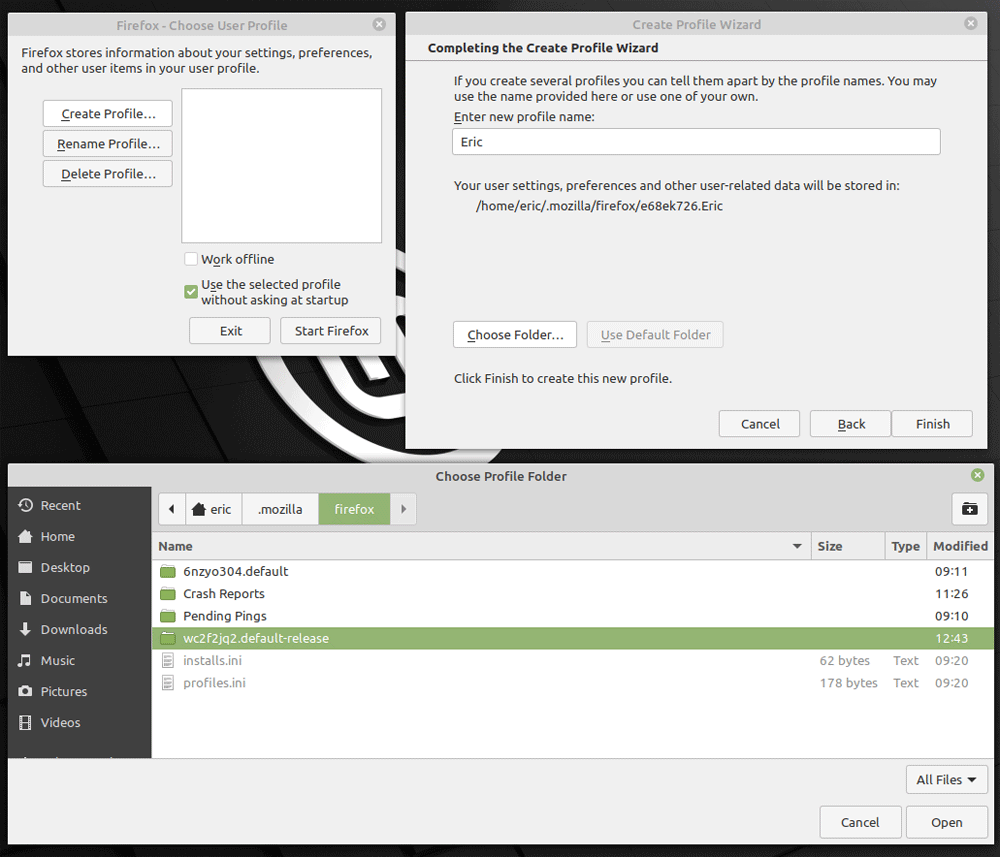
– Press the Alt + F2 keys (this is like the Windows + R keys in Windows) > type firefox -P and press Enter (there is a space between firefox and the minus sign).
– Create Profile > name it > navigate to the profile folder you just copied in > the Exit > Finish > Start Firefox
Optional: Antivirus In Your Linux Mint VM
-END-
ThanQ
I just downloaded the Mint ISO to my desktop yesterday, downloaded 16.1 and created a VM from the ISO. Couldn’t have been easier. I’ll look at your notes for refinement. I like your idea of running the VM from an external SSD (for travel?).
Question: with a VM, is history of any sort recorded in WIN10, or is it all quarantined within the VM?
Not external just separate. Once you have a VM up and running you can copy it to other machines.
A VM is sandboxed.
Hi. Whats the whole idea behind doing 80% of your internet activity in your Linux VM ? No trace browsing because you’re on a work computer? Thx
Security. For me it is a better alternative than a sandbox.
Thanks for this brief how-to. I got Linux mint installed, and it’s fun!
Can’t wait to do more on linux…
Hi Eric, just a quick question.
I have been trying to run World of Warcraft on Linux for around 15 years or so. Last year I did get it set up and it lasted about an hour, I tried a lot of versions but”Ubuntu” seems to work kind of sort of.So I wondered if you knew anything about it.Thanx.
Sorry, other than Tux Racer I haven’t played any games on Linux
Worth a shot… thanks for your time.