Although not officially released, Firefox 5 (scheduled for June 21st) has hit the main Mozilla FTP servers.
Since several locations have reported this as being released I figured I might as well post it.
Links:
Windows (en-us) or try Major Geeks.
For others you can find it on the ftp site.
BleachBit 0.8.8 Released
Hit the link for downloads and release notes: BleachBit 0.8.8
BleachBit quickly frees disk space and tirelessly guards your privacy. Free cache, delete cookies, clear Internet history, shred temporary files, delete logs, and discard junk you didn’t know was there. Designed for Linux and Windows systems, it wipes clean 90 applications including Firefox, Internet Explorer, Adobe Flash, Google Chrome, Opera, Safari,and more. Beyond simply deleting files, BleachBit includes advanced features such as shredding files to prevent recovery, wiping free disk space to hide traces of files deleted by other applications, and vacuuming Firefox to make it faster. Better than free, BleachBit is open source.
AMD / ATI Catalyst 11.6 Drivers Are Out
AMD / ATI Catalyst 11.6 drivers are available for XP, Vista, and Windows 7. Linux 11.6′s available here.
Fun With Audio Players
New article up: Fun With Audio Players
Fun With Audio Players
***PLEASE SEE – Fun With Audio Players – 2015***
“Everyone talks about rock these days; the problem is they forget about the roll.” Keith Richards
The last several years whenever anyone brings up which audio player software to use, the focus seems to be on low resource usage.
I’m guilty of it too.
I’ve been getting back into having a little fun listening to music on the computer.
I thought I would post an article on this topic. This article is really a collection of screen shots and links.
Hopefully you’ll see something you like and check out some of the links.
For those new to this topic. Many audio players have two things you can do to the interface: skin it, and add a plugin.
Skins change the look of the interface. Plugins can add sound and visual enhancements.
Some of the screen shots are large so I’ve thumbnailed them. Click on the small pic for a larger one.
Load up your current audio player with your favorite tunes, put on your rock-n-roll shoes, grab an adult beverage and check out the screen shots.
The order is kinda by popularity, except my 2 favorites are last.
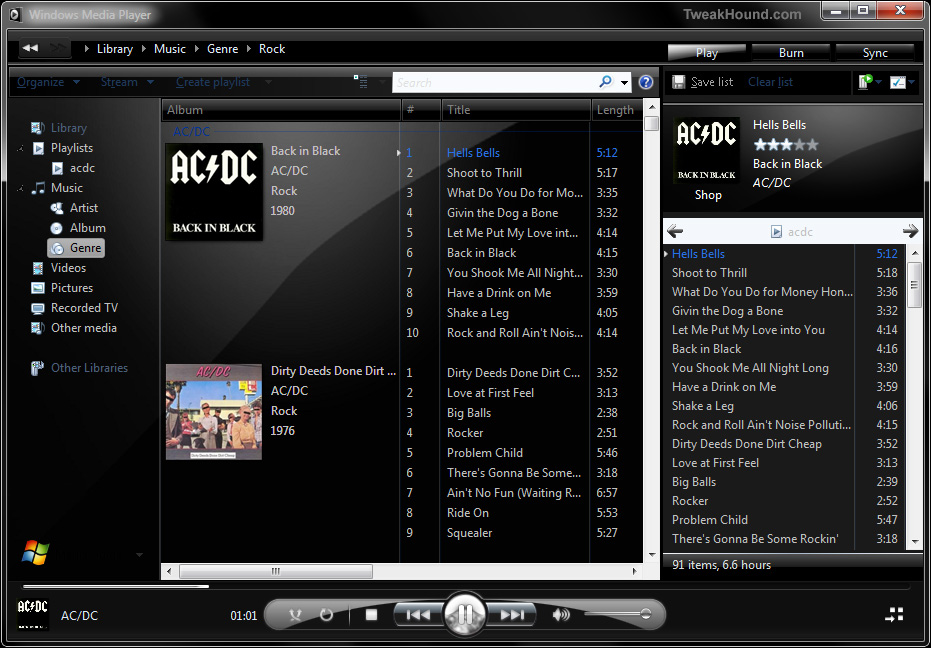
1 – Windows Media Player 12
WMP 12? Yup, you can skin it. WMP 12 skins here, other WMP versions here.
(click image for larger pic)
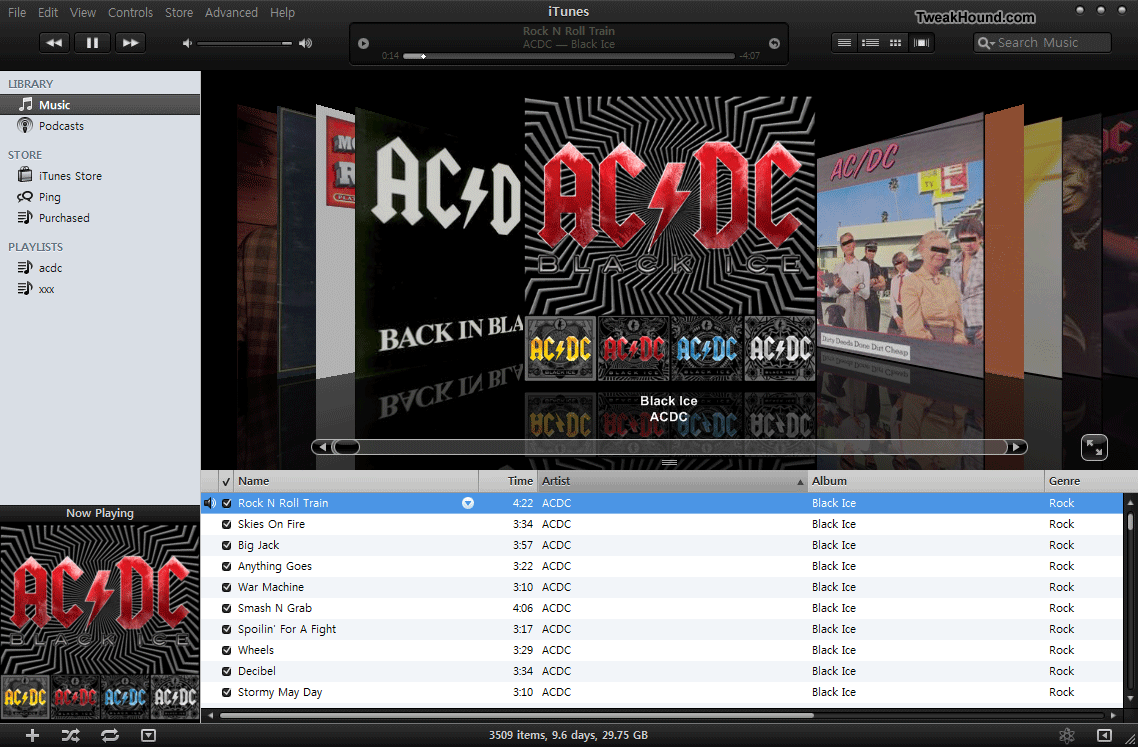
2 – iTunes
Snaz up the cruddy interface. iTunes skins here. (make sure the skin corresponds to the version of iTunes your are running).
(click image for larger pic)
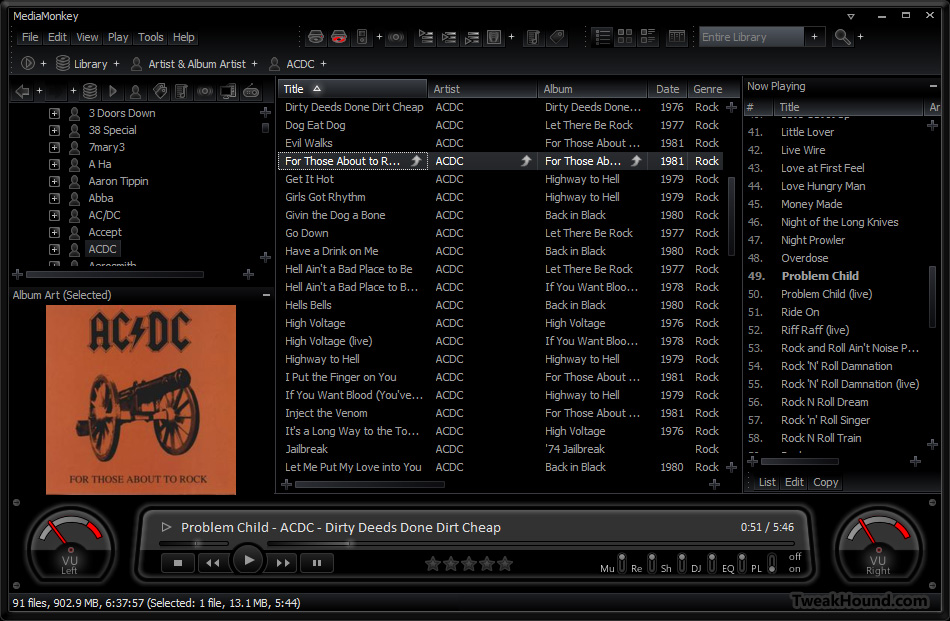
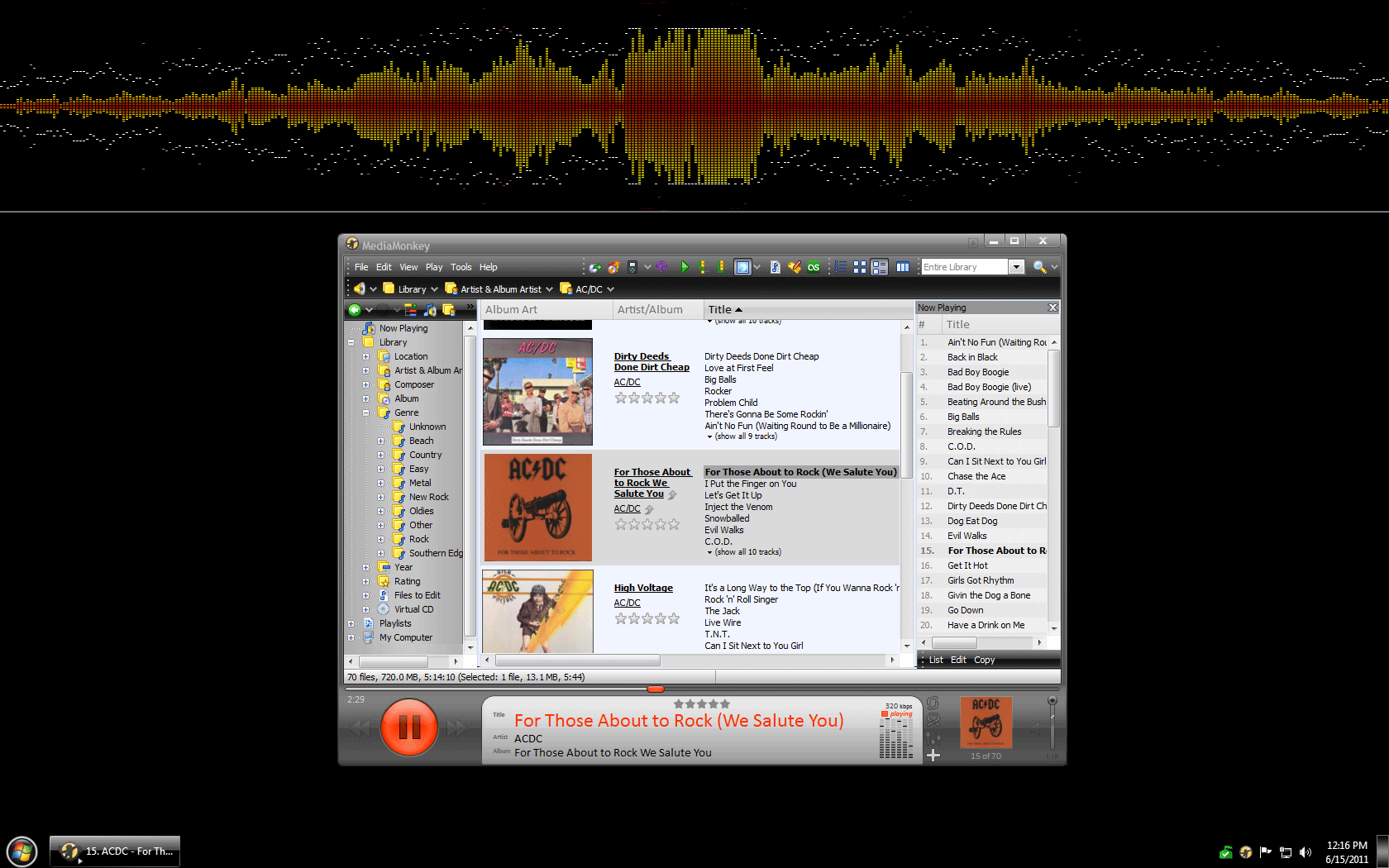
3 – MediaMonkey
Skins available here.
Vision VU skin (click image for larger pic)
You can even add some Winamp plugins. (click image for larger pic)
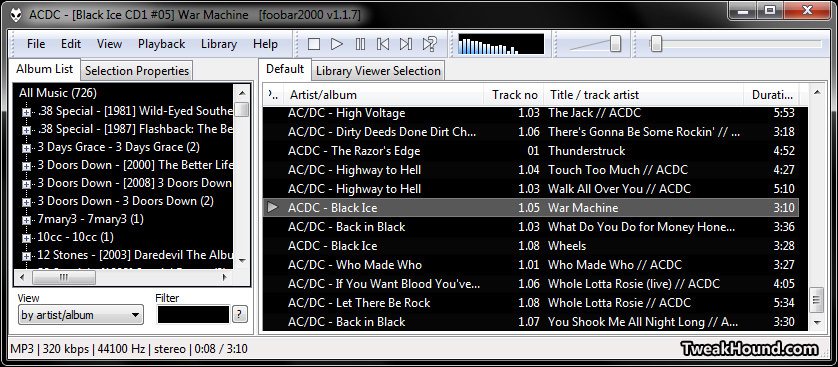
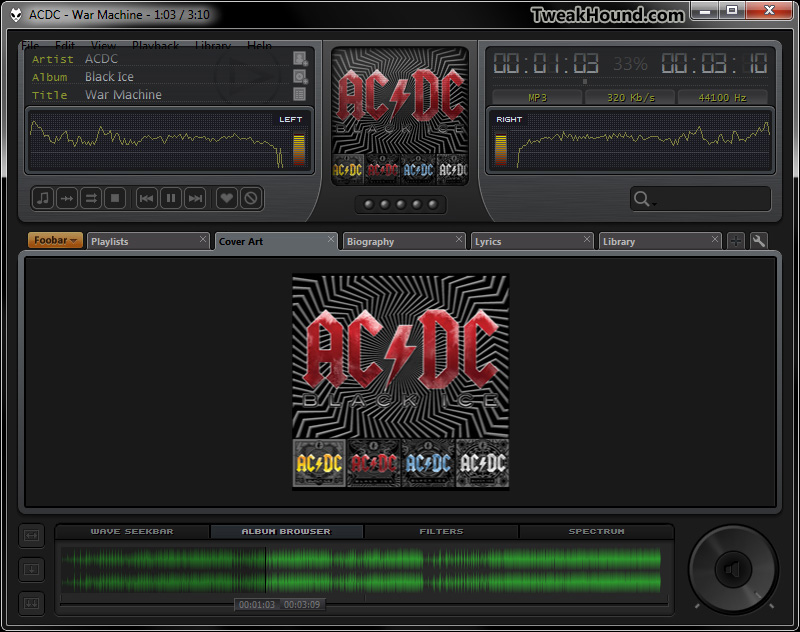
4 – Foobar
Skins here.
Default screen. Nasty!


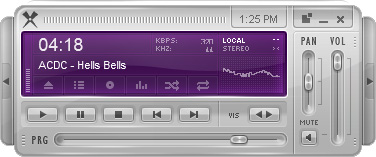
5 – Xion
Skins here.
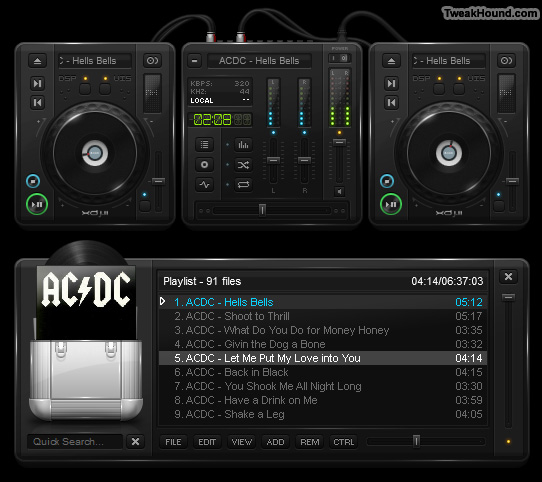
Default screen.

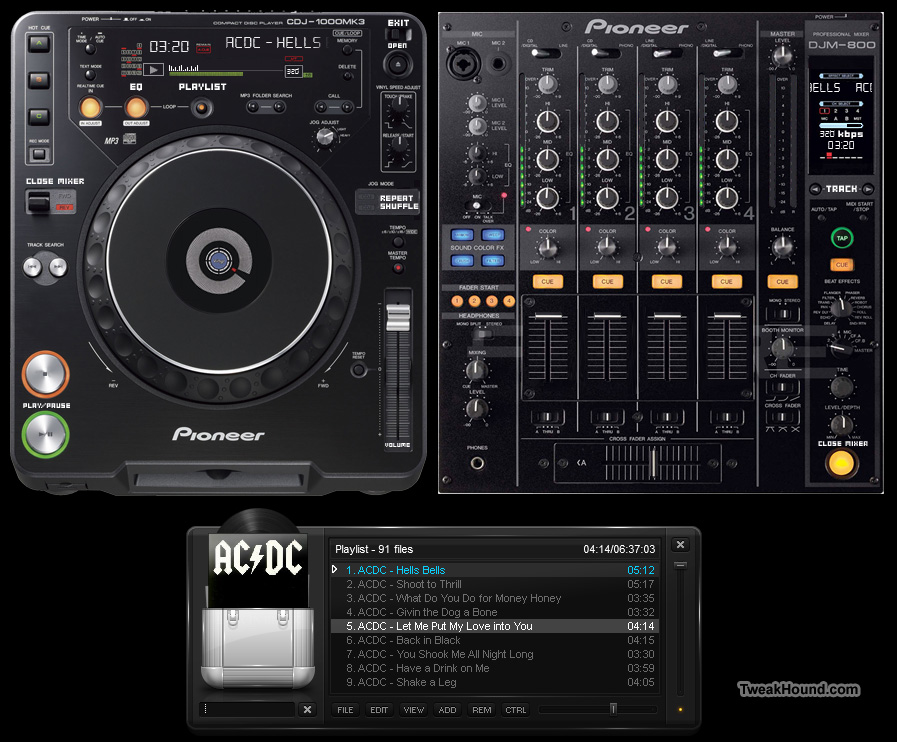
CDJ 1000 skin (click image for larger pic)

MY FAVORITES
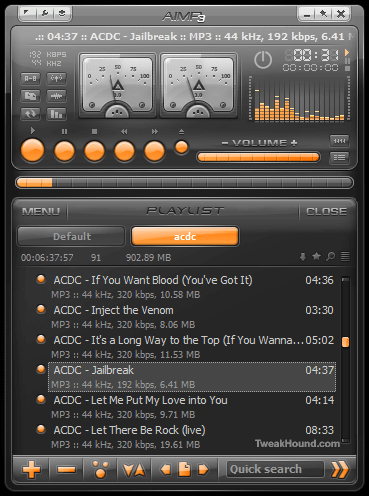
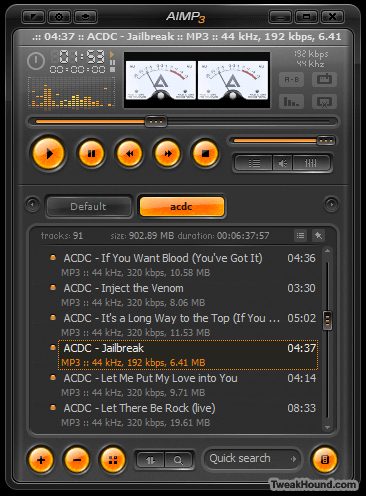
Runner-Up: AIMP3
Sleek, beautiful, compact, and fast.
Currently in Beta. Original AIMP2 page (U.S.). Russian page (Translated by Google) with updated Beta info and downloads.


My Favorite: Winamp
Yes the “old” and much maligned Winamp.
Why? Switch between modern and classic skins, plugins galore, Android for Winamp w/ syncing…
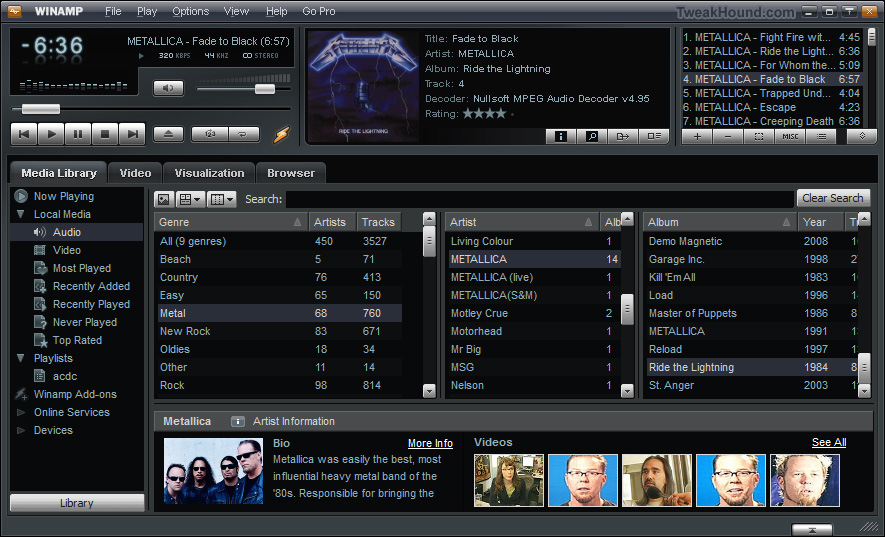
The default skin with all the modern features. (click image for larger pic)
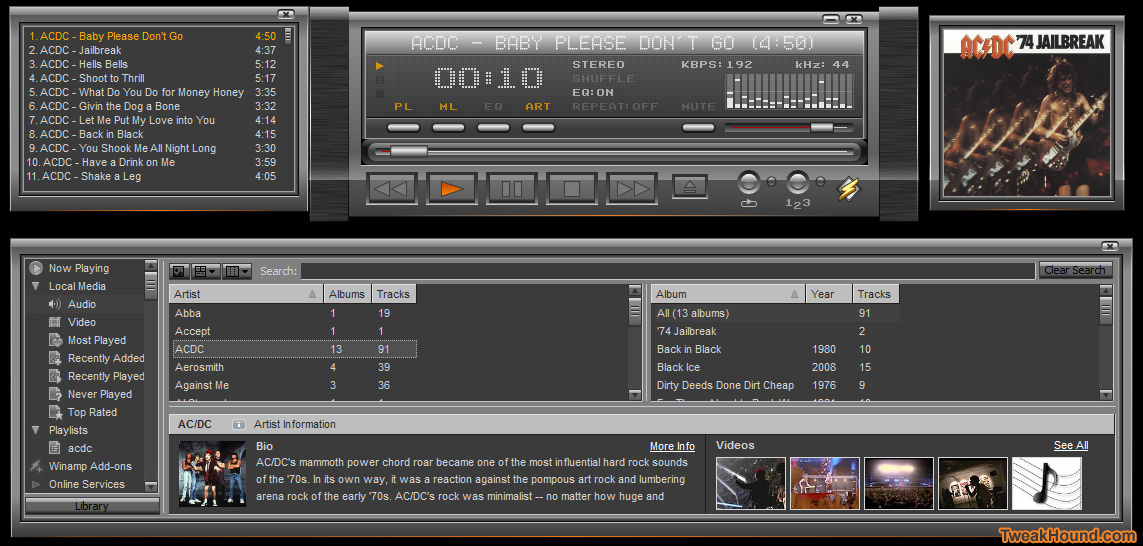
Modern skin Quinto. (click image for larger pic)
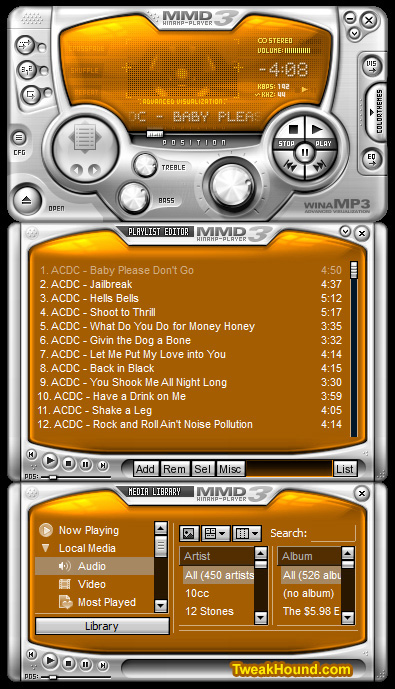
Winamp skin MMD3. It’s colorizable!

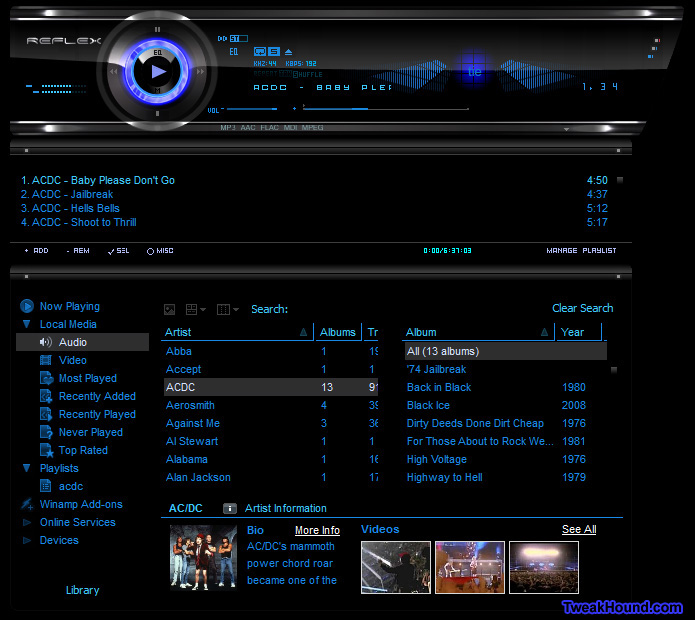
Winamp skin S7Reflex.

Now for my favorite Winamp setup:
– Classic skin
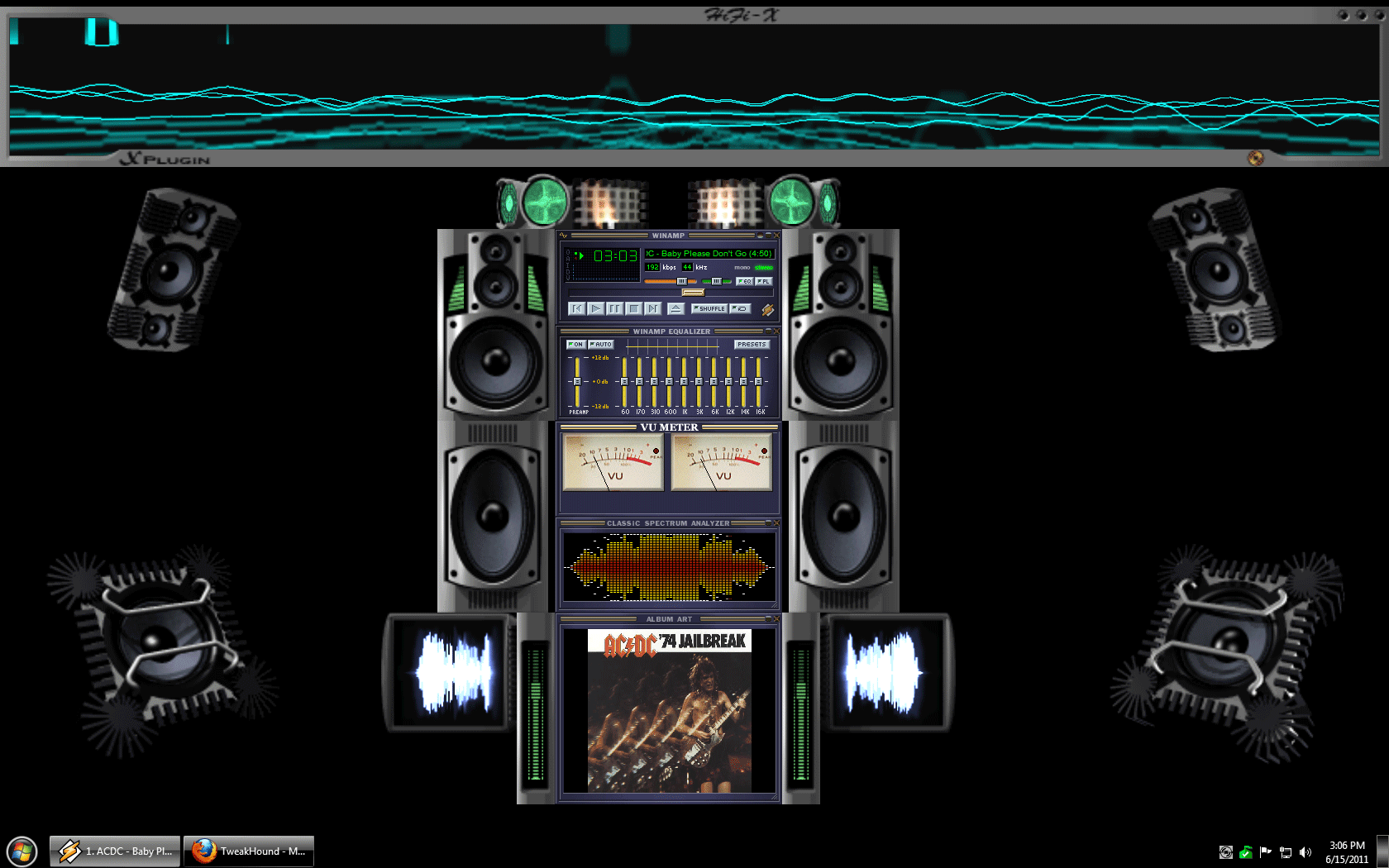
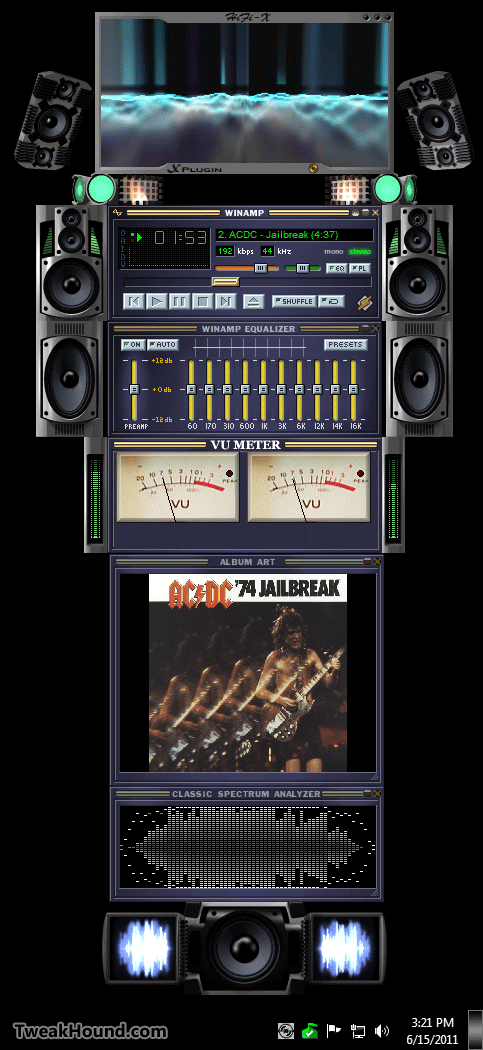
– I use the Vizualisation Mux plugin. It allows me to run all the plugins below (tip: configure each plugin before adding to and running this one)
– X-Plugin
Full screen (click image for larger pic)
Sidebar style.

Hope you have some fun listening to music too!
Ditch Those CD's! A Guide To Using USB Flash Drives
New reader inspired article up:
Ditch Those CD’s! A Guide To Using USB Flash Drives
Page 1 – Article Intro, Flash Drive Booting, Advanced USB Drive Formatting
Page 2 – Install Windows 7 or Windows Vista From A USB Flash Drive
Page 3 – Install Windows XP From A USB Flash Drive
Page 4 – Install a Linux Operating From A USB Flash Drive or Boot from one or more Linux Live CD’s on a USB Flash Drive
Page 5 – Utility And Rescue Bootable USB Flash Drive
Page 6 – Portable Apps And USB Flash Drive PC Toolbox
Page 7 – What I Use & Other USB Info
Adobe Reader X, Adobe Flash & Shockwave Players Updated
Security Fixes. Get them from Major Geeks to avoid the Adobe Download Manager:
Adobe Flash
Adobe Reader X
Adobe Shockwave
Time To Run Windows Update
A whole lotta updates today! Microsoft Security Bulletin Advance Notification for June 2011

Backup Your Phone Contacts
I wrote a quick guide for my friends on this topic (mostly just links on how-to). I’m the only Geek among them. The article is unnecessary for my fellow Geeks I know.
Backup Your Phone Contacts
Backup Your Phone Contacts!
Lately there seems to have been a rash of broken, lost, or stolen phones amongst my friends.
For many of you this means lost contacts.
In an endeavor to save you this problem in the future I have prepared the following quick guide (mostly just links on how-to).
As a side note. Some of you that have lost your contacts may in fact have had the below solutions already running without your knowledge.
Running the restore feature of the below apps could restore your contacts.
Bottom line is that every phone has an option and/or method for you to backup and restore your contacts.
How To backup Your Phone Contacts
Apps
There are several apps that will backup contacts for iPhones, Blackberrys, and Android phones.
Search your particular app store for:
iDrive – The “lite” version is free. Does iPhone, Blackberry, Android.
MyBackup Pro – $5 in the Android Market.
Titanium Backup – $6 in the Android market. Requires ROOT (if you don’t know what that is then you don’t want this).
There are of course other backup apps. You’ll just have to search your App Store / Market. Be sure to read the reviews!
iPhone
When you get an iPhone you’ve committed yourself to having to use iTunes to manage your phone from a computer.
http://support.apple.com/kb/HT1766
Android
Droids are built to use Gmail (rather the OS is). If you’ve got a droid get a Gmail account.
You can configure your phone to sync automatically.
Although your phone isn’t going to look exactly like the pic below, the steps to turn this feature on will be similar enough for you to figure it out.

Carriers
AT&T
AT&T uses an application called Mobile Backup.
https://mobilebackup.att.com/jebber/public/att/faqs.html
It works with most AT&T phones EXCEPT iPhones.
Sprint
Sprint uses an application called Mobile Sync.
http://ecenter.custhelp.com/app/answers/detail/a_id/850/~/access-sprint-mobile-sync-online-after-you%27ve-registered
Tmobile
Same deal as AT&T.
http://support.t-mobile.com/doc/tm23951.xml;jsessionid=wts6BW3IIB8Ef8_4Fs
Verizon
Verizon uses an application called Backup Assistant.
http://support.vzw.com/how_to_use/backup_assistant.html
for iPhone:
http://support.vzw.com/how_to_use/transfer_contacts/iphone_vz_transfer.html
———-
FWIW – I’ve got a rooted Droid X on Verizon. I use Gmail sync and Titanium Backup (I also export those contacts from Gmail to a .csv file to my computer). I’m currently not using the Backup Assistant.