
• Skip to primary navigation
  • Skip to main content
  • Skip to primary sidebar

TweakHound

Computer stuff...

  • Home
  • Windows XP
  • Windows Vista
  • Windows 7
  • Windows 8
  • Windows 10
  • Windows 11
  • Linux
  • Tweak Guides
  • Site Info
    • About
    • About Me
    • TweakHound’s World
    • Contact
    • My Computers
    • Old Articles
    • Privacy Policy
    • Old Index
    • Advanced Search

TweakHound’s Super XP Tweaking Guide – SP3 Final

July 26, 2011, 16:54(EDT) By Eric (a.k.a. TweakHound)

Broadband Tweaks

This is mostly a where to find tools & information guide than a how-to guide. The simple truth is that there is no one-size-fits-all way to tweak a broadband connection. Anyone who tells you that a certain tweak will absolutely work for you is mistaken. These tweaks take some effort on your part. Fortunately there are 2 great place to go for info and discussions, SpeedGuide.net  and Broabdandreports.com. I actually like SpeedGuide a little better but you should check them both out. If you get all you want from your connection, my best advice is to leave it alone. For those of you who, like me, never leave well enough alone, read on!

The first thing you need to do is download the latest drivers/firmware for whatever equipment is involved in your connection. Everything that is in the chain should be updated. This may include: NIC or onboard LAN drivers, 802.11x device drivers, USB drivers, and Router and/or Cable/DSL/Satellite Modem firmware. Only update firmware if needed. Routers often have updates to fix security holes.

If you are on a home network or are part of an Internet Connection Sharing (ICS) network, all the machines on that network should have the exact same settings.

 About the QOS “tweaks” floating around the net. Ignore them, they don’t work!

Tweaking with SpeedGuide.net

1 – Download TCP Optimizer. Then bookmark the FAQ page.

2 – Take the Speed Test (requires registration) or use the Speed Test at Broadbandreports. Write down your results.

3 – Use the TCP Analyzer. Write down or print the results.

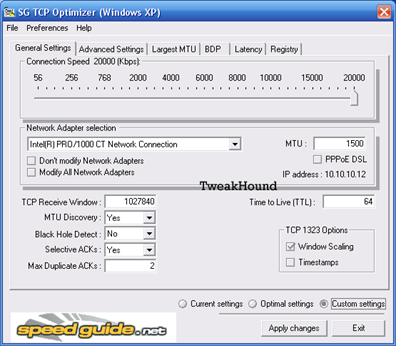
4 – Run TCP Optimizer. Either apply the recommendations from TCP Analyzer or try the “Optimal Settings” button. Reboot.

5 – Run Speed Test again. Faster? Sweet! No? Use TCP Analyzer again. Repeat as needed until desired results are achieved. Be sure to check how your web browsing feels too.

TCP Optimizer

 Tweaking with Broadbandreports.com

1 – Download Dr.TCP. Then bookmark the FAQ page.

2 – Take the Speed Test. Write down your results.

3 – Take the Tweak Test. Write down or print out the results/recommendations.

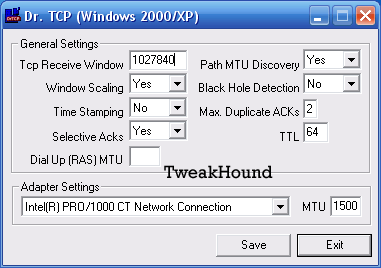
4 – Run Dr.TCP, apply recommendations, reboot.

5 – Take Speed Test again. Faster? Cool! No? Take the Tweak Test again. Repeat as needed until desired results are achieved. Be sure to check how your web browsing feels too.

Other places for speed tests:

Speedtest.net

List of NDT servers (use one that is closest to you)

http://e2epi.internet2.edu/ndt/ndt-server-list.html

Speakeasy (use the server that is closest to you)

PC Pitstop

Pages: Page 1 Page 2 Page 3 Page 4 Page 5 Page 6 Page 7 Page 8 Page 9 Page 10 Page 11 Page 12 Page 13 Page 14 Page 15 Page 16 Page 17

Tagged With: How-To's, Windows XP

Primary Sidebar

Popular Articles

Windows 10

Tweaking Windows 10

My Windows 10 Tweaks

Windows 10 Privacy Settings

Win10 Diagnostics Tracking Service Gone?

Windows 10 Advanced Disk Cleanup

Win10 Customize Installation Options

Windows 10 Dark Theme

Win10 Wallpapers, Graphics, etc.

All Windows 10 Articles

Windows 8

Tweaking Windows 8.1

Advice On Installing Windows 8.1

Clean Install Windows 8.1

Cleanup After Windows 8.1 Upgrade

Create Shutdown, Restart, Logoff Tiles For Windows 8

Tweaking Windows 8

Install Windows 8 – Clean Install With Upgrade Media

Install Windows 8 – Upgrade

Windows 8 – Cleaning Up After You’ve Upgraded

Windows 8 Freeware Machine

Windows 8 SSD Settings, Etc.

How To Resize Your Windows 8 Partition

Create Windows 8 Recovery Media

Windows 8 – Elevated Command Prompt

How To Fix The Windows Bootloader

Windows 7

Installing Windows 7

Tweaking Windows 7

Windows 7 Diagnostics Tracking Service

The Windows 7 Freeware Machine

The Windows 7 Pagefile And Running Without One

Bad Tweaks

SSD Tweak Guide (sort of)

The noguiboot (no GUI Boot) Tweak

NtfsMemoryUsage=2 Tweak

More Windows 7 articles here.

Windows Vista

Installing Windows Vista

Tweaking Windows Vista

More Windows Vista articles here.

Windows XP

eXPired - The Last Windows XP Guide You'll Ever Need

The Right Way To Install Windows XP

Super XP Tweaking Guide

The Freeware XP Machine

Bad Tweaks

More XP Articles here and here.

Backup

Backup Article Greatest Hits – Vol. 1

Other

Cataloging Your Music Collection

Finding Good Album Art

Converting Vinyl Records To Digital Music – A Non-Audiophiles Guide

Windows All-In-One Recovery Flash Drive

SSD Tweak Guide (sort of)

Raidmax Blackstorm Case Review

Disk Partitioning

Ditch Those CD's! A Guide To Using USB Flash Drives

Checking Your Disks For Problems

Bad Tweaks

More articles here

Tags

Android Backup Beer Computer Hardware Computer News Cool Tools Freeware How-To's Linux Off Topic openSUSE Playlists Privacy Security Software This Site vacation Veterans Windows 7 Windows 8 Windows 10 Windows 11 Windows Vista Windows XP

TweakHound - Optimize Your Computing Experience! TweakHound - Optimize Your Computing Experience!

Copyright 2002-2025 by Eric Vaughan All material contain here is the property of the materials owner. Windows, Windows XP, Windows Vista, Windows Seven, Windows 8, Windows 10, Windows 11, Microsoft, and all associated logos are trademarks/property of Microsoft. You may not use or copy any material from tweakhound.com without expressed written permission. Hotlinking to any material within this site is forbidden. Privacy Policy