
• Skip to primary navigation
  • Skip to main content
  • Skip to primary sidebar

TweakHound

Computer stuff...

  • Home
  • Windows XP
  • Windows Vista
  • Windows 7
  • Windows 8
  • Windows 10
  • Windows 11
  • Linux
  • Tweak Guides
  • Site Info
    • About
    • About Me
    • TweakHound’s World
    • Contact
    • My Computers
    • Old Articles
    • Privacy Policy
    • Old Index
    • Advanced Search

TweakHound’s Super XP Tweaking Guide – SP3 Final

July 26, 2011, 16:54(EDT) By Eric (a.k.a. TweakHound)

The Page File

There is a lot of bad advice and misunderstanding on the web of how virtual memory (and thus the page file) works in XP. For those interested in further reading check out Understanding Virtual Memory , Virtual Memory in Windows XP, and How to configure paging files for optimization and recovery in Windows XP. The following recommendations are based on research, information gathered around the web, and personal experience dealing in a variety of configurations.

1.   The average user is best served by LEAVING THE PAGE FILE ALONE. XP does an excellent job of managing the page file settings for most people.

2.      For 99.999% of the configurations on the planet you need a page file. XP itself wants one and a number of programs out there do too. (Please don’t email me to argue this, I won’t respond. Find a forum to argue about it.)

3.      The recommendations below are not designed to give you the highest scores on a synthetic benchmark but to give you the best overall performance for your system (including stability). The size of hard drives today are huge and making the page file a little larger than it “needs” to be hurts nothing and you’re covered if you’re ever doing something that requires more.

More good links:

RAM, Virtual Memory, Pagefile and all that stuff (short version at MS)

RAM, Virtual Memory, PageFile and all that stuff (full article)

Comparison of 32-bit and 64-bit memory architecture for 64-bit editions of Windows XP and Windows Server 2003 

Action: Adjust Page File

Purpose: Performance. Stability.

More Info – see the links above

To adjust the page file:

Click on the Advanced tab > check both boxes that say “Programs” Under the Virtual memory section you should make adjustments here if your system can handle it. Click Change here. “Super geeks” will either:

A: Remove the page file from the drive the OS is on and make a separate partition at the beginning of a separate disk from the OS just for this (preferably on a different chain from that disk also). Use the same settings for the page file that XP had on the other drive (ram x 1.5 min, ram x 3 max). If you have several disks you can spread the page file out over them also. For those who wish to spread the page files out across multiple drives. XP will use the drive(s) that are least busy. Ensure that you set the page files on these drives large enough so that XP has enough room to do whatever it wants in each page file. This means setting each page file slightly larger than the amount of RAM installed. I do not like this option and use the next option instead.

***Microsoft and every expert I’ve read state that you should leave at least a small page file on the OS drive.
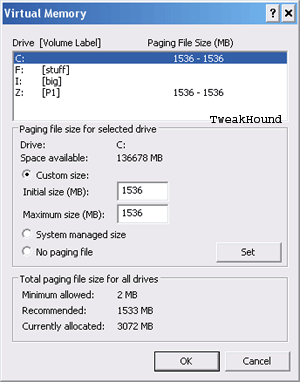
B. Keep the page file that is on the same partition that the OS is on and put a second page file on a separate partition at the beginning of a separate disk from the OS (preferably on a different chain from that disk also). I have mine set to: Page file on OS drive = memory x 1.5. Page file on separate partition/separate drive = memory x 1.5.

NOTE: The “1.5” recommendation is based on a ‘more than enough’ scenario. If you are the perfectionist type and want the perfect size page file for your machine then see here:

Pushing the Limits of Windows: Virtual Memory (section entitled How Big Should I Make the Paging File?)

Below is an example of the setup in one of my machines.

Pages: Page 1 Page 2 Page 3 Page 4 Page 5 Page 6 Page 7 Page 8 Page 9 Page 10 Page 11 Page 12 Page 13 Page 14 Page 15 Page 16 Page 17

Tagged With: How-To's, Windows XP

Primary Sidebar

Popular Articles

Windows 10

Tweaking Windows 10

My Windows 10 Tweaks

Windows 10 Privacy Settings

Win10 Diagnostics Tracking Service Gone?

Windows 10 Advanced Disk Cleanup

Win10 Customize Installation Options

Windows 10 Dark Theme

Win10 Wallpapers, Graphics, etc.

All Windows 10 Articles

Windows 8

Tweaking Windows 8.1

Advice On Installing Windows 8.1

Clean Install Windows 8.1

Cleanup After Windows 8.1 Upgrade

Create Shutdown, Restart, Logoff Tiles For Windows 8

Tweaking Windows 8

Install Windows 8 – Clean Install With Upgrade Media

Install Windows 8 – Upgrade

Windows 8 – Cleaning Up After You’ve Upgraded

Windows 8 Freeware Machine

Windows 8 SSD Settings, Etc.

How To Resize Your Windows 8 Partition

Create Windows 8 Recovery Media

Windows 8 – Elevated Command Prompt

How To Fix The Windows Bootloader

Windows 7

Installing Windows 7

Tweaking Windows 7

Windows 7 Diagnostics Tracking Service

The Windows 7 Freeware Machine

The Windows 7 Pagefile And Running Without One

Bad Tweaks

SSD Tweak Guide (sort of)

The noguiboot (no GUI Boot) Tweak

NtfsMemoryUsage=2 Tweak

More Windows 7 articles here.

Windows Vista

Installing Windows Vista

Tweaking Windows Vista

More Windows Vista articles here.

Windows XP

eXPired - The Last Windows XP Guide You'll Ever Need

The Right Way To Install Windows XP

Super XP Tweaking Guide

The Freeware XP Machine

Bad Tweaks

More XP Articles here and here.

Backup

Backup Article Greatest Hits – Vol. 1

Other

Cataloging Your Music Collection

Finding Good Album Art

Converting Vinyl Records To Digital Music – A Non-Audiophiles Guide

Windows All-In-One Recovery Flash Drive

SSD Tweak Guide (sort of)

Raidmax Blackstorm Case Review

Disk Partitioning

Ditch Those CD's! A Guide To Using USB Flash Drives

Checking Your Disks For Problems

Bad Tweaks

More articles here

Tags

Android Backup Beer Computer Hardware Computer News Cool Tools Freeware How-To's Linux Off Topic openSUSE Playlists Privacy Security Software This Site vacation Veterans Windows 7 Windows 8 Windows 10 Windows 11 Windows Vista Windows XP

TweakHound - Optimize Your Computing Experience! TweakHound - Optimize Your Computing Experience!

Copyright 2002-2025 by Eric Vaughan All material contain here is the property of the materials owner. Windows, Windows XP, Windows Vista, Windows Seven, Windows 8, Windows 10, Windows 11, Microsoft, and all associated logos are trademarks/property of Microsoft. You may not use or copy any material from tweakhound.com without expressed written permission. Hotlinking to any material within this site is forbidden. Privacy Policy