• Skip to primary navigation
  • Skip to main content
  • Skip to primary sidebar

TweakHound

Computer stuff...

  • Home
  • Windows XP
  • Windows Vista
  • Windows 7
  • Windows 8
  • Windows 10
  • Windows 11
  • Linux
  • Tweak Guides
  • Site Info
    • About
    • About Me
    • TweakHound’s World
    • Contact
    • My Computers
    • Old Articles
    • Privacy Policy
    • Old Index
    • Advanced Search

TweakHound’s Karamba Theme

tux

November 19, 2012, 15:53(EST) By Eric (a.k.a. TweakHound)

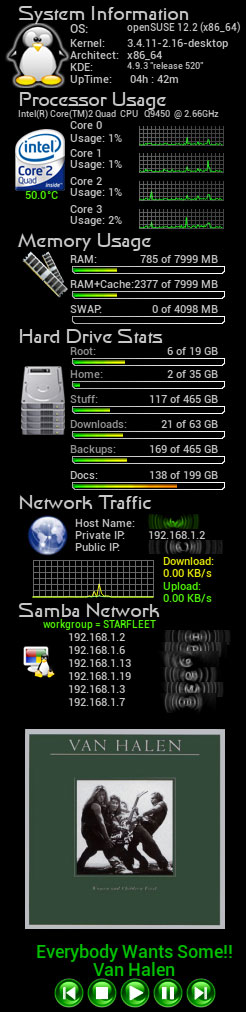
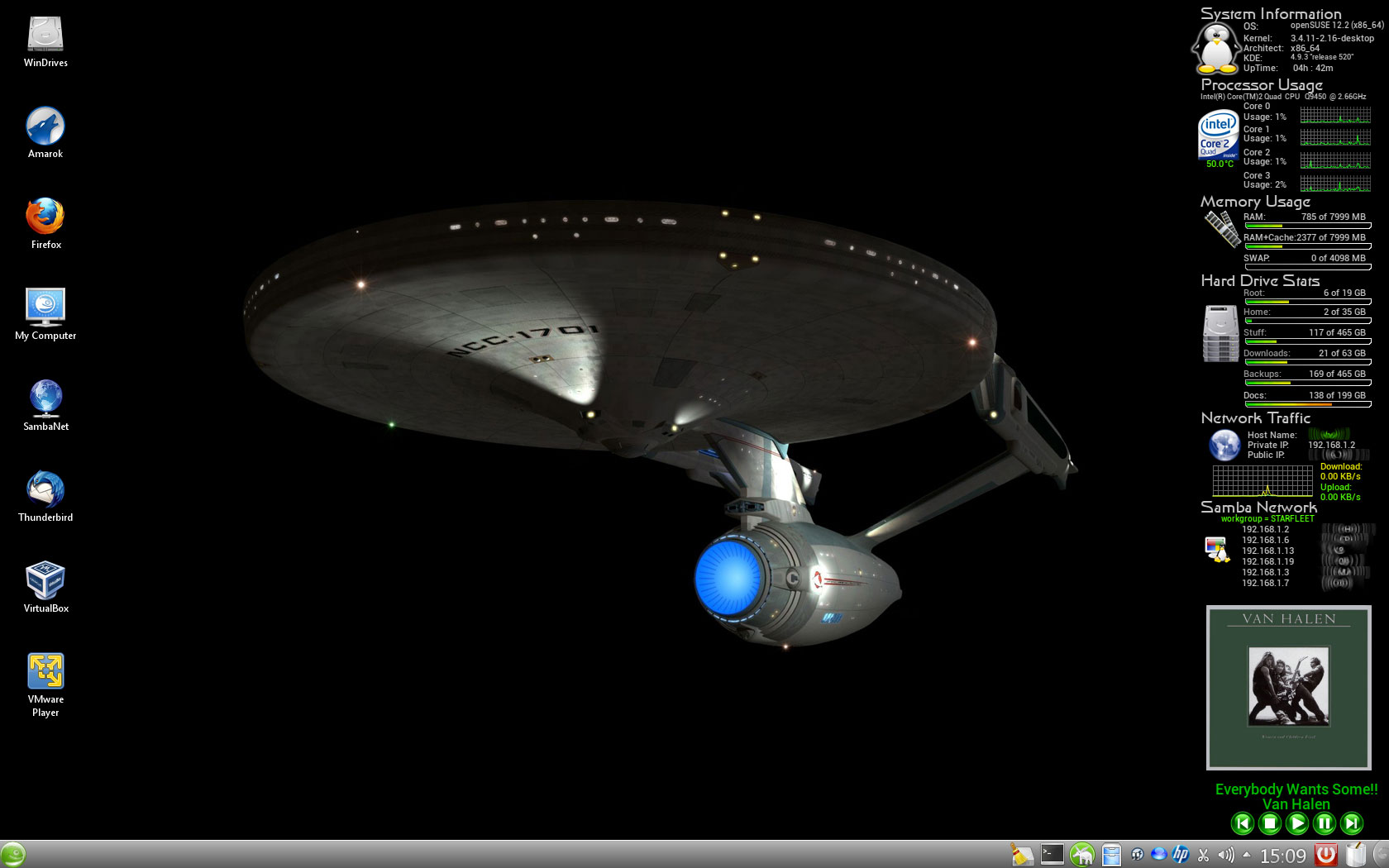
tuxTweakHound’s Karamba Theme
Karamba (or Superkaramba) themes have been around for a while.
They are for Linux /KDE desktop users.
This is my theme, folks have been asking for this so here it is.
Sorry I haven’t been able to get to it until now.

Download: TweakHound’s Karamba Theme

—This next part is posted in the README file, (minus the screenshots of course)

Screenshots at the bottom of the page.

—————————————————————————-

Please read though this entire README before continuing.

*Notes:
I didn’t come up with any of this myself. I started with hacking the now non-existant
SigmaDual theme and over the years added bits of code from other themes (I’ve long forgotten which).
I added a bit of code here and there and completely rearranged things. But.
Point being, it ain’t my code.
I did this for myself.
I had never intended to release this to anyone but folks kept asking.
So, here it is. As far as I am concerned you may do with it as you wish.

*** The distro I use is openSUSE, I can’t help with others.

*** Obviously you need KDE and Superkaramba installed.

INSTALLATION
1 – Save theme to a permanent place.
1a – You installed Superkaramba, right???
2 – Install fonts located in font folder.
3 – Install nbtscan-1.5.1a (see README in that folder)
4 – Install lm-sensors then run sensors-detect.
5 – Reboot

CONFIGURATION
Karamba themes are easy to configure.
(See here: http://netdragon.sourceforge.net/sgeneral.html and here: http://netdragon.sourceforge.net/ssuperkaramba.html )
Right-click on the .theme files and open with Kwrite.
To block a line from executing place a # at the beginning of the line.
To unblock remove the # .

THE GROUP TAG
To make each section easier to place they have been grouped.
To move a section simply change the x axis for horizontal (left/right)
or Y axis for vertical (up/down)

FONTS
You can change any font by changing the name after font=
You can change the font size by changing the number after fontsize=

HARD DRIVE MONITOR
I’ve put 6 partitions in.
You MUST change the path of any section not / or /home

NETWORK MONITOR
You can edit the max values to better reflect your upload and download speed.
See the note in that section.

***NOTE: Under openSUSE 13.1 you will have to change network interface name based on device name in YaST > Network Settings

SAMBA NETWORK
You must have followed the initial steps above.
You must manually configure your LAN range i.e. – 192.168.1.0-254

AMAROK MONITOR
Works for the Amarok v1.4 family only.
Getting Amarok 1.4:
openSUSE has it in the kde3 repos http://en.opensuse.org/KDE3
Ubuntu – I don’t use it but a quick google serch turned up a couple of guides
RPMS – look here http://rpmfind.net/linux/rpm2html/search.php?query=amarok
For your distro, Google it!

AUTOSTART
I always start with an empty or new session so I needed to autosatart this theme.
If you wish to do the same copy the tweakhound.desktop file to your /.kde4/Autostart folder.
I’ve configured if for a 10 second delay.
You can change it by editing the file in kwrite.

-END-
k1

Full-Size
k3

Tagged With: Linux, openSUSE, This Site

Primary Sidebar

Popular Articles

Windows 10

Tweaking Windows 10

My Windows 10 Tweaks

Windows 10 Privacy Settings

Win10 Diagnostics Tracking Service Gone?

Windows 10 Advanced Disk Cleanup

Win10 Customize Installation Options

Windows 10 Dark Theme

Win10 Wallpapers, Graphics, etc.

All Windows 10 Articles

Windows 8

Tweaking Windows 8.1

Advice On Installing Windows 8.1

Clean Install Windows 8.1

Cleanup After Windows 8.1 Upgrade

Create Shutdown, Restart, Logoff Tiles For Windows 8

Tweaking Windows 8

Install Windows 8 – Clean Install With Upgrade Media

Install Windows 8 – Upgrade

Windows 8 – Cleaning Up After You’ve Upgraded

Windows 8 Freeware Machine

Windows 8 SSD Settings, Etc.

How To Resize Your Windows 8 Partition

Create Windows 8 Recovery Media

Windows 8 – Elevated Command Prompt

How To Fix The Windows Bootloader

Windows 7

Installing Windows 7

Tweaking Windows 7

Windows 7 Diagnostics Tracking Service

The Windows 7 Freeware Machine

The Windows 7 Pagefile And Running Without One

Bad Tweaks

SSD Tweak Guide (sort of)

The noguiboot (no GUI Boot) Tweak

NtfsMemoryUsage=2 Tweak

More Windows 7 articles here.

Windows Vista

Installing Windows Vista

Tweaking Windows Vista

More Windows Vista articles here.

Windows XP

eXPired - The Last Windows XP Guide You'll Ever Need

The Right Way To Install Windows XP

Super XP Tweaking Guide

The Freeware XP Machine

Bad Tweaks

More XP Articles here and here.

Backup

Backup Article Greatest Hits – Vol. 1

Other

Cataloging Your Music Collection

Finding Good Album Art

Converting Vinyl Records To Digital Music – A Non-Audiophiles Guide

Windows All-In-One Recovery Flash Drive

SSD Tweak Guide (sort of)

Raidmax Blackstorm Case Review

Disk Partitioning

Ditch Those CD's! A Guide To Using USB Flash Drives

Checking Your Disks For Problems

Bad Tweaks

More articles here

Tags

Android Backup Beer Computer Hardware Computer News Cool Tools Freeware How-To's Linux Off Topic openSUSE Playlists Privacy Security Software This Site vacation Veterans Windows 7 Windows 8 Windows 10 Windows 11 Windows Vista Windows XP

TweakHound - Optimize Your Computing Experience! TweakHound - Optimize Your Computing Experience!

Copyright 2002-2025 by Eric Vaughan All material contain here is the property of the materials owner. Windows, Windows XP, Windows Vista, Windows Seven, Windows 8, Windows 10, Windows 11, Microsoft, and all associated logos are trademarks/property of Microsoft. You may not use or copy any material from tweakhound.com without expressed written permission. Hotlinking to any material within this site is forbidden. Privacy Policy