
• Skip to primary navigation
  • Skip to main content
  • Skip to primary sidebar

TweakHound

Computer stuff...

  • Home
  • Windows XP
  • Windows Vista
  • Windows 7
  • Windows 8
  • Windows 10
  • Windows 11
  • Linux
  • Tweak Guides
  • Site Info
    • About
    • About Me
    • TweakHound’s World
    • Contact
    • My Computers
    • Old Articles
    • Privacy Policy
    • Old Index
    • Advanced Search

My Thoughts On Windows 8.1 RTM

win8logo

September 8, 2013, 13:03(EDT) By Eric (a.k.a. TweakHound)

win8logo*Note – This is an opinion piece, not a review. And a short one at that.

I put a poll up last week to see what the regulars who stop by here think. Here are the results (as of this writing):
What is your opinion of Win 8.1 RTM?
No Windows 8 for me. (42%)
Waiting for Oct. 18th. (30%)
Meh. (11%)
It sucks. (9%)
It Rocks. (8%)
(Yes, I am aware this is an unscientific poll.)

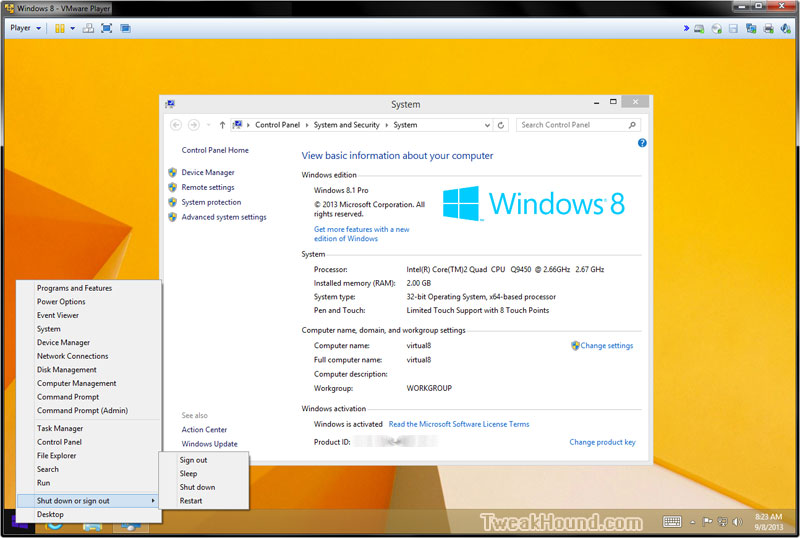
Unsurprisingly 42% of you don’t want anything to do with Windows 8. I don’t blame you. Frankly, on the desktop I think Windows 8 is a complete mess and 8.1 does little to fix this.
win81

Metro, Modern UI, Whatchamacallit
I have no use for a user interface designed for touch on my desktop. I find it to be annoying and inefficient. And for all you folks who like to throw around the luddite accusations: different does not equal better.

Apps
I honestly don’t understand apps on a desktop PC. Weather, social media, and news apps are neat but I’ve got better ones on my phone already. Why do I need it on my desktop? Fact is there isn’t a single killer app out there yet.

Start Button
It is a Start Button with no Start Menu. FAIL
Yes, it is nice to be able to shut down from the desktop and default to desktop option is cool. But I can do all those things and more with Start8.

Security
Yippee, Windows Defender finally has NIS. Security Essentials has had this for 3 years.

Windows Experience Index
As I noted in early July, WEI is gone.
No comment from Microsoft on this so far. My only concern is what happens when the system fails to recognize your SSD.
Do they really expect folks to know they have to use the command line?

Internet Explorer 11
Hardly ever use it so I don’t care.

Bing
Because what I really want is web results and ads when I search my PC. :rolleyes:
Thankfully you can disable this. (Search for Search Settings > Search Settings > move Use Bing to search online slider to Off)

Other Stuff
Full breakdown of Windows 8.1 RTM can be found at:
Wikipedia: http://en.wikipedia.org/wiki/Windows_8#Windows_8.1
Paul Thurrott – Windows 8.1 Review

Conclusion
In the end I will be using Windows 8.1. While it isn’t a must-have it is a must-do. Windows 8.1 contains security, bug, and performance fixes that you’ll want even if you ignore the Metro screen like me. It is the next step in the sideways or even backwards shift that is Windows 8.

P.S.
Dear next Microsoft CEO,
A desktop PC is not a tablet, phone, or phablet.
Thank you!

*edit 1610 hours
I’ve gotten a couple of emails from folks who noticed that my Windows 8.1 RTM is activated (y’all don’t miss much!).
Here is how I did it:
1 – Clean install RTM using install key (available the same place you got the .iso).
2 – Run the following commands from an elevated command prompt ( [ENTER] means press the Enter key ):

slmgr -upk
[ENTER] (this removes the install key)

slmgr -ipk +CDKEY
[ENTER]
(the +CDKEY is your original, legitimate CD Key with dashes. XXXXX-XXXXX-XXXXX-XXXXX-XXXXX)

slmgr -ato
[ENTER] (this starts online activation)

Thats it!

Tagged With: This Site, Windows 8

Primary Sidebar

Popular Articles

Windows 10

Tweaking Windows 10

My Windows 10 Tweaks

Windows 10 Privacy Settings

Win10 Diagnostics Tracking Service Gone?

Windows 10 Advanced Disk Cleanup

Win10 Customize Installation Options

Windows 10 Dark Theme

Win10 Wallpapers, Graphics, etc.

All Windows 10 Articles

Windows 8

Tweaking Windows 8.1

Advice On Installing Windows 8.1

Clean Install Windows 8.1

Cleanup After Windows 8.1 Upgrade

Create Shutdown, Restart, Logoff Tiles For Windows 8

Tweaking Windows 8

Install Windows 8 – Clean Install With Upgrade Media

Install Windows 8 – Upgrade

Windows 8 – Cleaning Up After You’ve Upgraded

Windows 8 Freeware Machine

Windows 8 SSD Settings, Etc.

How To Resize Your Windows 8 Partition

Create Windows 8 Recovery Media

Windows 8 – Elevated Command Prompt

How To Fix The Windows Bootloader

Windows 7

Installing Windows 7

Tweaking Windows 7

Windows 7 Diagnostics Tracking Service

The Windows 7 Freeware Machine

The Windows 7 Pagefile And Running Without One

Bad Tweaks

SSD Tweak Guide (sort of)

The noguiboot (no GUI Boot) Tweak

NtfsMemoryUsage=2 Tweak

More Windows 7 articles here.

Windows Vista

Installing Windows Vista

Tweaking Windows Vista

More Windows Vista articles here.

Windows XP

eXPired - The Last Windows XP Guide You'll Ever Need

The Right Way To Install Windows XP

Super XP Tweaking Guide

The Freeware XP Machine

Bad Tweaks

More XP Articles here and here.

Backup

Backup Article Greatest Hits – Vol. 1

Other

Cataloging Your Music Collection

Finding Good Album Art

Converting Vinyl Records To Digital Music – A Non-Audiophiles Guide

Windows All-In-One Recovery Flash Drive

SSD Tweak Guide (sort of)

Raidmax Blackstorm Case Review

Disk Partitioning

Ditch Those CD's! A Guide To Using USB Flash Drives

Checking Your Disks For Problems

Bad Tweaks

More articles here

Tags

Android Backup Beer Computer Hardware Computer News Cool Tools Freeware How-To's Linux Off Topic openSUSE Playlists Privacy Security Software This Site vacation Veterans Windows 7 Windows 8 Windows 10 Windows 11 Windows Vista Windows XP

TweakHound - Optimize Your Computing Experience! TweakHound - Optimize Your Computing Experience!

Copyright 2002-2025 by Eric Vaughan All material contain here is the property of the materials owner. Windows, Windows XP, Windows Vista, Windows Seven, Windows 8, Windows 10, Windows 11, Microsoft, and all associated logos are trademarks/property of Microsoft. You may not use or copy any material from tweakhound.com without expressed written permission. Hotlinking to any material within this site is forbidden. Privacy Policy