 Start8 is a popular Start Menu program for Windows 8. This article is intended to show you its configuration options.
Start8 is by far my personal favorite start menu program. It is all that the Windows 7 start menu was and much more.
Start8 is $5. If you want a free alternative check out Classic Start Menu (part of Classic Shell).
See: Wikipedia – List of Start Menu replacements for Windows 8
Some features (quoted from here):
Windows 7-style Start menu with Windows 8 enhancements
-Search for Windows 8-style (Modern UI) apps
-Pin desktop and Metro apps to the start menu
-Jump List support
-Unified Search for apps, settings and files
-Boot directly to the Windows 8 desktop
-One click access to shut down, devices, music, documents, and videos
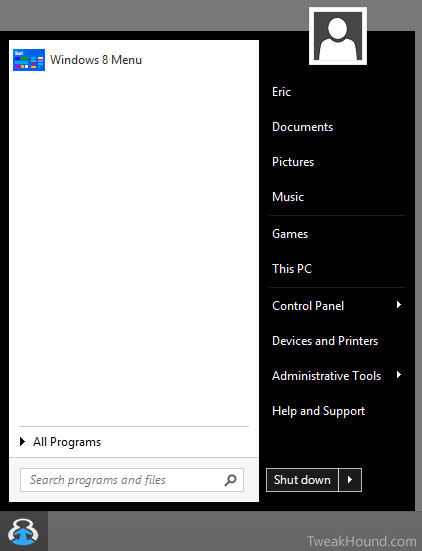
Configuring Start8
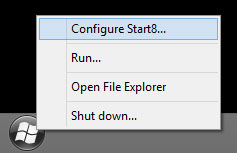
After installing Start8 right-click on the new Start8 icon and choose Configure Start8…
The first section is the Style section. The picture below shows you options.
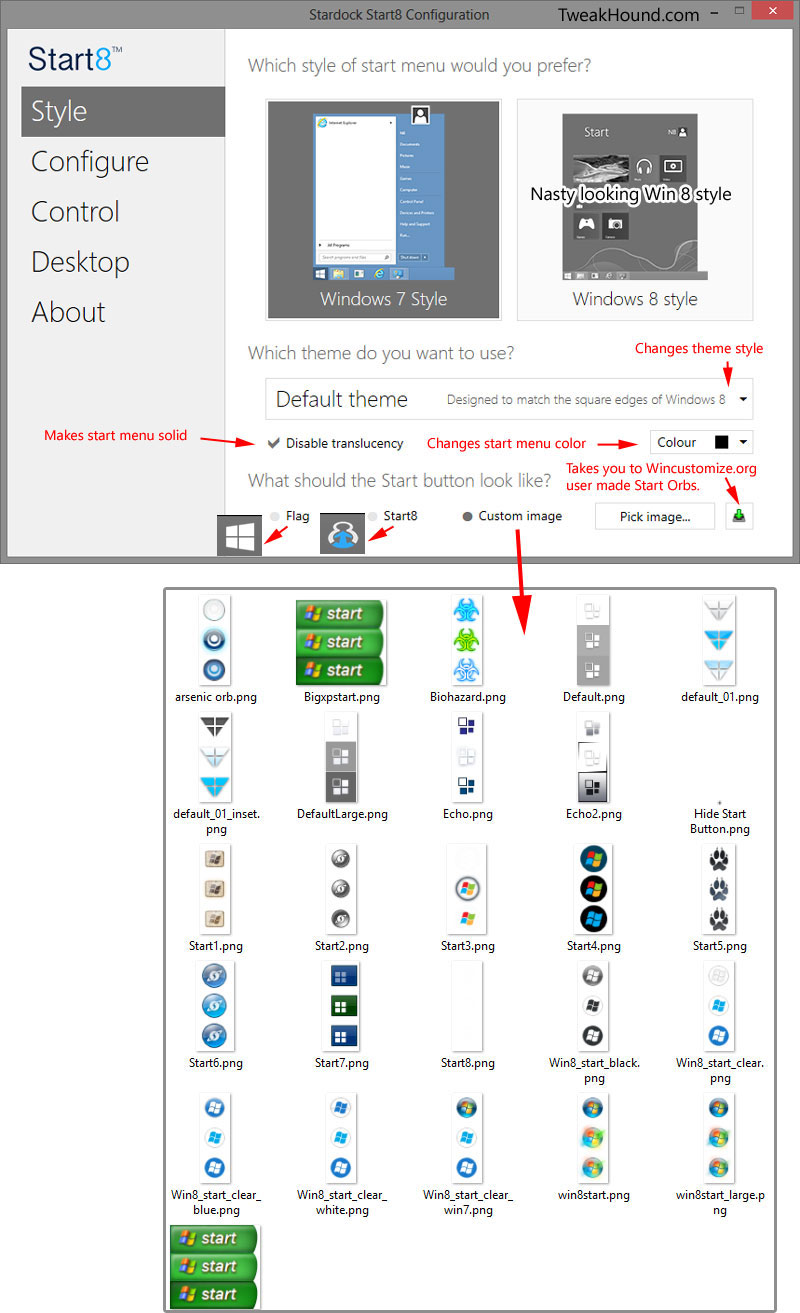
Custom Start buttons:
They are called Start Orbs around the web (as they were with Vista/7).
You can find custom Start Orbs at:
Deviant Art: http://www.deviantart.com/customization/skins/windows7/startorbs/?order=9
Stardock: http://www.wincustomize.com/explore/start8
See: Finding Or Creating Windows 7 Start Orbs for more tips.
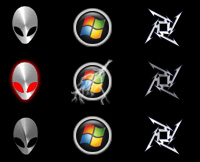
Here are some I’ve created for myself. You are welcome to download them https://www.dropbox.com/s/c35mddikb0av60n/TweakHound_StartOrbs_1.zip:
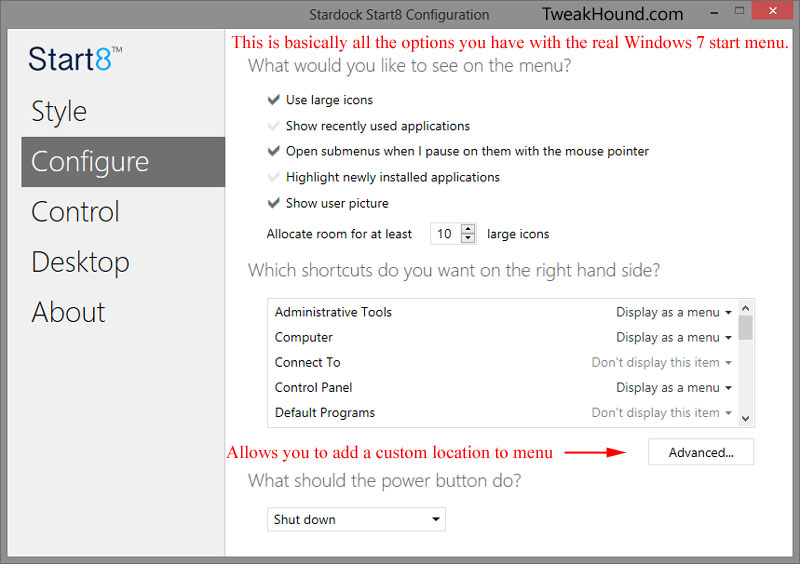
The next section is the Configure section. It contains the options you were used to seeing with Windows 7, plus or minus a few.
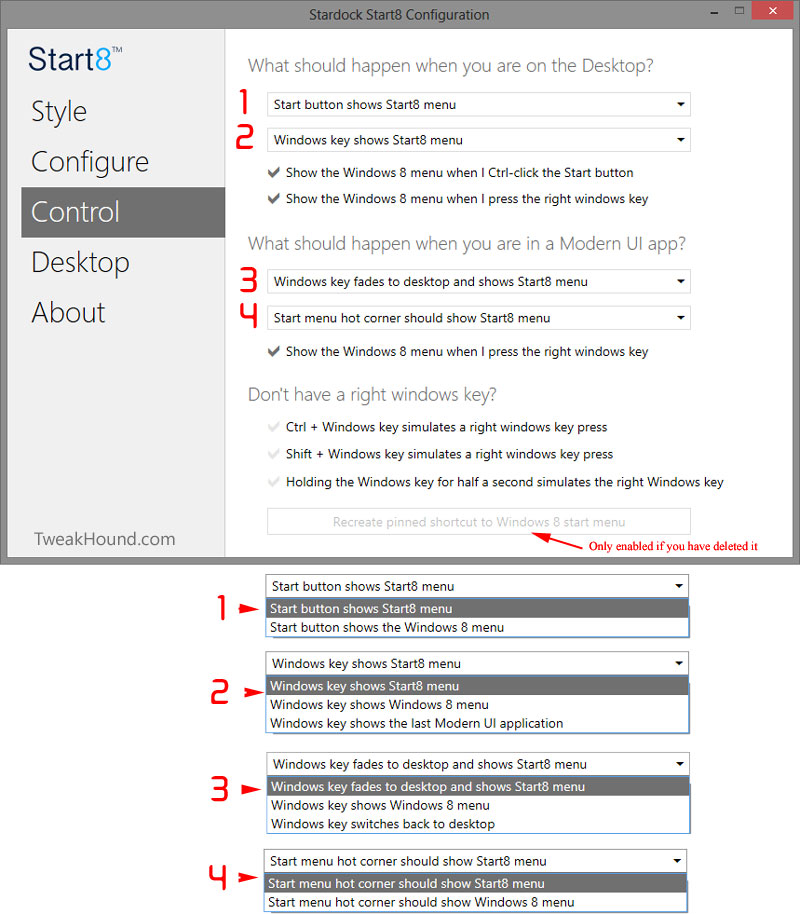
This is the Control section. See matching numbers of each option.
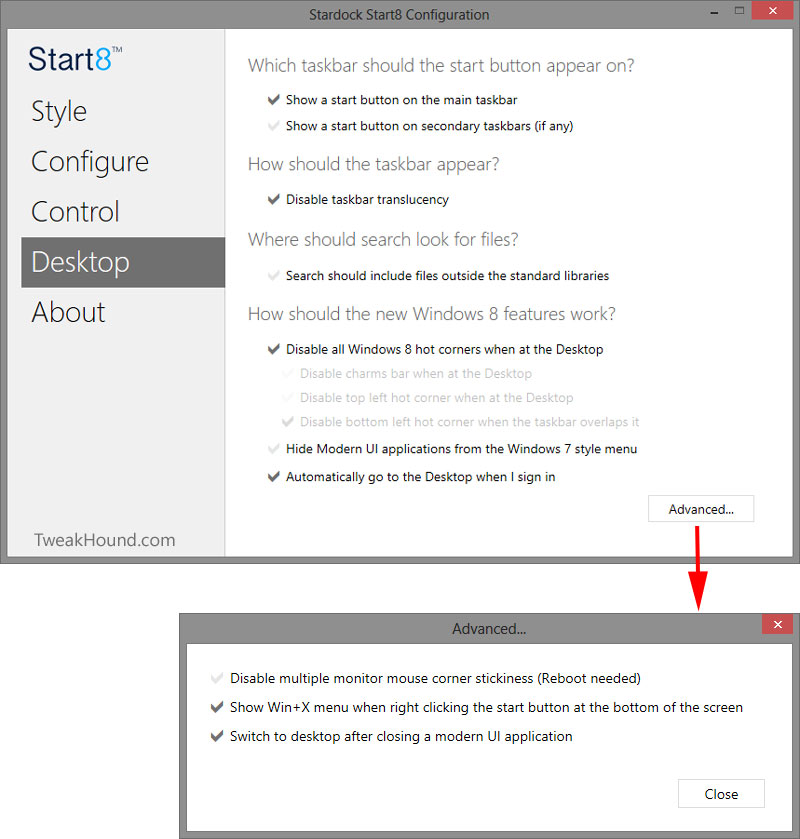
The Desktop section. Automatically go to the Desktop and Disable taskbar translucency are my must-haves here.
Clicking the Advanced button brings up a few more options.
Careful with the Win+X option as it will remove the right-click/configure Start8 option.
The Win+X menu is still there by default. You just have right-click at the very bottom-left corner.
Oh no, we ain’t done!
Start8 Advanced Tweaks
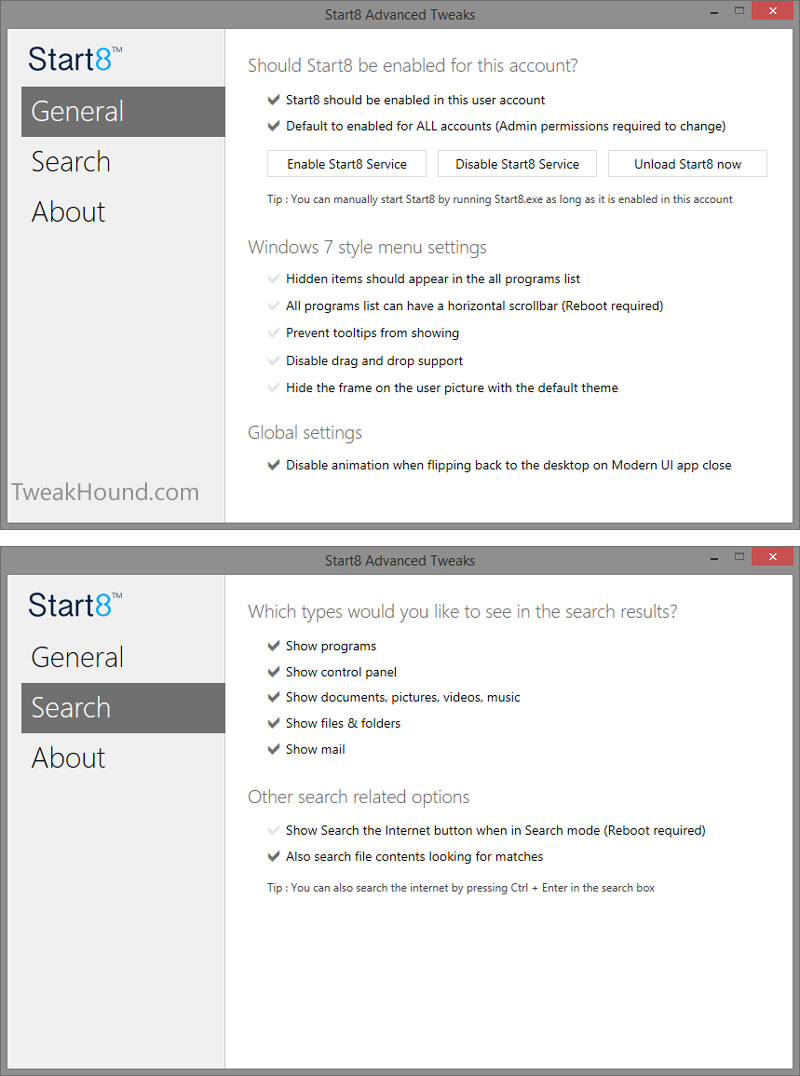
There is a hidden program in the Start8 program called Start8 Advanced Tweaks.
Go to:
32-bit Windows – C:\Program Files\Stardock\Start8
64-bit Windows – C:\Program Files (x86)\Stardock\Start8
Find start8tweak.exe and double-click it:

Look at all those extra tweaks!
Customizing Your Start Menu Programs
In a nutshell this works just like it did in Windows 7.
You can customize your start menu programs from Start8 or from the start menu folder(s).
To get to you start menu folders follow the instructions in the picture below.
OR
Open = C:\Users\USERNAME\AppData\Roaming\Microsoft\Windows\Start Menu\Programs
Open > All Users = C:\ProgramData\Microsoft\Windows\Start Menu\Programs
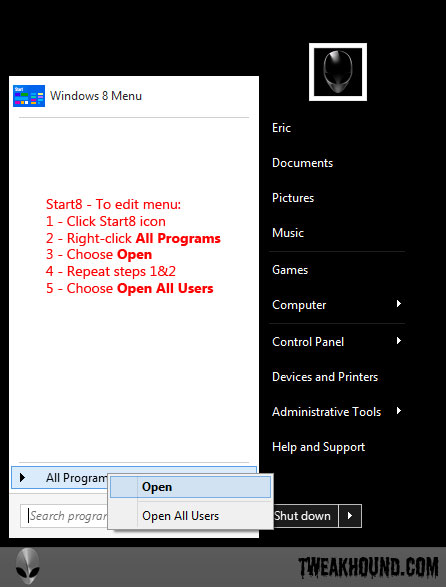
I prefer to move any non-Windows/Microsoft programs (i.e. Windows Accesories, System Tools, etc.)
from
C:\Users\USERNAME\AppData\Roaming\Microsoft\Windows\Start Menu\Programs
to
C:\ProgramData\Microsoft\Windows\Start Menu\Programs
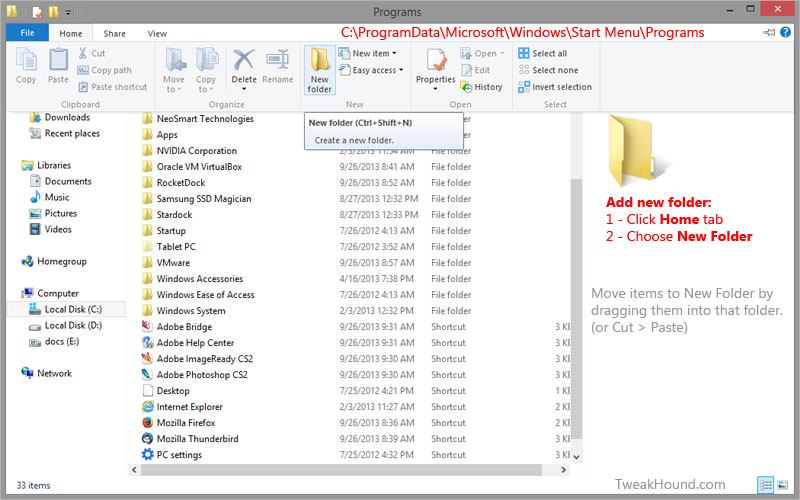
I create new folders with names that make sense to me like:
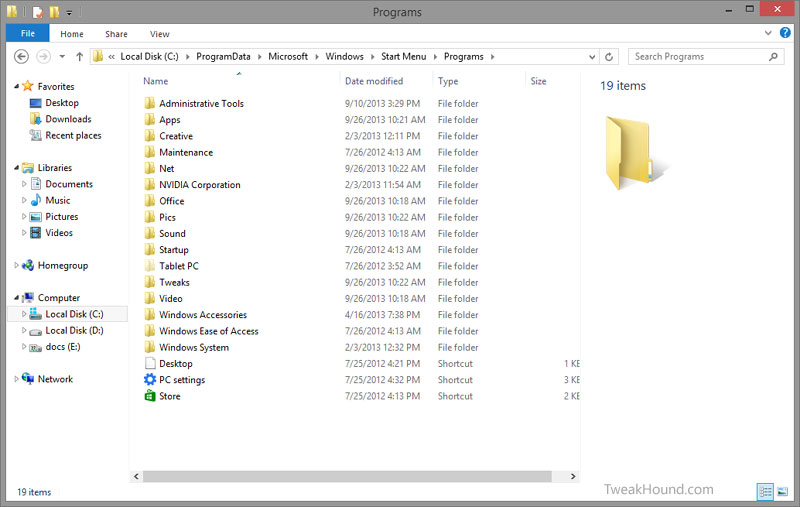
Apps, Tweaks, Office, Net, Pics, Sound, etc.
Then I move previously existing folders / programs to those folders.
i.e. I move Adobe Reader X to the Office folder I created or Winamp to the Sound folder.
Some folders do not like to be moved (often get recreated or cause errors): AMD, Nvidia, Microsoft Office, Creative are a few.
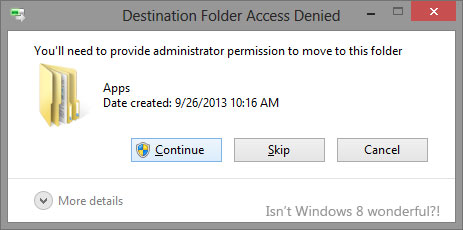
You may get a warning. just click Continue.
What mine looks like now:
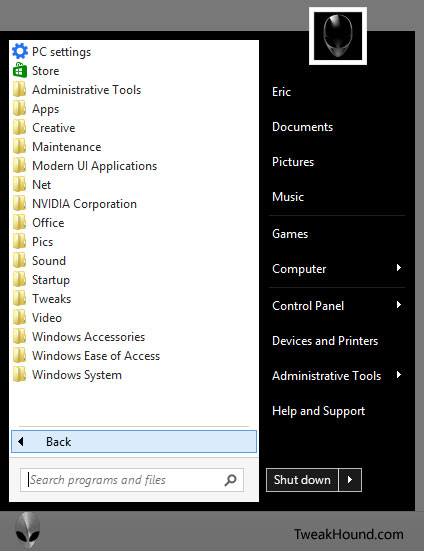
There you have it. I hope you found this useful!
-END-