
The Taskbar
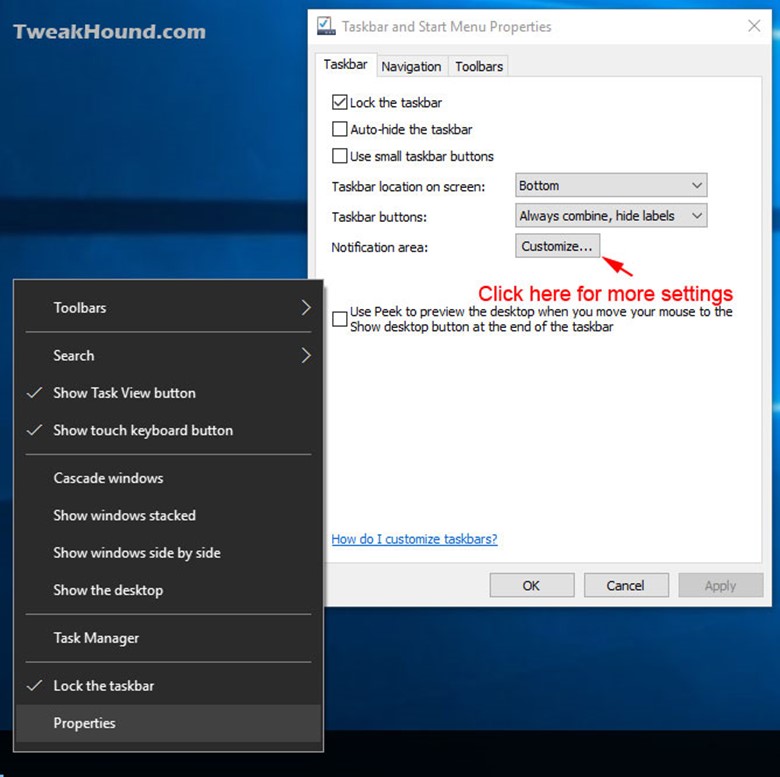
First let’s start off in the old place for the taskbar settings, right-click on the Taskbar and choose Properties. You can see several options here including a way to move the Taskbar.
Click Customize… for more settings.
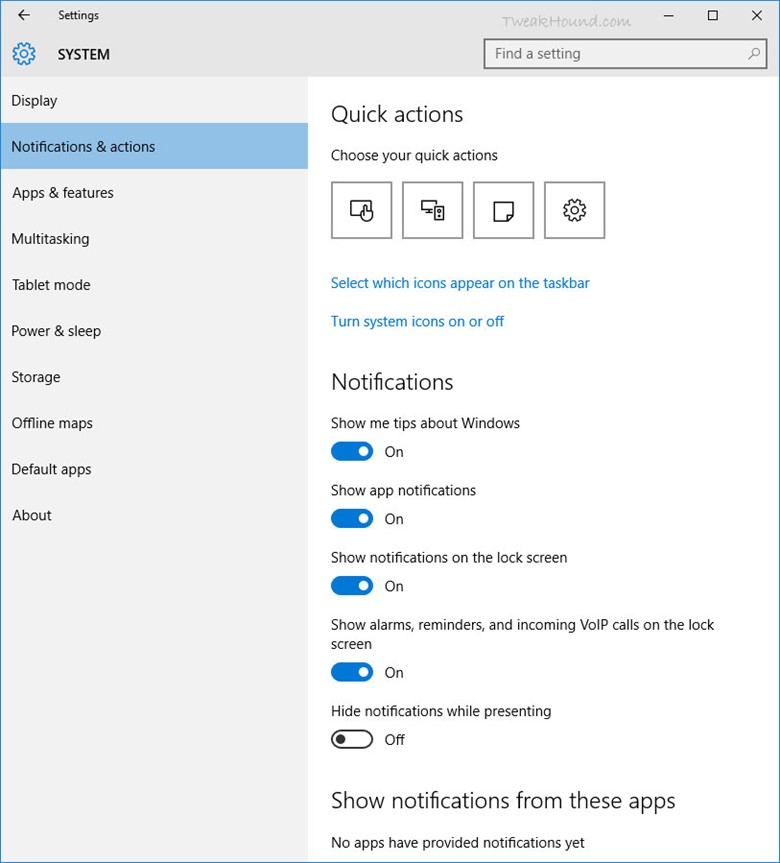
This is the same screen as Notification icon > All settings
> System > Notifications.
Here you can customize notifications and system icons. What you choose is up to you and your annoyance level.
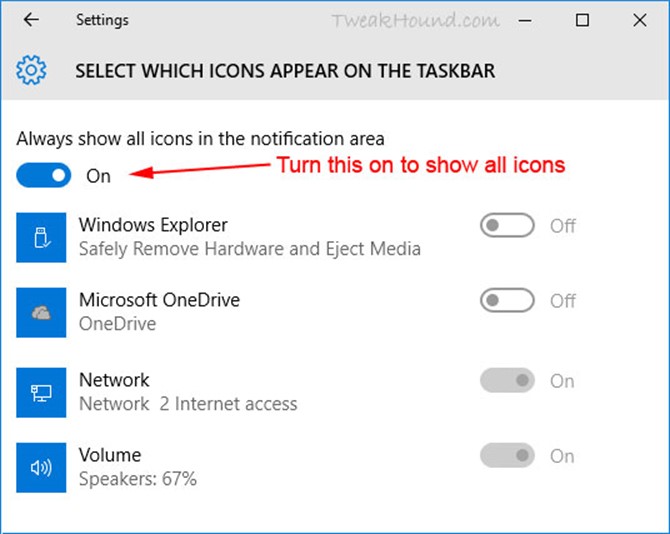
Click Select which icons appear on the taskbar. I like to know everything that is going on with my system show I turn ON Always show all icons in the notification area.
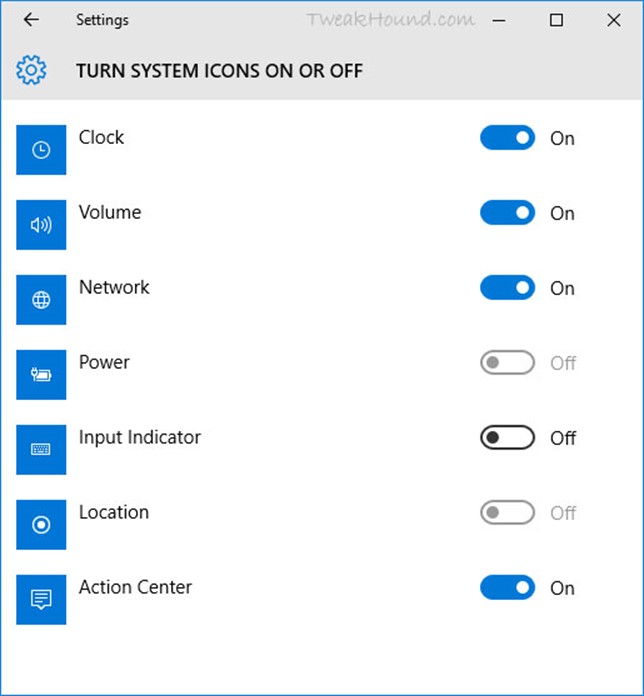
Now go back on step and choose Turn system icons on or off. Available options will differ between a laptop and desktop. Configure it to your preference.
The Search Box
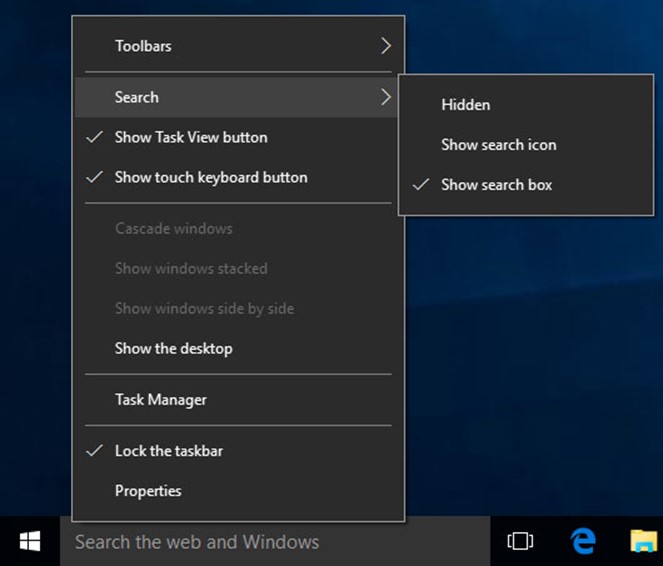
Via right-clicking on the Taskbar. Show it, hide it, or just show an icon.
The Task View And Touch Keyboard Buttons
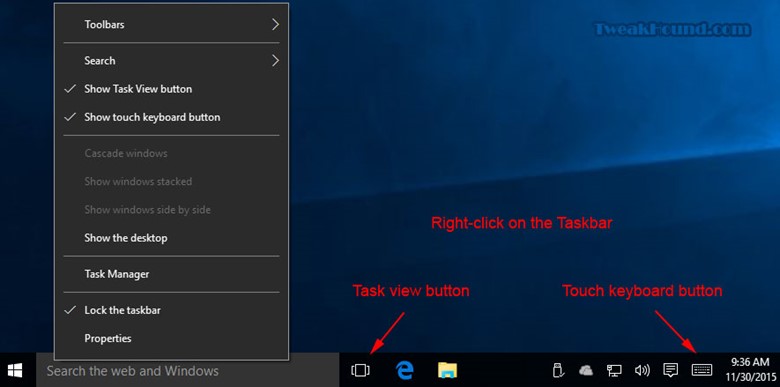
Right-click on the Taskbar. Uncheck Show Task View button and Show touch keyboard button to get rid of them.
Toolbars
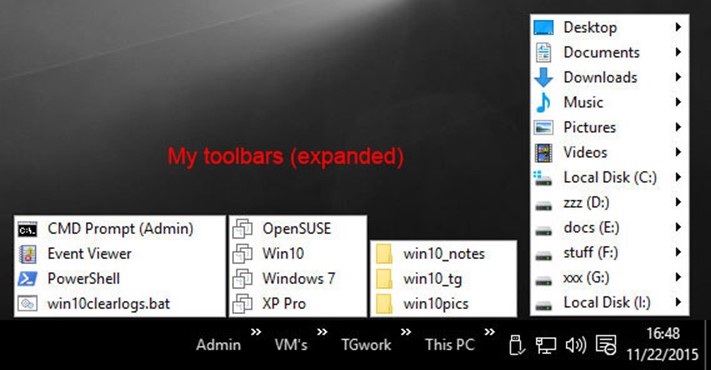
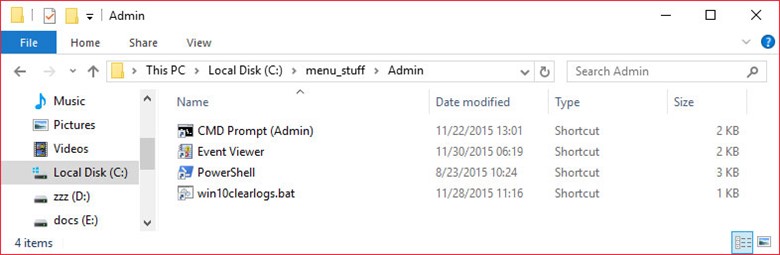
I like to create toolbars to make things more organized and easier to get to. This mostly involves apps and folders that I use frequently. Here is mine.
To create my custom Toolbars, I first make a folder in my C: drive called menu_stuff.

In that folder I create a folder for a specific toolbar(s).
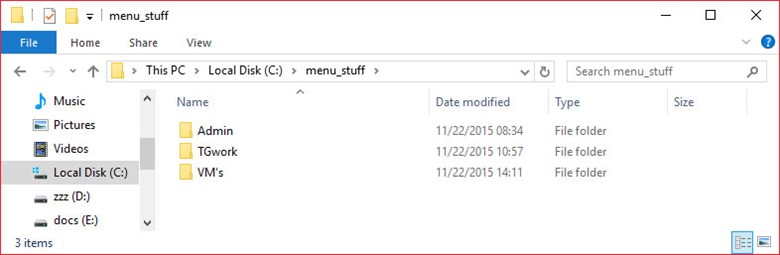
And here I drag my links I want in those folders. These can be created by right-click > Send to Desktop (create shortcut) for apps and Control Panel items, and by dragging to the desktop in the case of Administrative tools. I then move these to my folders. You can add a Toolbar for any folder and it will show the contents of that folder.
The Clock
Right-click on the clock > choose Adjust date/time. This is the same as Notification Center / Action Center icon > All settings > Time & language.
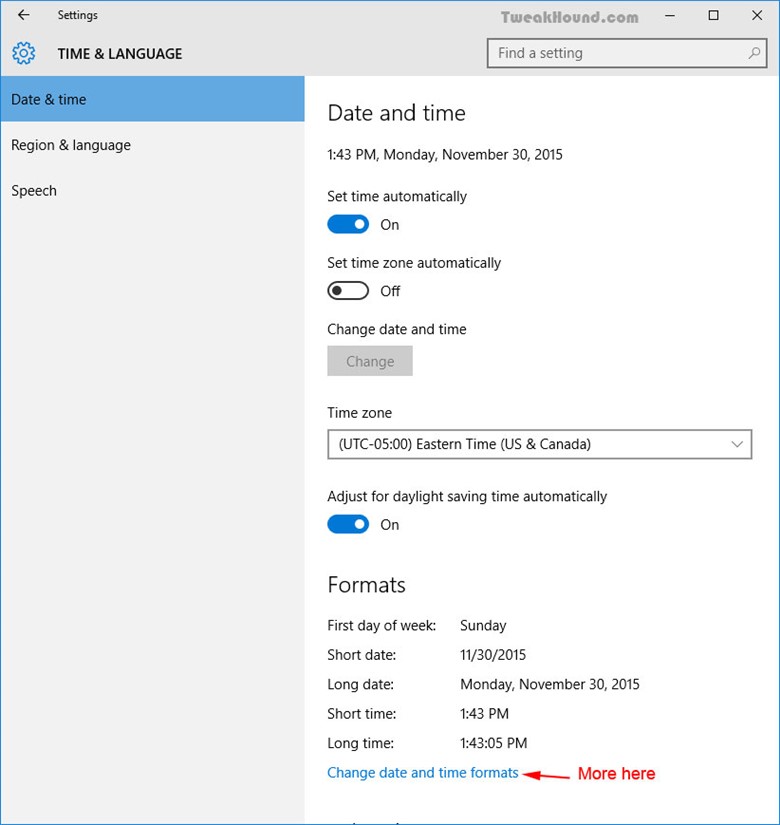
Here you can adjust auto time, time zone, and date and time formats. Click Change date and time formats to do so.
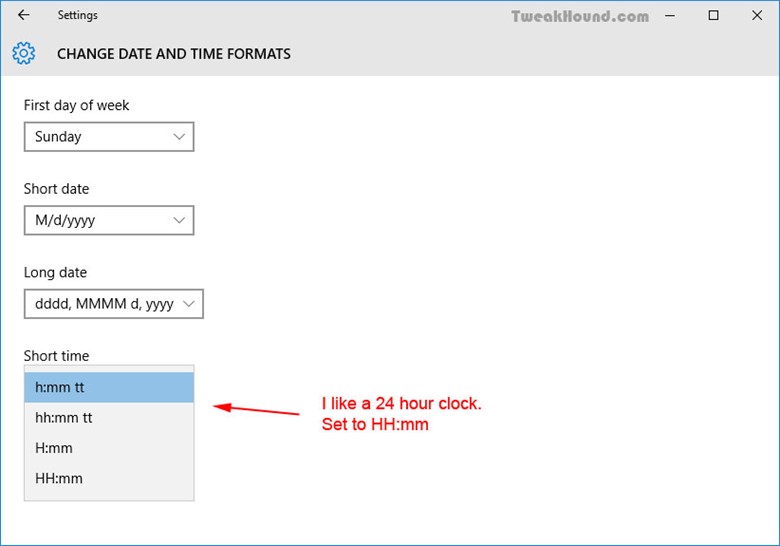
I like a 24 hour clock. To change it set Short time to HH:mm.
Disable System Sounds
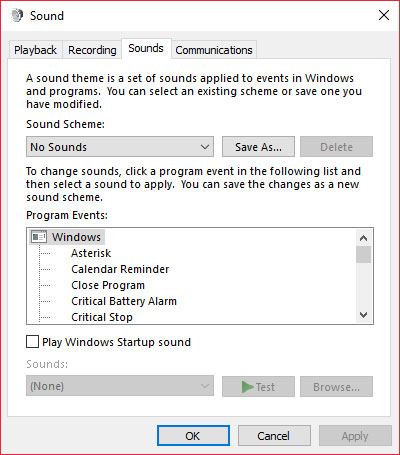
What this does is disable the Sound Scheme. The sound scheme contains things like the sound you hear when you click on something. I’m really not concerned so much with the resources it uses but I just find the sounds to be annoying. Either way…
Right-click on the Volume icon in your System Tray and choose Sounds > First save your current scheme, click on the Save As… button, enter a name, I used “1”, and click OK > Next, under Sound Scheme: choose No Sounds and click Apply at the bottom, right.
-END- (for now)
Windows dark theme FTW! Great post as always…