• Skip to primary navigation
  • Skip to main content
  • Skip to primary sidebar

TweakHound

Computer stuff...

  • Home
  • Windows XP
  • Windows Vista
  • Windows 7
  • Windows 8
  • Windows 10
  • Windows 11
  • Linux
  • Tweak Guides
  • Site Info
    • About
    • About Me
    • TweakHound’s World
    • Contact
    • My Computers
    • Old Articles
    • Privacy Policy
    • Old Index
    • Advanced Search

Tweaking Windows 10 – Version 21H2

May 19, 2021, 12:53(EDT) By Eric (a.k.a. TweakHound)

Customize The Desktop

Oh man, where do I start…
Because even at this point, 5 years on, Win 10 isn’t close to being finished. Many settings are in 2 different places (or more). Usually at least some settings are in the same place they were in previous Windows versions, but some settings are in the new Settings app.

Display Settings
Right-clicking the desktop reveals two controls for the display. Right-click Desktop > Display Settings opens the Display page under the System menu of the Settings app and controls for brightness, color, and scale. Right-click Desktop opens the Personalization menu of Settings app and controls for background, colors, the start menu, and taskbar, among other things.

The Start Menu
The vast majority of Windows users rebelled against Windows 8 Metro design and lack of start menu. Microsoft brought back the Start Menu in Win 10, but it wasn’t quite what we asked for. This section will show you how to tweak the default Start Menu as well as explore a third party option.

Default
Gone is the Windows 7-style start menu. Microsoft just can’t seem to live without tiles.
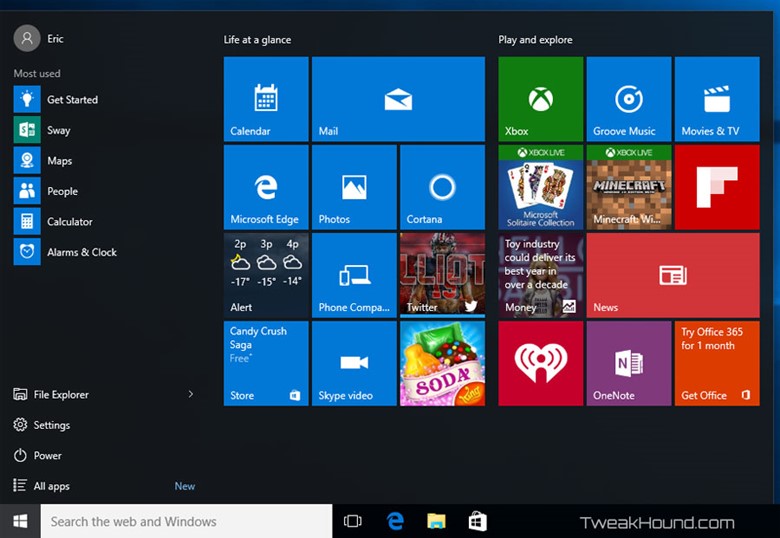
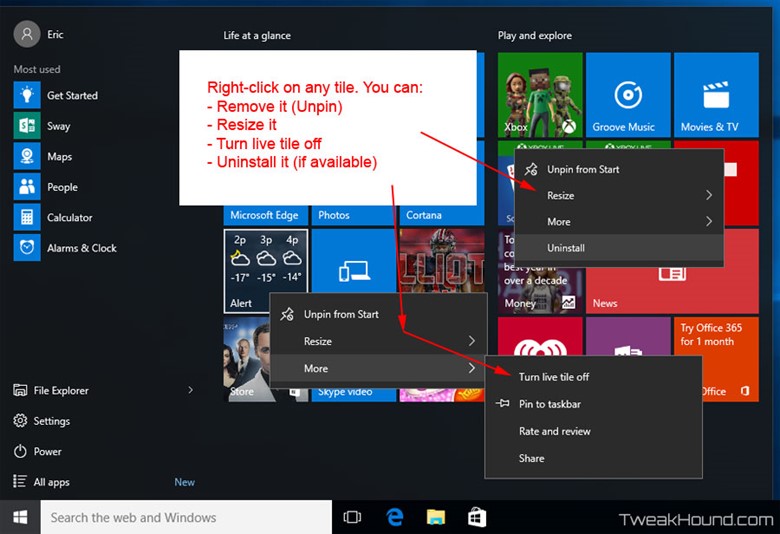
Lots of options. By right-clicking you can: remove, resize, turn off, and uninstall.
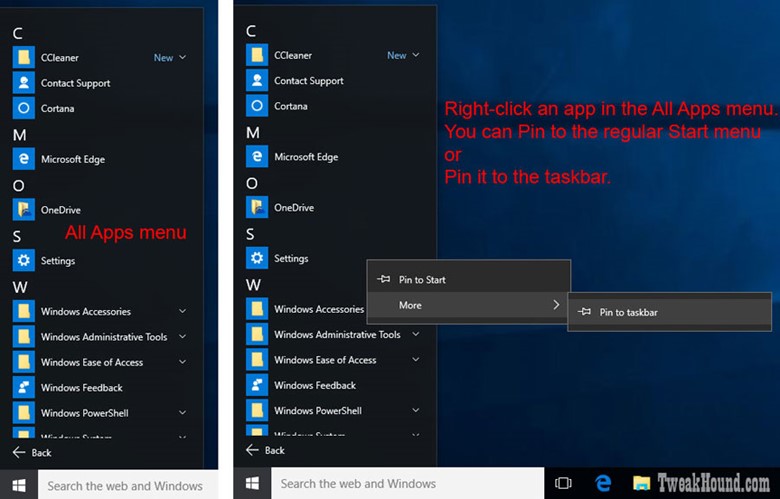
See the All apps button just above the Start Menu button? Click it to get the All Apps menu.

Here you can add that app to the regular Start menu or taskbar via right-click.


Start Menu Settings
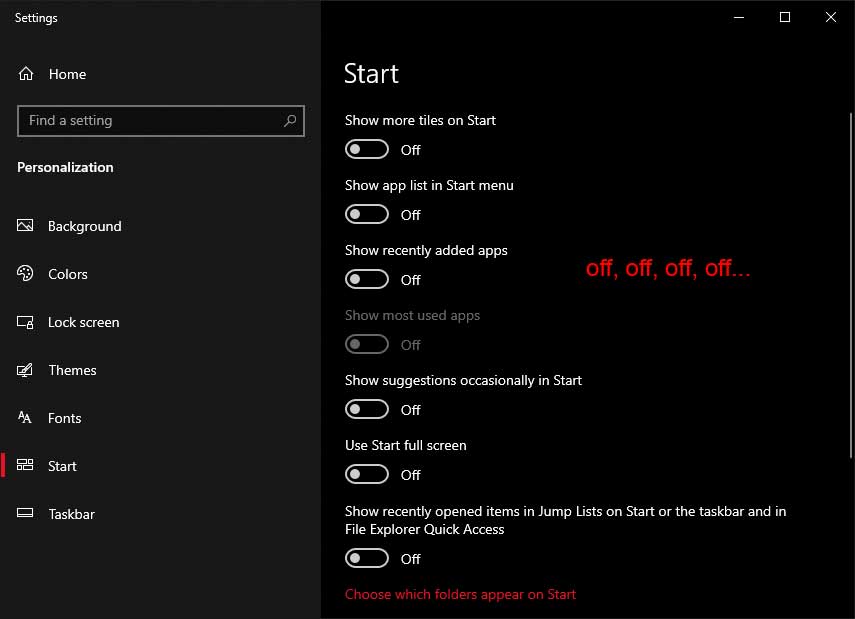
Click on the Notification Center / Action Center icon > All settings > Personalization > Start.
Here you can tweak your settings. Turning everything Off will strip the Start menu to the basic settings.
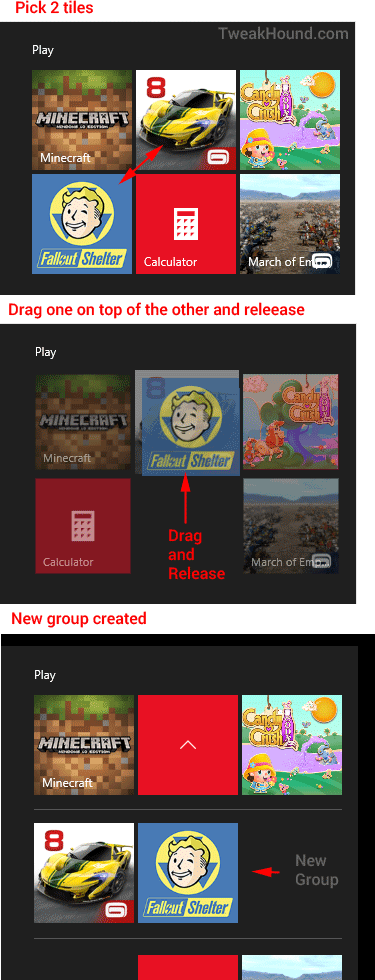
Start Menu Groups

You can create your own groups in the start menu.
Just drag one tile on top of another and release.
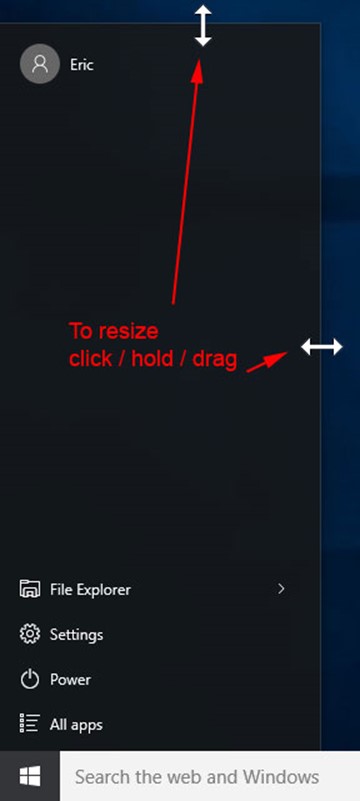
Stripped
Here is my Start menu with everything unpinned, uninstalled, turned off. To resize the Start menu, slide cursor over the right or top edge and click / hold / drag.


The Win + X Menu
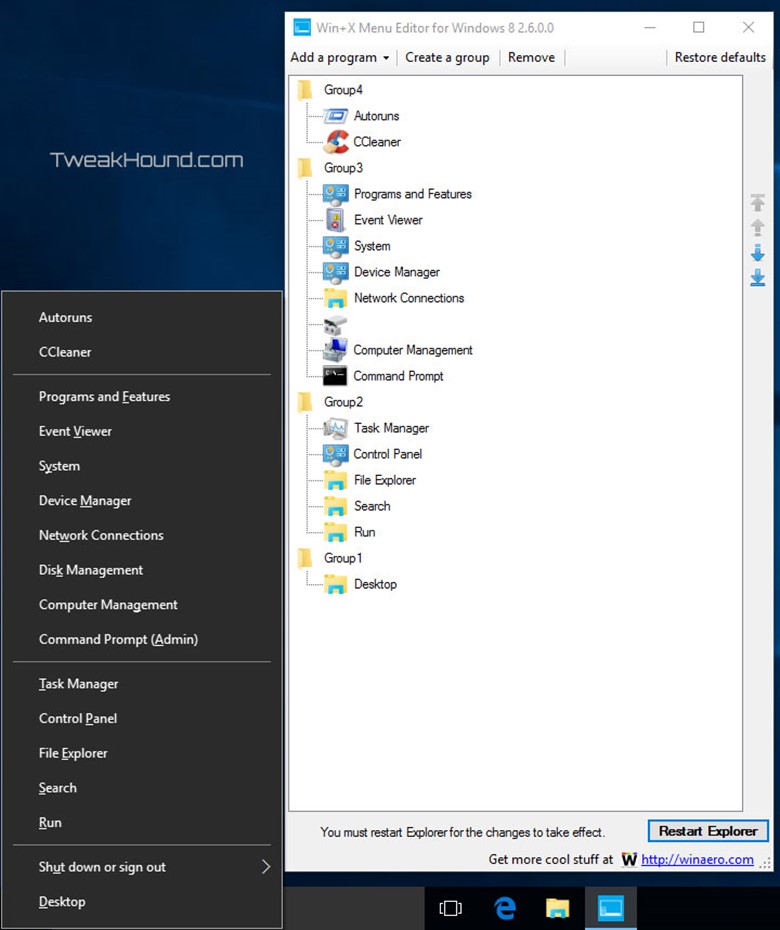
Earlier I said there were 2 start menus. Alternatively called the Power Menu or the Power Users Menu, I call it the Win + X Menu. If you right-click the Start button or press the Win + X keys, you get this.
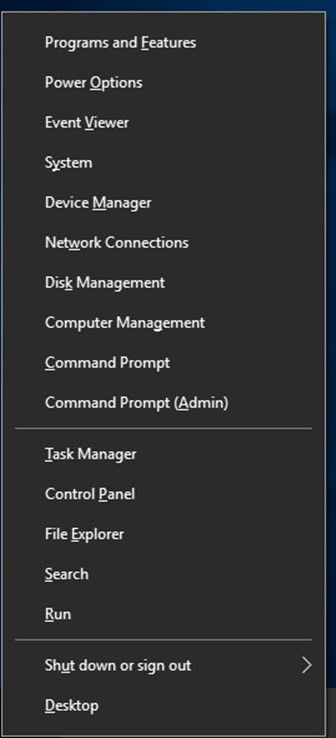
This is a very useful menu, but you can make it more so. There is a program by the fine folks at Winaero called the Win+X Menu Editor for Windows 8 that works just fine under Win 10. Below I added a few programs and removed a few too.


3rd Party Start Menus

There are many start menu replacements for Win 10. It’s the only one I use and will be the only one I cover.

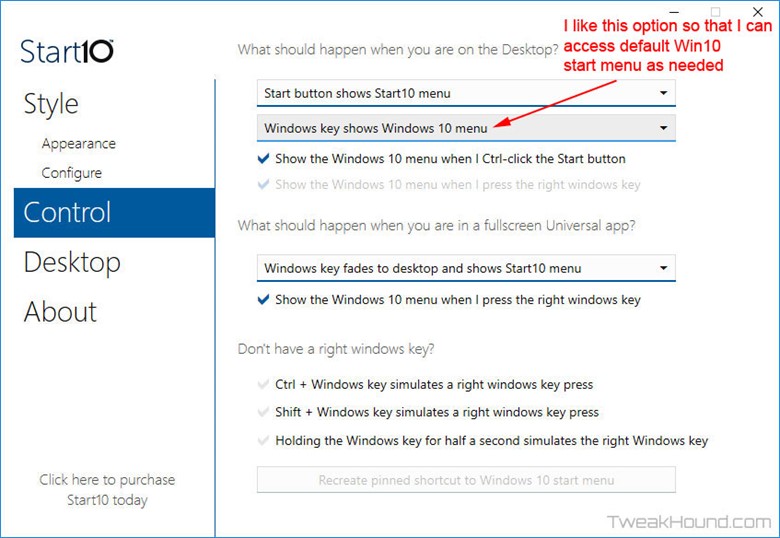
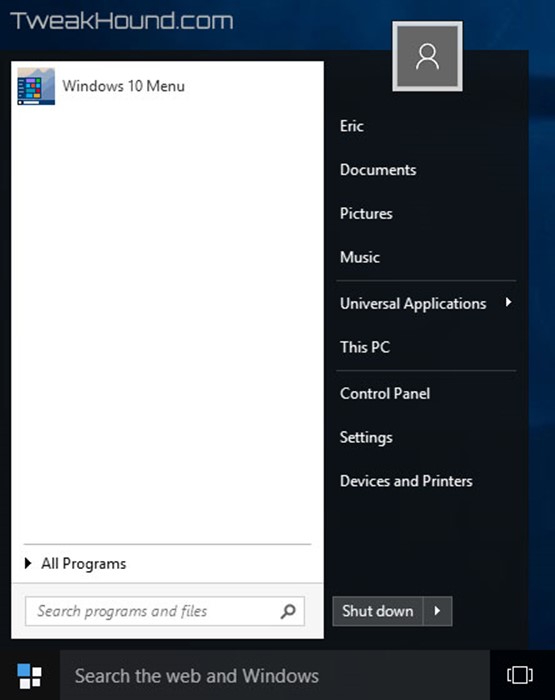
Start10

Start10 is my preferred Start menu replacement. It costs $5.
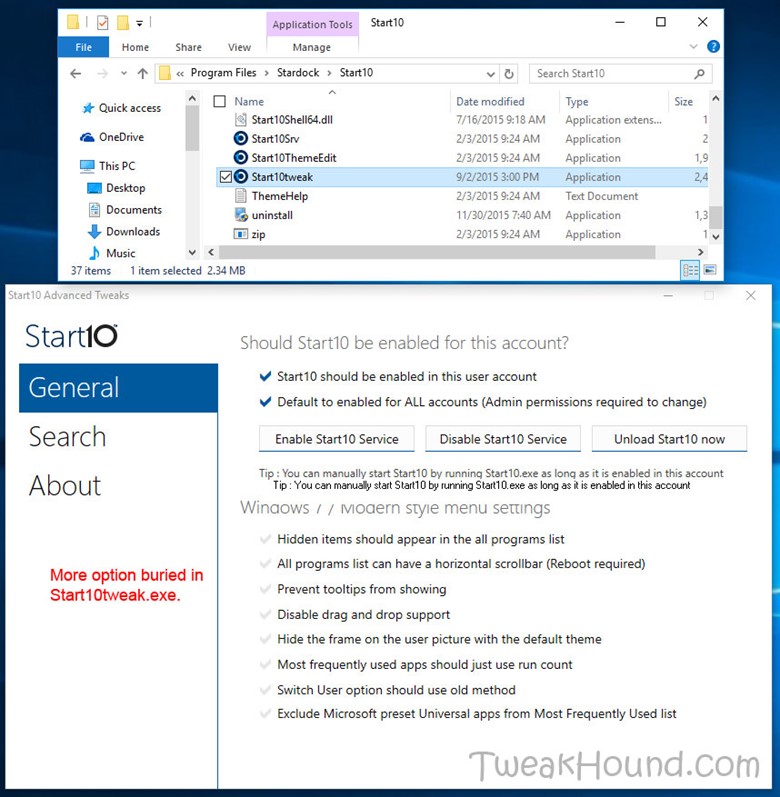
More tweaks can be found by launching Start10tweak.exe.
64bit folder – C:\Program Files (x86)\Stardock\Start10
32bit folder – C:\Program Files\Stardock\Start10

NEXT >>>


Pages: Page 1 Page 2 Page 3 Page 4 Page 5 Page 6 Page 7 Page 8 Page 9 Page 10 Page 11 Page 12 Page 13 Page 14 Page 15 Page 16 Page 17 Page 18 Page 19 Page 20 Page 21 Page 22

Reader Interactions

Comments

  1. Nate says

    May 5, 2022, 10:50(EDT) at 10:50

    Just a quick question regarding the block Cortana registry tweak. Is this still the current working method? I had read that this has changed a few times over the last few releases of Windows, just confirming it still works.

    Thanks for your incredibly thorough guides over the years, it’s always been a great source of education.

    Nate

    • Eric (a.k.a. TweakHound) says

      May 5, 2022, 13:06(EDT) at 13:06

      AFAIK. I would advise using O&O Shutup10 to make sure.

Primary Sidebar

Popular Articles

Windows 10

Tweaking Windows 10

My Windows 10 Tweaks

Windows 10 Privacy Settings

Win10 Diagnostics Tracking Service Gone?

Windows 10 Advanced Disk Cleanup

Win10 Customize Installation Options

Windows 10 Dark Theme

Win10 Wallpapers, Graphics, etc.

All Windows 10 Articles

Windows 8

Tweaking Windows 8.1

Advice On Installing Windows 8.1

Clean Install Windows 8.1

Cleanup After Windows 8.1 Upgrade

Create Shutdown, Restart, Logoff Tiles For Windows 8

Tweaking Windows 8

Install Windows 8 – Clean Install With Upgrade Media

Install Windows 8 – Upgrade

Windows 8 – Cleaning Up After You’ve Upgraded

Windows 8 Freeware Machine

Windows 8 SSD Settings, Etc.

How To Resize Your Windows 8 Partition

Create Windows 8 Recovery Media

Windows 8 – Elevated Command Prompt

How To Fix The Windows Bootloader

Windows 7

Installing Windows 7

Tweaking Windows 7

Windows 7 Diagnostics Tracking Service

The Windows 7 Freeware Machine

The Windows 7 Pagefile And Running Without One

Bad Tweaks

SSD Tweak Guide (sort of)

The noguiboot (no GUI Boot) Tweak

NtfsMemoryUsage=2 Tweak

More Windows 7 articles here.

Windows Vista

Installing Windows Vista

Tweaking Windows Vista

More Windows Vista articles here.

Windows XP

eXPired - The Last Windows XP Guide You'll Ever Need

The Right Way To Install Windows XP

Super XP Tweaking Guide

The Freeware XP Machine

Bad Tweaks

More XP Articles here and here.

Backup

Backup Article Greatest Hits – Vol. 1

Other

Cataloging Your Music Collection

Finding Good Album Art

Converting Vinyl Records To Digital Music – A Non-Audiophiles Guide

Windows All-In-One Recovery Flash Drive

SSD Tweak Guide (sort of)

Raidmax Blackstorm Case Review

Disk Partitioning

Ditch Those CD's! A Guide To Using USB Flash Drives

Checking Your Disks For Problems

Bad Tweaks

More articles here

Tags

Android Backup Beer Computer Hardware Computer News Cool Tools Freeware How-To's Linux Off Topic openSUSE Playlists Privacy Security Software This Site vacation Veterans Windows 7 Windows 8 Windows 10 Windows 11 Windows Vista Windows XP

TweakHound - Optimize Your Computing Experience! TweakHound - Optimize Your Computing Experience!

Copyright 2002-2025 by Eric Vaughan All material contain here is the property of the materials owner. Windows, Windows XP, Windows Vista, Windows Seven, Windows 8, Windows 10, Windows 11, Microsoft, and all associated logos are trademarks/property of Microsoft. You may not use or copy any material from tweakhound.com without expressed written permission. Hotlinking to any material within this site is forbidden. Privacy Policy