First Things First
Beginning with the Windows 10 Creators Update, some genius at Microsoft thought it would be fun to remove your Control Panel icons. I have seen several articles showing unnecessarily complicated steps to get them back, e.g., use this program, edit the registry, etc.
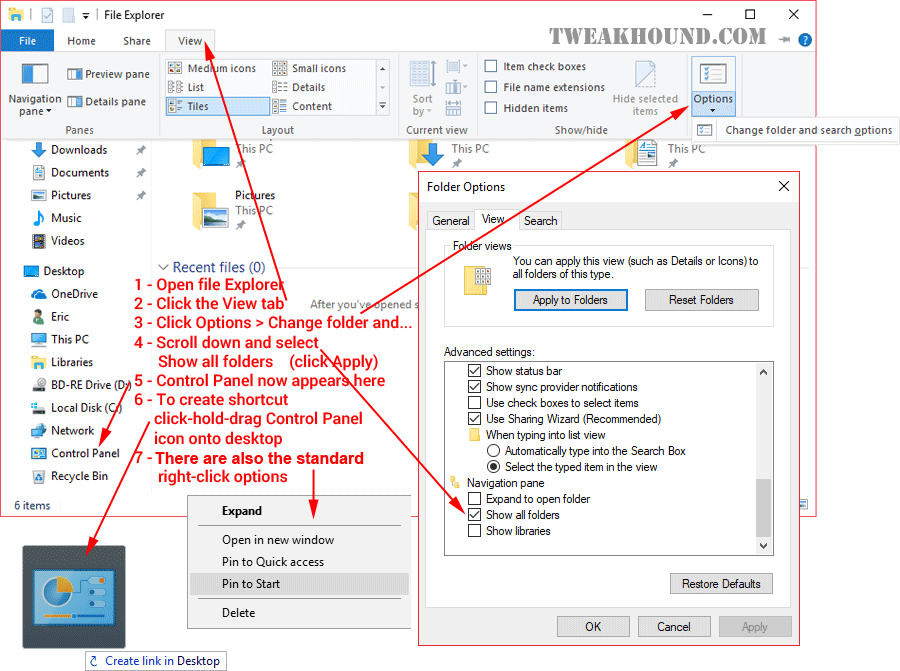
It is very easy to get these icons back:
1 – Open File Explorer
2 – Click the View tab
3 – Click Options > Change folder and search options
4 – Scroll down and select Show all folders (click Apply)
5 – Control Panel now appears in the left window of File Explorer.
6 – To create a shortcut, click and hold on the Control Panel icon and drag it onto the desktop.
You can keep the shortcut there, move it, rename it, etc.
7 – There are also the standard right-click options.
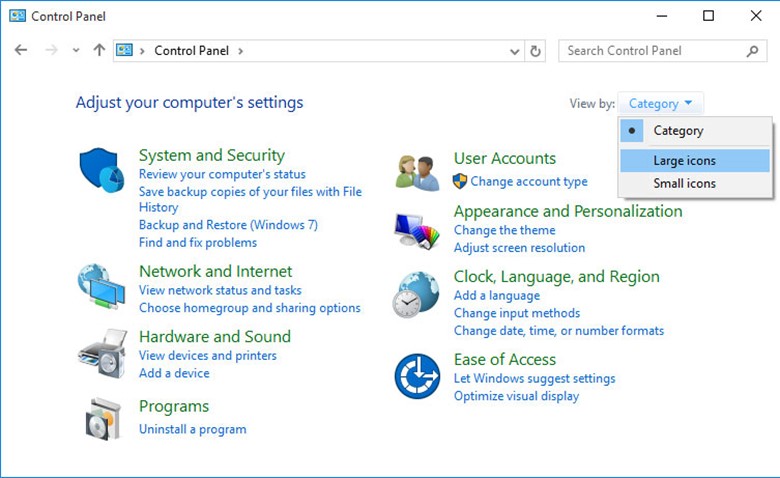
Now, let’s adjust the control Panel view to Large Icons. This will make everything else easier. Right-click on Start > Control Panel Or Press the Windows + R keys > type control.exe
Choose View by: Large Icons
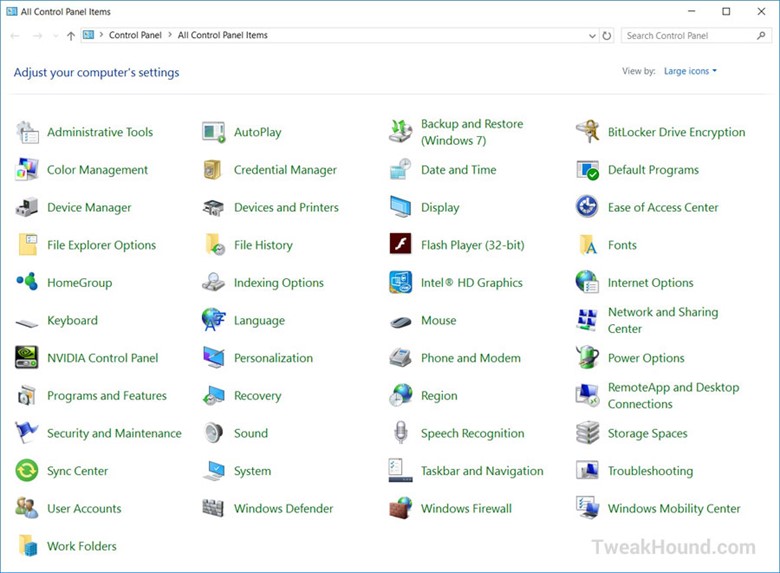
Now isn’t this better?
UAC
Not to be rude but I’m tired of the diatribe bandied about on this topic. I’m not going to debate this topic with anyone for any reason. I disable it (kinda) on my computers. See my article UAC – Quick notes on why I disable it. I am not recommending that anyone disable UAC. The choice is yours as are the consequences. Make an informed decision.
Note – This does NOT “completely” disable UAC. It just eliminates prompts.
See:
User Account Control (Microsoft)
How User Account Control works (Microsoft)
To Disable UAC:
– Type or copy and paste UserAccountControlSettings.exe into the run box or Search box.
– In the resulting window, move the slider all the way to the bottom.
– Reboot
To Configure UAC:
– Type or copy and paste UserAccountControlSettings.exe into the run box or Search box.
– In the resulting window, adjust the slider to the desired level of control (see comments above).
– Reboot
To Completely Disable UAC
– I do not recommend this. I do not do this.
– DO NOT DISABLE THIS IF YOU USE MICROSOFT UNIVERSAL APPS
– Windows + R keys > gpedit.msc > Computer Configuration > Windows Settings > Security Settings > Local Policies > Security Options > set User Account Control: Run all administrators in Admin Approval Mode to Disabled > Reboot
or via regedit:
[HKEY_LOCAL_MACHINE\SOFTWARE\Microsoft\Windows\CurrentVersion\Policies\System]
“EnableLUA”=dword:00000000
God Mode
While we’re at it, let’s do this oldie but goodie.
A tweak to add a shortcut to all control panel items (actually All Tasks) surfaced a while back. It soon began to spread around the web as God Mode. People who fancy themselves as “Windows Experts” immediately scoffed at this tweak. Although the name given to it was a little silly, the tweak is pretty handy, and I like it. This gives you a ton of Control Panel and Admin tools in one place. I highly recommend it.
Right-click on the Desktop, within a partition, or in a folder (depending on where you want the shortcut to be located) > choose New > Shortcut > enter explorer shell:::{ED7BA470-8E54-465E-825C-99712043E01C} > click Next and give it a name.
Now, that will leave you with the Explorer icon, which, meh. You can change it by right-clicking on the icon and choosing Properties > Change Icon button > and choosing or browsing to an icon (I made my own). You can move or pin this wherever you like. Now double-click it and check it out!
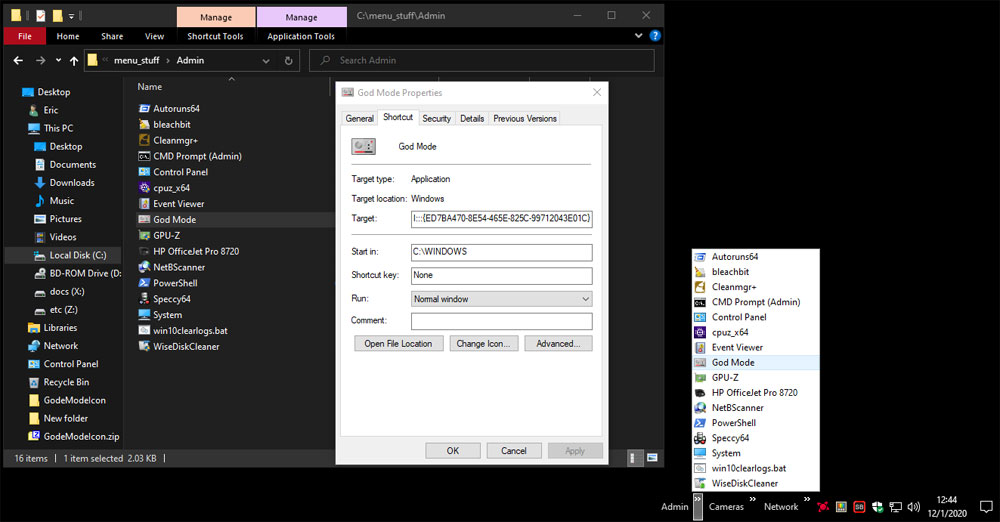
My God Mode Icon
GodeModeIcon zip file (contains .png and .ico files)
Tips For This Guide
The Windows + Pause|Break keys
The Windows + Pause|Break keys shortcut is one of my favorite shortcuts. This shortcut brings up the System Properties window. From there you can access a number of other tools and settings windows. See how to bring back the old System Properties window described later in this guide.
Windows + R keys
Throughout this guide I will often say press the Windows + R keys to enter the run box. This is “old school”, and it’s just the way I do things. You can accomplish the same thing by typing the command in the Search Box, or by using a 3rd Party start menu, or the…
Windows + S keys
Pressing the Windows + S keys brings up the search box. Handy if you remove the search box from the taskbar as I do.
The Search Box
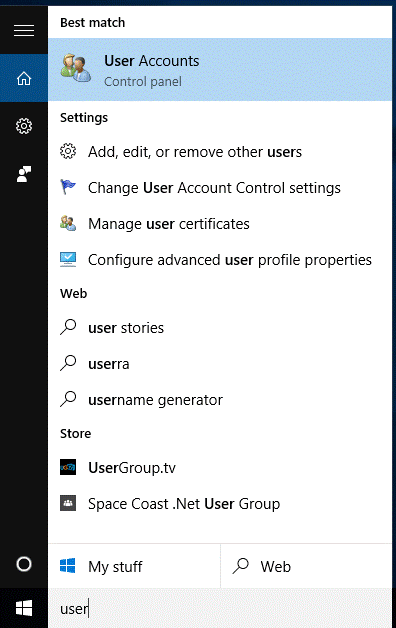
While there is a definite speed advantage to using the Windows + R keys, in many ways using the search box (Windows + S keys) is a superior way of doing things. It allows you to find apps and settings when you don’t know the command and/or where to find it. Let’s say you want to delete that loser of an Ex’s user account from your computer, but you aren’t sure where to go. Just type “user” in the search box, and look at those options.

Just a quick question regarding the block Cortana registry tweak. Is this still the current working method? I had read that this has changed a few times over the last few releases of Windows, just confirming it still works.
Thanks for your incredibly thorough guides over the years, it’s always been a great source of education.
Nate
AFAIK. I would advise using O&O Shutup10 to make sure.