Settings For User Accounts
Account Types
With Win 10 Microsoft seems to want everyone in the cloud.
Traditionally home users had a Local account. Windows 8 introduced another option: the Microsoft account, which continues in Win 10.
In this article I will explain the differences and your options.
Sections:
Local And Microsoft Accounts Defined
– Local Account
– Microsoft Account
– Which should you use, a Local or Microsoft Account?
– Accessing Account Settings
– Switch to a Local Account
– Using the Windows Store with a Local account
– How To Login Automatically
Local And Microsoft Accounts Defined
Local Account
As a home user a Local account is the same type of account you’ve always had.
All settings, information, docs, multimedia, etc. are stored on your computer.
Microsoft Account
In a nutshell a Microsoft account allows you to use the Windows Store and backup and sync your PC via the cloud.
A Microsoft account (formerly knowns as Windows Live ID) is what you use to sign in to Microsoft services such as outlook.com (or Hotmail), Office, OneDrive, Skype, Xbox, Windows, and more. It makes your experiences on devices and services more personal and relevant to you.
Which should you use, a Local or Microsoft Account?
That is really up to you. Having everything automatically synced to the cloud can have a definite advantage for the average user. My personal preference is to use a local account. I don’t use Metro apps, and I’ve no need to sync setting across PC’s. I manually take care of my backups, and I use third-party cloud options like Dropbox when I need it. Essentially, I use Win10 pretty much like it was Windows 7. You can use the Windows store while using a local account (see further down in this article).
Avoiding Using A Microsoft Account During Install
Disconnect your computer from the internet during install. When offered the options choose “I don’t have internet” and “Limited setup.” Yep, it’s that simple
Switch To A Local Account
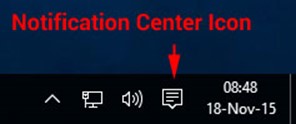
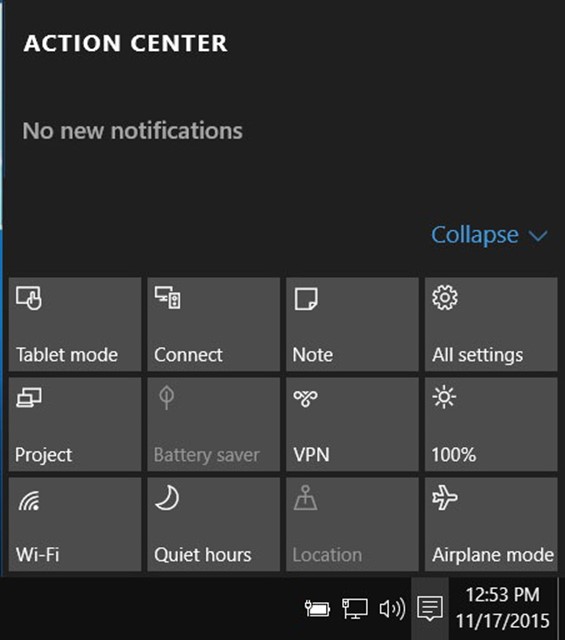
Choose All settings
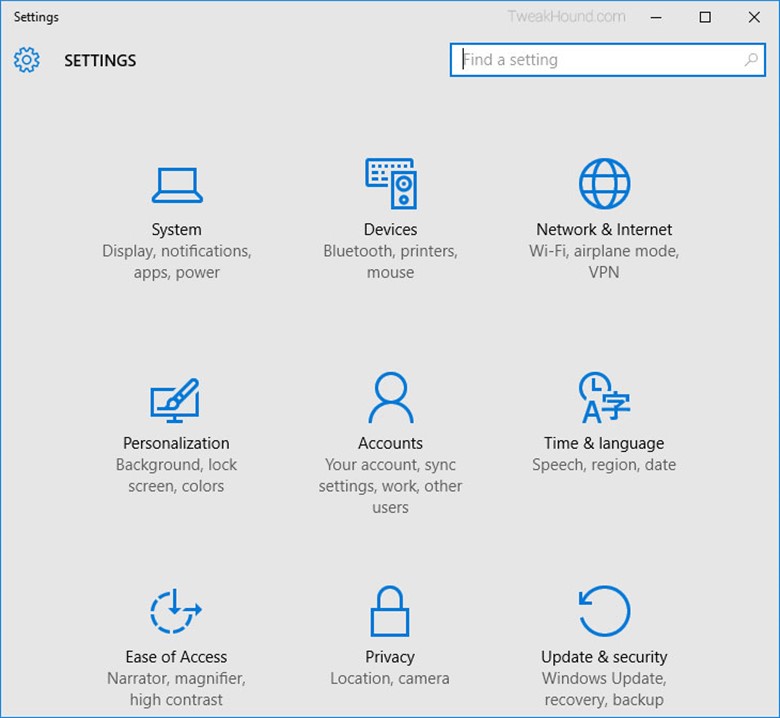
Choose Accounts
Choose Sign in with a local account instead
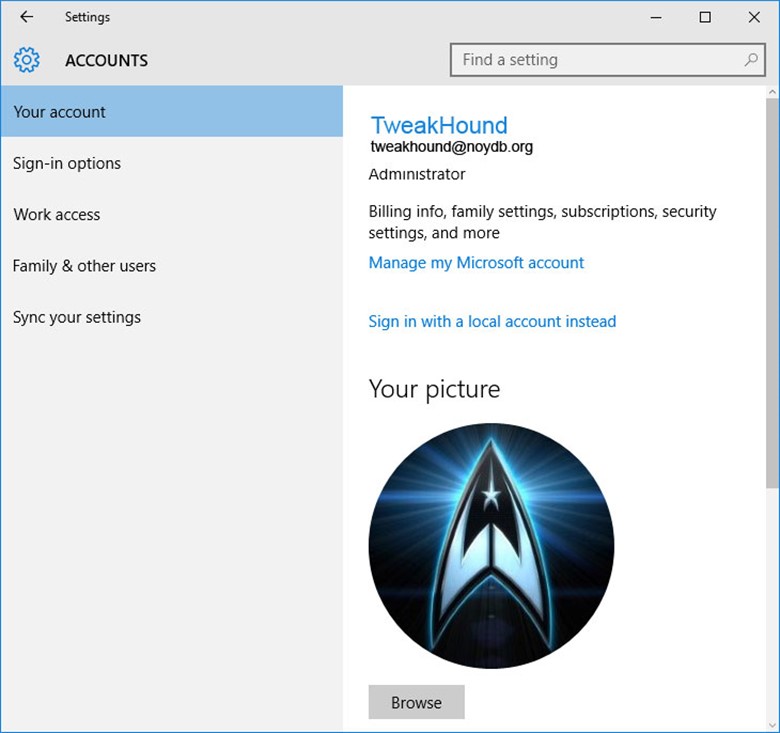
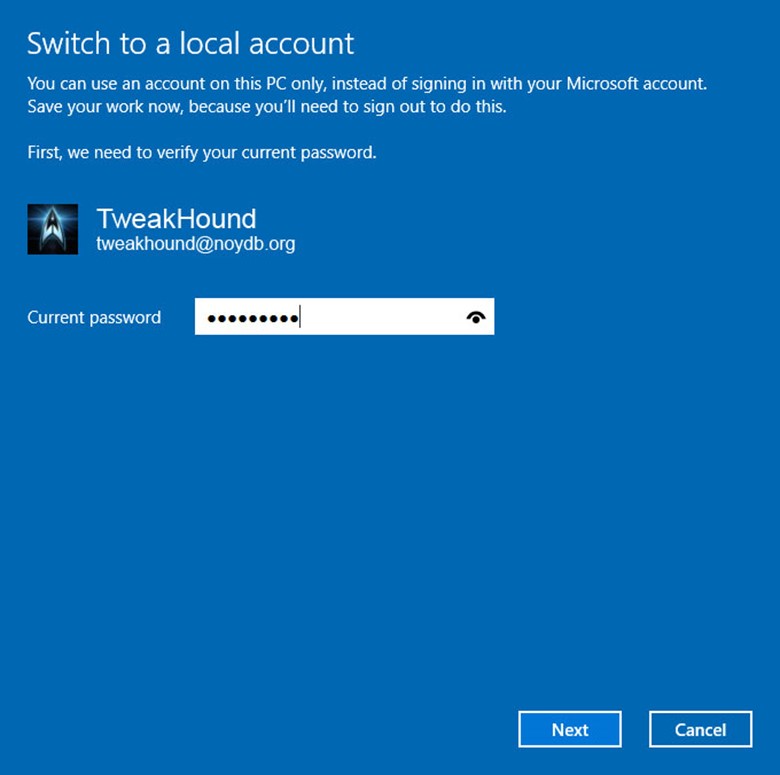
A couple of “Are your sure” screens, and then, Enter current user password
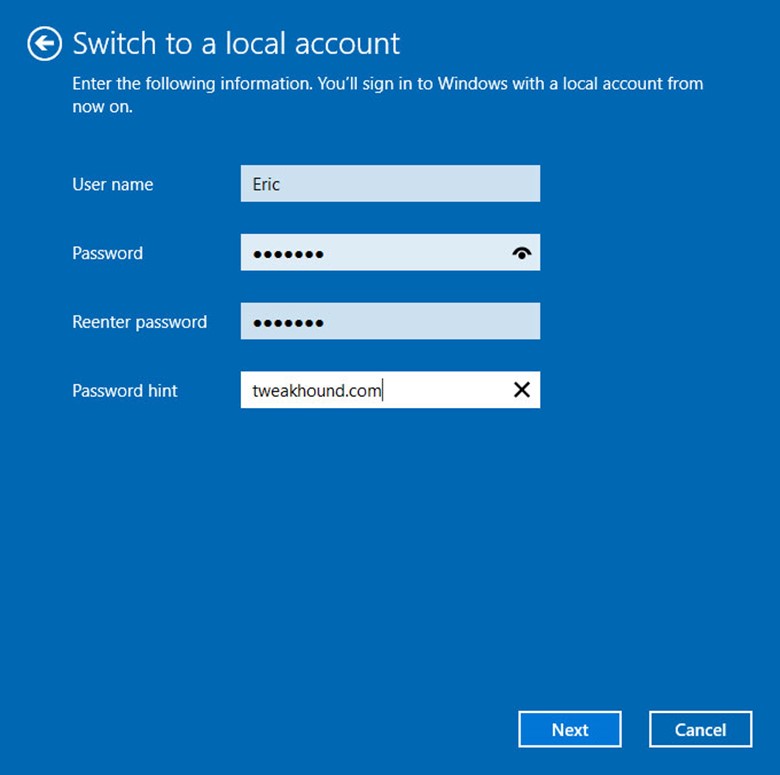
Enter the new User name, Password, and Password hint.
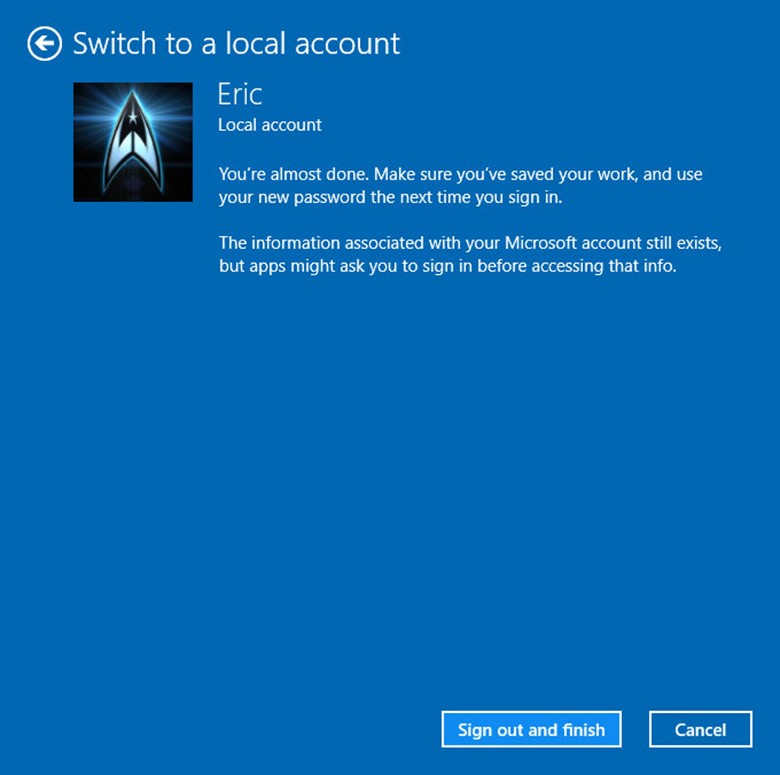
Sign out and finish.
Using The Windows Store With A Local Account
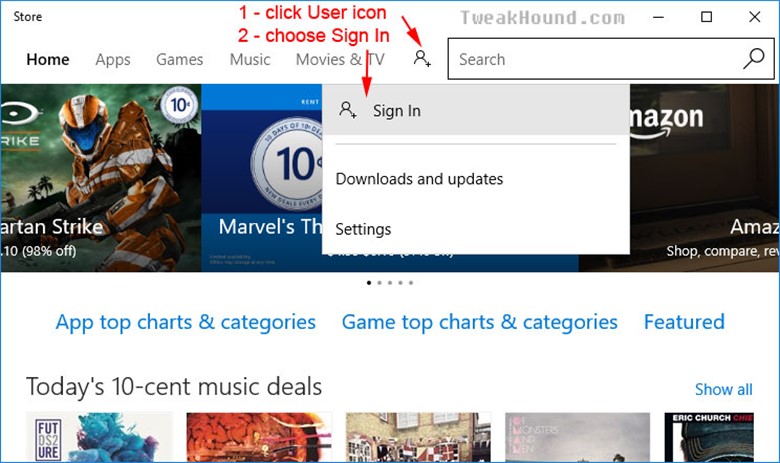
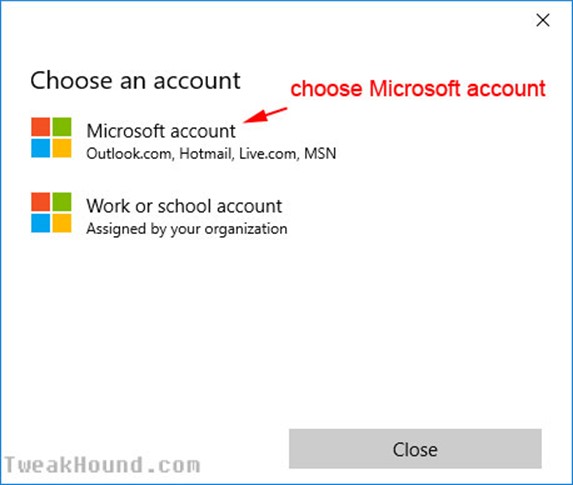
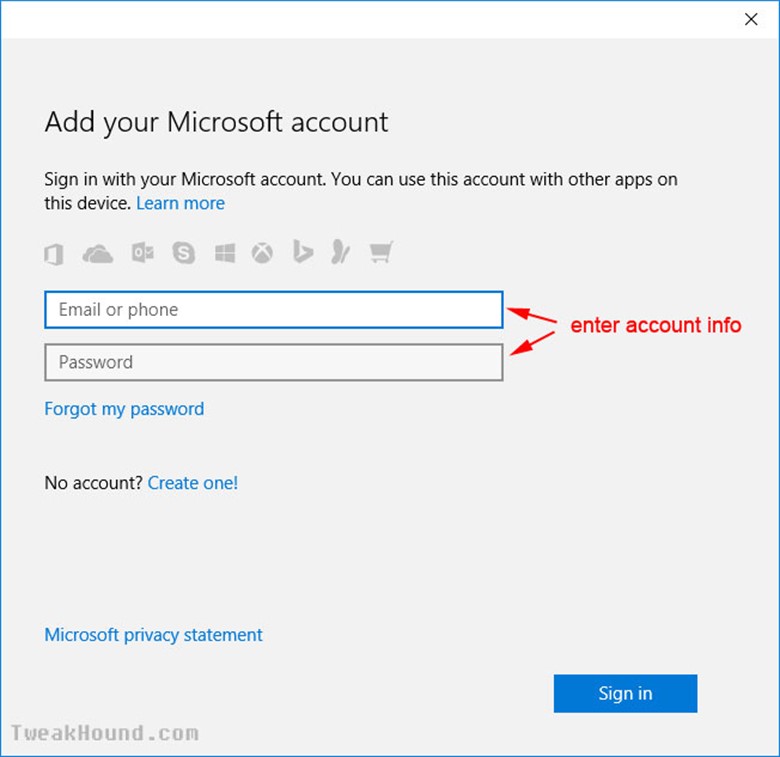
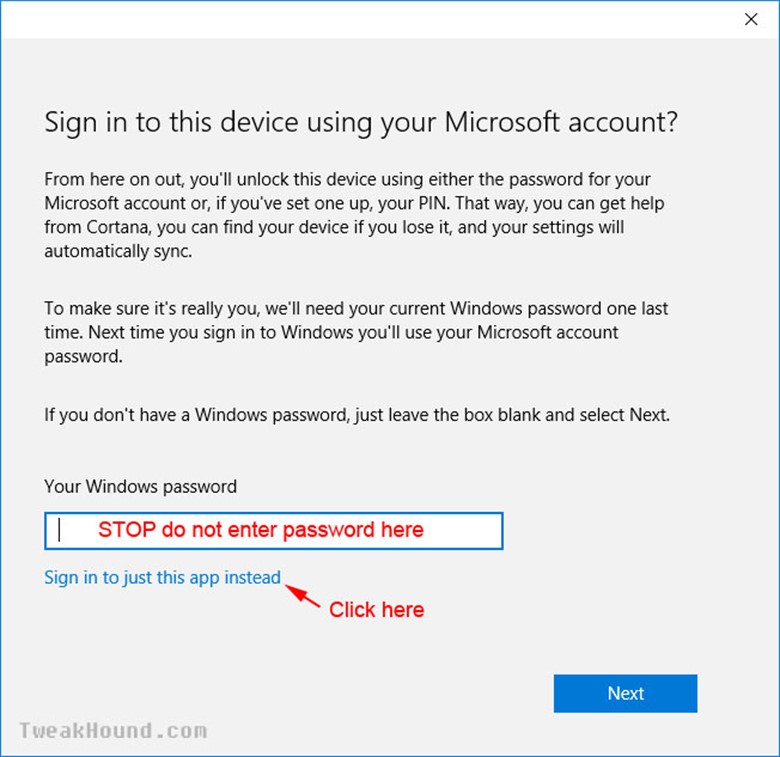
If you want to use the Windows Store with a local account, or rather use a Microsoft Account for only the store, just follow these steps:
Windows Store > User icon > Sign in > Microsoft account > choose Sign in to just this app instead.
How To Login Automatically
Setting your computer to Auto Login is a serious security risk. I recommend AGAINST doing this, but I know there are those out there who will want this.
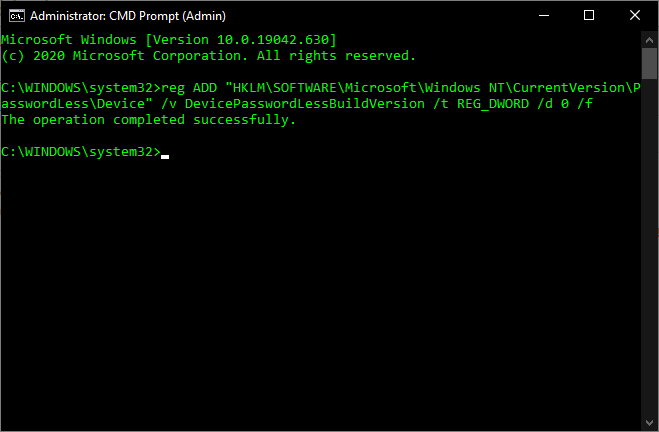
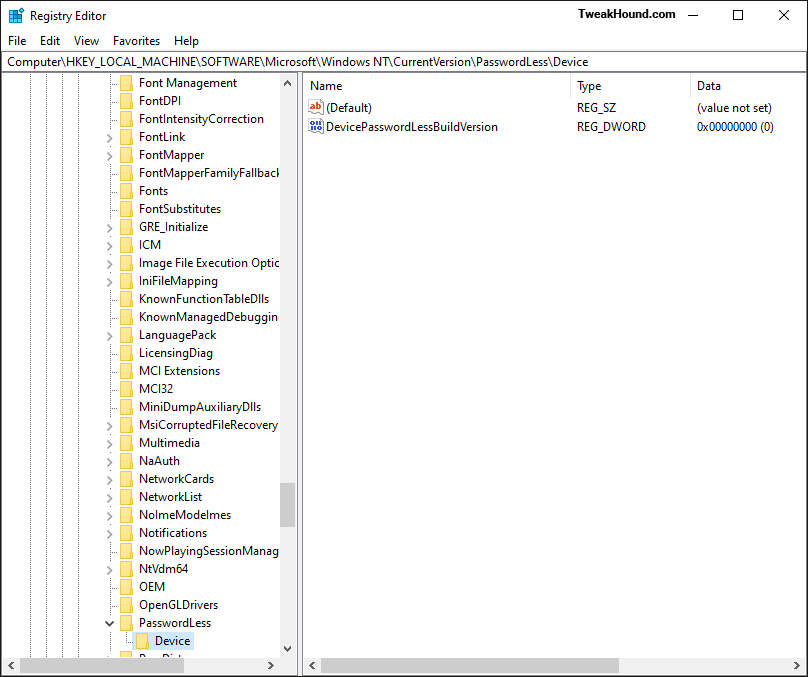
Microsoft broke/removed this setting in 20H2 so first we need to bring it back.
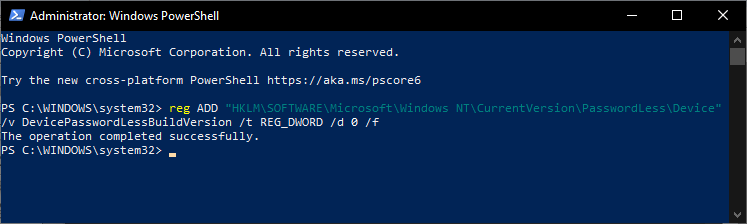
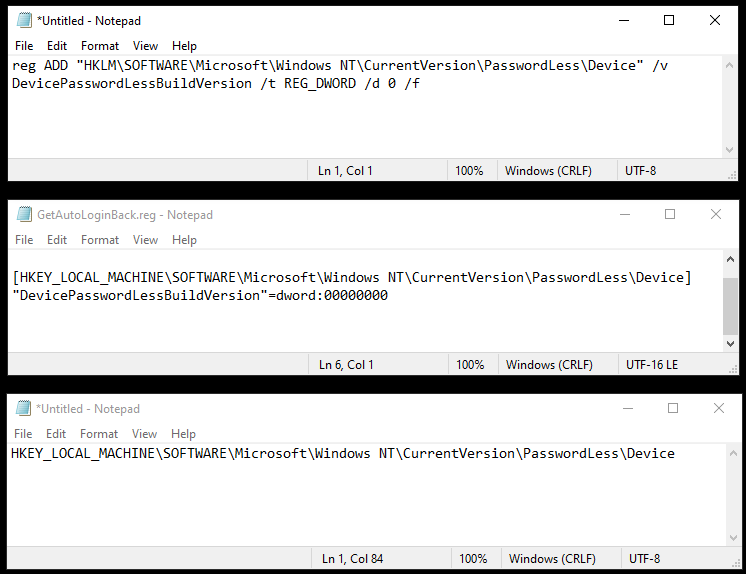
Open an elevated (run as admin) command prompt or Power Shell console and copy/paste:
reg ADD "HKLM\SOFTWARE\Microsoft\Windows NT\CurrentVersion\PasswordLess\Device" /v DevicePasswordLessBuildVersion /t REG_DWORD /d 0 /f
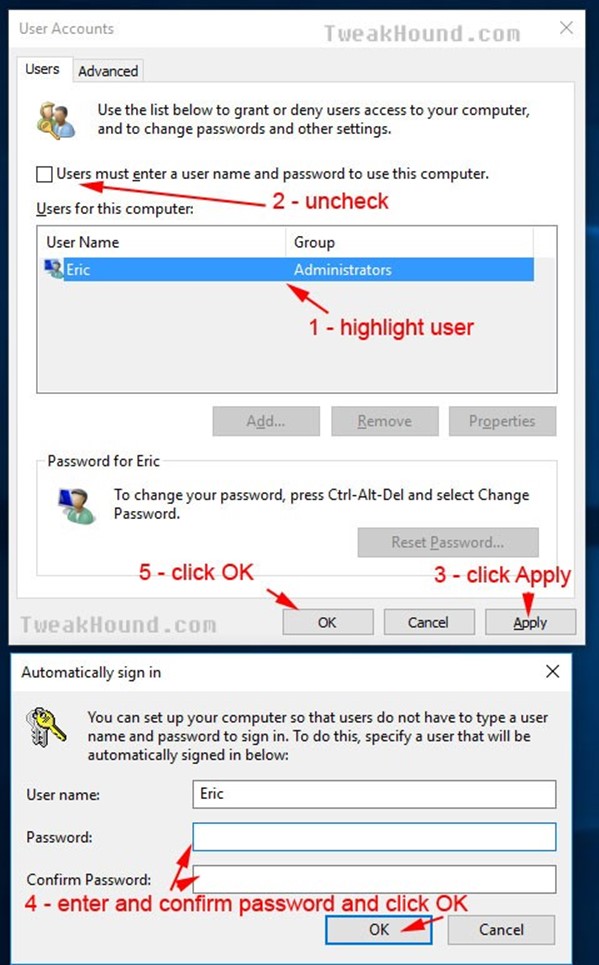
Press the Windows + R keys, and type netplwiz . In the resulting screen uncheck the box next to Users must enter a user name and password to use this computer and then click Apply. Enter and confirm password, click OK and OK again.

Just a quick question regarding the block Cortana registry tweak. Is this still the current working method? I had read that this has changed a few times over the last few releases of Windows, just confirming it still works.
Thanks for your incredibly thorough guides over the years, it’s always been a great source of education.
Nate
AFAIK. I would advise using O&O Shutup10 to make sure.