Maintaining Your Computer
Maintaining your computer means:
– Receiving updates when available
– Checking for problems and fixing them
Receiving updates when available.
Windows Update keeps Windows updated, but what about all those 3rd party programs?
Most programs have built-in update schedulers that will eventually update themselves. I prefer to install updates (especially security related) when available. I use Ninite Updater for much of this.
Ninite Updater
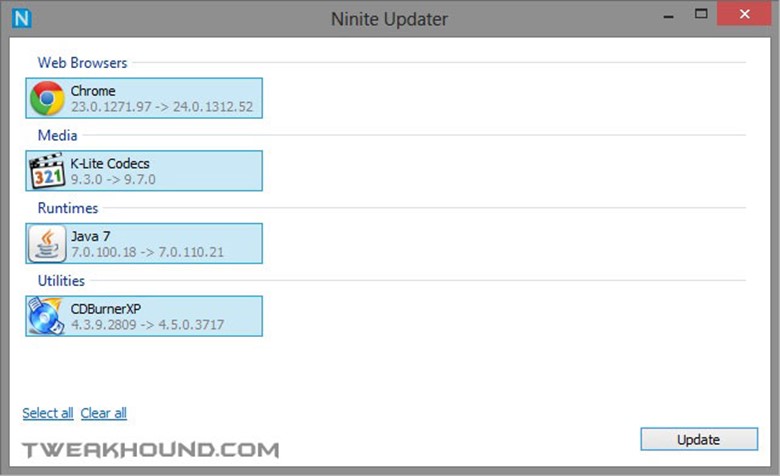
Ninite Updater is one of the few pay-for programs I recommend. Current price is $10 and IMHO is worth every penny. It covers fewer programs than does Secunia PSI but it downloads and installs the programs it supports.
Program description:
All software updaters tell you when new versions are available. With Ninite Updater it’s just one step to automatically download and install all your updates in the background. Other updaters just give you links to installers which you need to download and run by hand for each and every app.
Checking for problems and fixing them
Windows 10 Troubleshooter
Windows 10 has some built-in troubleshooters that can take care of some issues you may be having.
Go to: All Settings > Update & security > Troubleshoot
Windows 10 currently has the following troubleshooters:
Internet Connections, Playing Audio, Printer, Windows Update, Blue Screen, Bluetooth, Hardware and Devices, HomeGroup, Incoming Connections, Keyboard, Network Adapter, Power, Program Compatibility Troubleshooter, Recording Audio, Search and Indexing, Shared Folders, Speech, Video Playback, and Windows Store Apps.
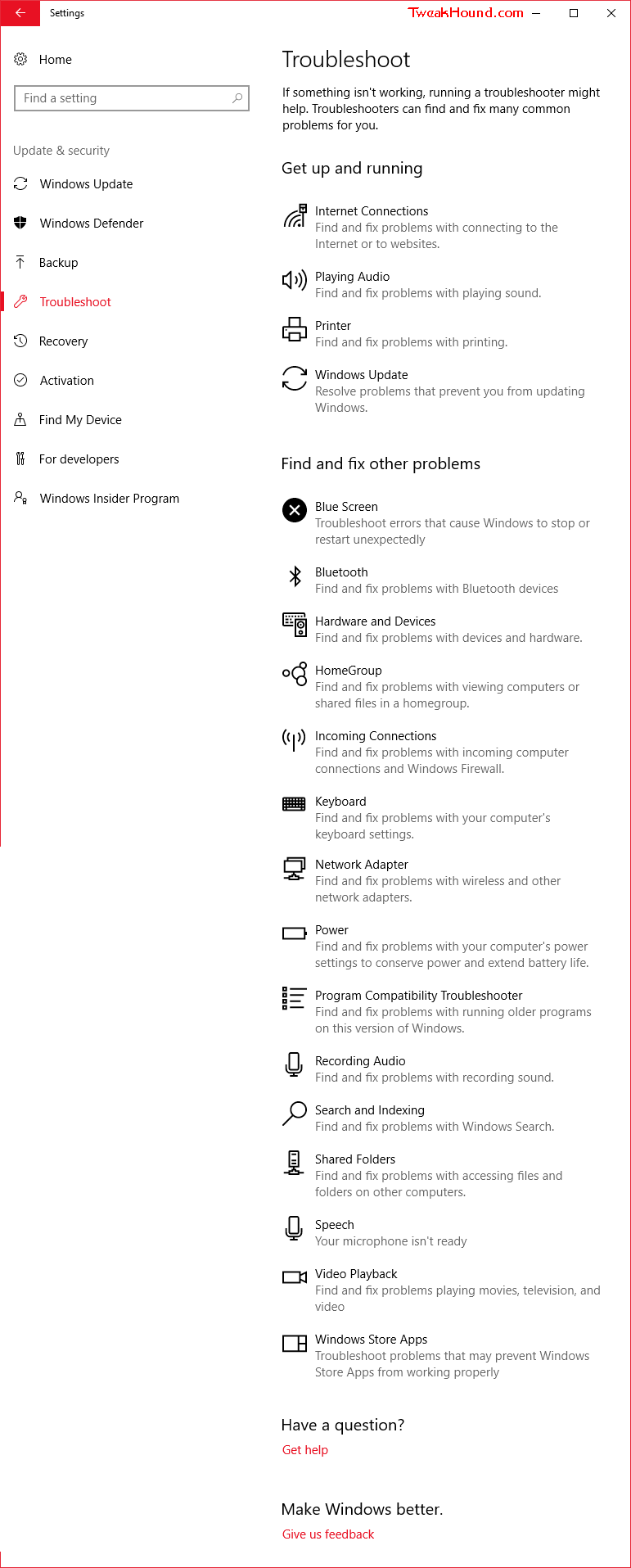
Click on the section you are having issues with, the click Run the troubleshooter:
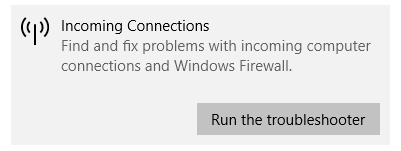
Depending on the section you may have to check a few boxes. Windows will then attempt to hunt down the problem. If it finds one it will attempt to fix it.
Through the years I’ve found that Windows Troubleshooters aren’t very successful at finding problems. But, when they do, they fix the problem quite often. IMHO the troubleshooters are worth a try.
Next Steps?
1 – Check the cables. No, not kidding. Geeks know this is the first thing to check. You’ll be stunned at the number of times this is the issue.
2 – Advanced Google search: https://www.google.com/advanced_search
I find it easier to just use operators. For instance:
“windows 10” + cannot connect to internet
or
search Microsoft.com, but leave out their useless forums; “windows 10” + cannot connect to internet site:Microsoft.com -social -answers
Administrative Tools
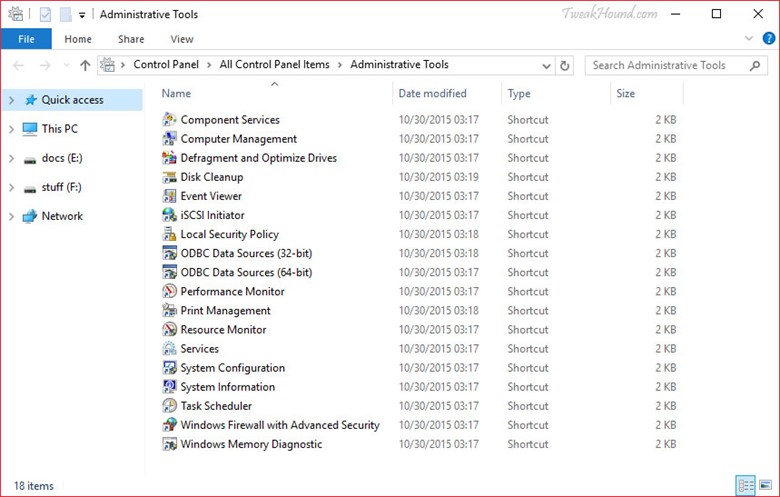
Control Panel\All Control Panel Items\Administrative Tools
If you want to know what’s going on with your computer this is THE place. Almost everything you need to diagnose PC problems is here, as well as tools to keep things running smoothly.
The sections most home users will use are:
Computer Management – Performs many tasks, such as monitoring system events, configuring hard disks, and managing system performance.
Defragment and Optimize Drives – Changes settings or manually run defrag or trim.
Disk Cleanup – Standard and advanced disk cleaning options.
Event Viewer – View information about significant events, such as a program starting or stopping, or a security error, which are recorded in event logs.
Performance Monitor – View advanced system information about the cpu, memory, hard disk, and network performance.
Resource Monitor – Find out what’s running and more.
Services – Manage the different services that run in the background on your computer.
System Configuration – Most folks know this as msconfig. Change boot options, etc.
System Information – Very detailed info on your PC.
Task Scheduler – Schedule programs or other tasks to run automatically.
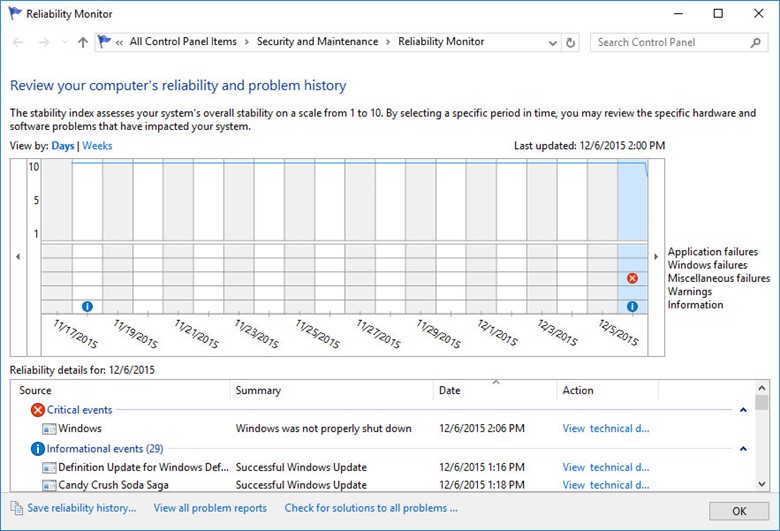
Reliability Monitor
I’ve got a secret. Wwhen folks ask me to work on their computer because it’s “acting funny,” or “it’s gotten slow,” or “I think I have a virus,” this is the first place I go. Often I can trace where the issue started right here.
“Reliability Monitor is an advanced tool that measures hardware and software problems and other changes to your computer. It provides a stability index that ranges from 1 (the least stable) to 10 (the most stable). You can use the index to help evaluate the reliability of your computer. Any change you make to your computer or problem that occurs on your computer affects the stability index.” source
To open Reliability Monitor, press the Windows + R keys and type perfmon /rel then press Enter.
or
Go to Control Panel\All Control Panel Items\Security and Maintenance > expand Maintenance > click View reliability history.
Event Viewer
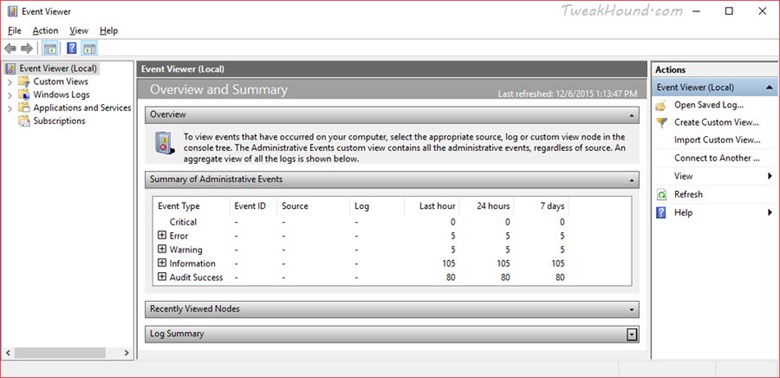
Go to Control Panel\All Control Panel Items\Administrative Tools\Event Viewer
or
press the Windows + R keys and type eventvwr then press Enter.
“Event logs are special files that record significant events on your computer, such as when a user logs on to the computer or when a program encounters an error. Whenever these types of events occur, Windows records the event in an event log that you can read by using Event Viewer. Advanced users might find the details in event logs helpful when troubleshooting problems with Windows and other programs.” source
When you have a question about a specific type of error listed, a Google search is your best bet to find info and answers.
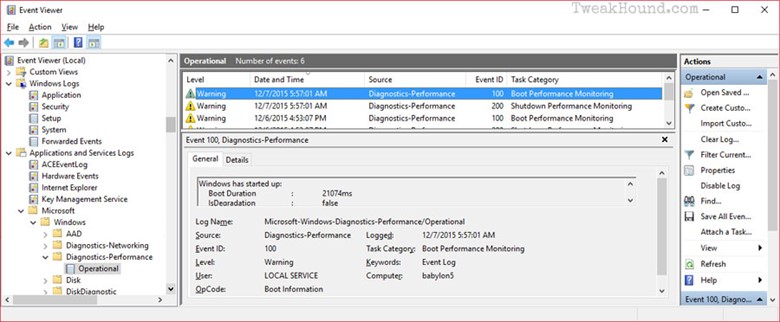
Find Start and Shutdown times and errors.
Event viewer > Application and Service logs > Microsoft > Windows > Diagnostics-Performance > Operational
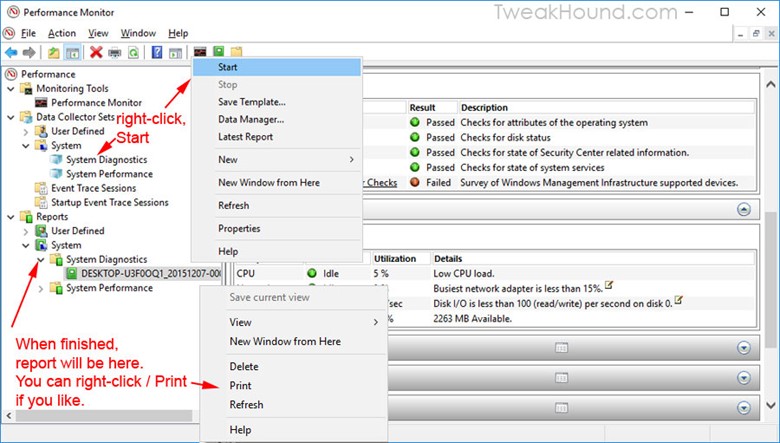
Generate a system health report
This is the one-stop problem-finding shop.
Description:
Generate a report detailing the status of local hardware resources, system response times, and processes on the local computer along with system information and configuration data. This report includes suggestions for ways to maximize performance and streamline system operation. Membership in the local Administrators group, or equivalent, is the minimum required to run this Data Collector Set.
Press the Windows + R keys > type perfmon press enter > expand Data Collector Sets > expand System > right-click System Diagnostics, choose Start. Report will be generated in 60 seconds. Expand Reports > expand System > expand System Diagnostics > choose report.
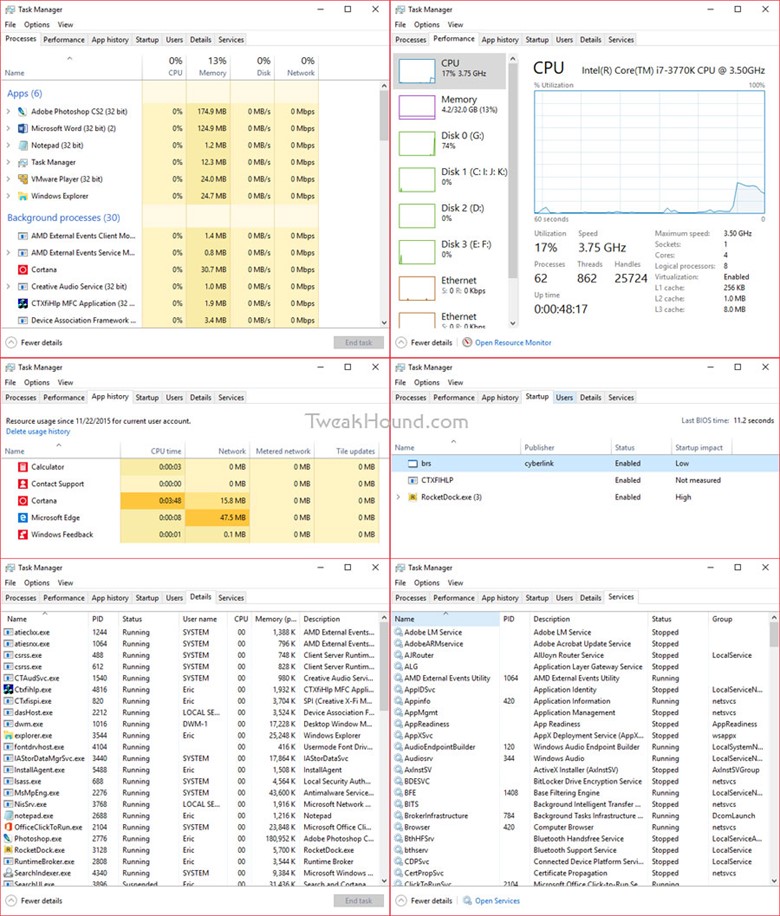
Task Manager
Task Manager is an extremely useful tool. To open Task Manager > press the Windows + X keys > choose Task Manager. To get a full view, click the More details arrow.
The Processes tab allows you to view and kill running processes.
The Performance tab. Click opens the Resource Monitor for the nitty-gritty details.
App history shows the details of Metro apps. Here is proof that if you don’t use them they aren’t using resources.
The Startup tab shows you what starts with Windows and offers a way to disable them.
The Services tab shows what services are running (and not). You can right-click the particular service to stop or start it. You’ll have to click Open Services to configure it.

Just a quick question regarding the block Cortana registry tweak. Is this still the current working method? I had read that this has changed a few times over the last few releases of Windows, just confirming it still works.
Thanks for your incredibly thorough guides over the years, it’s always been a great source of education.
Nate
AFAIK. I would advise using O&O Shutup10 to make sure.