
Testing the NtfsMemoryUsage Tweak
There have been a number of sites and forum posts listing this tweak. Lately this tweak seems to be mentioned as an SSD tweak. This tweak or rather the registry setting, has almost no documentation which makes me a little suspicious.
The tweak: NtfsMemoryUsage=2
Often listed as a way to “increase the file system memory cache size”.
Registry key: HKEY_LOCAL_MACHINE\SYSTEM\CurrentControlSet\Control\FileSystem
Change the following value from 0 to 2: NtfsMemoryUsage=2
or sometimes seen as the following command: ” fsutil behavior set memoryusage 2 ”
Documentation: The only official Microsoft documentation I can find on this is:
Fsutil behavior & Fsutil behavior.
Now, the first clue you should see here is that both the above links reference Windows Server (as in not XP, Vista, or 7). It makes me more than a little suspicious.
Although mentioned in the links above the ntfsmemoryusage tweak is noticeably absent from the Performance Tuning Guidelines for Windows Server 2008 whitepaper even though it mentions the Disablelastaccess & NtfsDisable8dot3NameCreation. Now I’m really beginning to question the value of this tweak.
What the tweak does (taken from the above 2 links):
“When set to 2, NTFS increases the size of its lookaside lists and memory thresholds.”
&
“Increasing physical memory does not always increase the amount of paged pool memory available to NTFS. Setting memoryusage to 2 raises the limit of paged pool memory. This might improve performance if your system is opening and closing many files in the same file set and is not already using large amounts of system memory for other applications or for cache memory.”
Let’s take a step back.
Paged pool memory is memory that can be swapped out of memory and paged to disk.
The limit for 32-bit Vista and 7 is 2GB, and “four times the nonpaged pool limit or 128GB, whichever is smaller” for 64-bit. So I’m not sure what you stand to gain if anything by using the tweak.
(See: Pushing the Limits of Windows: Paged and Nonpaged Pool for more info on this topic.)
Let’s keep reading.
“If your computer is already using large amounts of system memory for other applications or for cache memory, increasing the limit of NTFS paged and non-paged pool memory reduces the available pool memory for other processes. This might reduce overall system performance. This parameter updates the HKLM\SYSTEM\CurrentControlSet\Control\FileSystem\NtfsMemoryUsage registry key.”
So, if I actually use my computer for something other than say, surfing the web, this tweak may actually hurt my performance? That doesn’t sound good.
Looks like this needs a little more investigation. *Sigh*, time to do some investigating and maybe break out the benchmark tools.
A View From Task Manager:
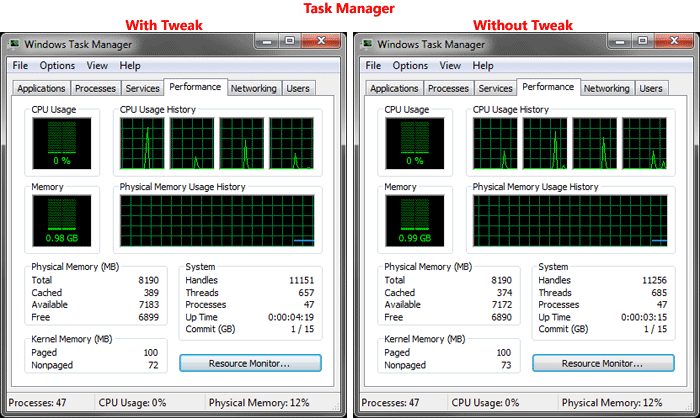
Well, OK. Nothing much to see there.
Next I’m going to get a little advanced. I will use Process Explorer & Debugging Tools for Windows to look at memory use.
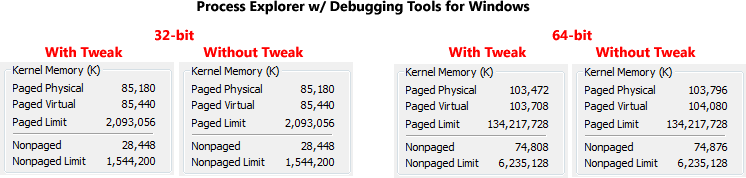
Well heck, nothing much to see there either.
Next, I’ll try a tool called Driver Verifier. I’m going to query the ntfs.sys driver.
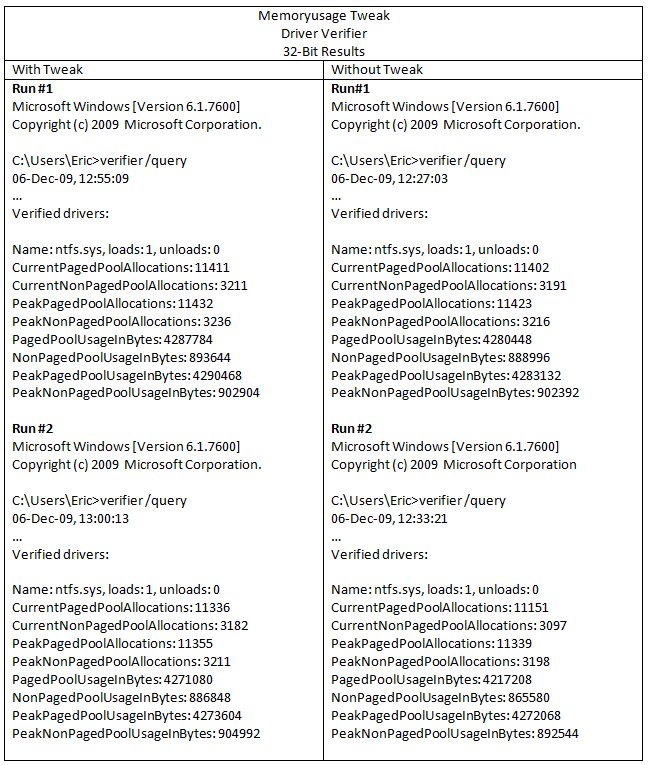
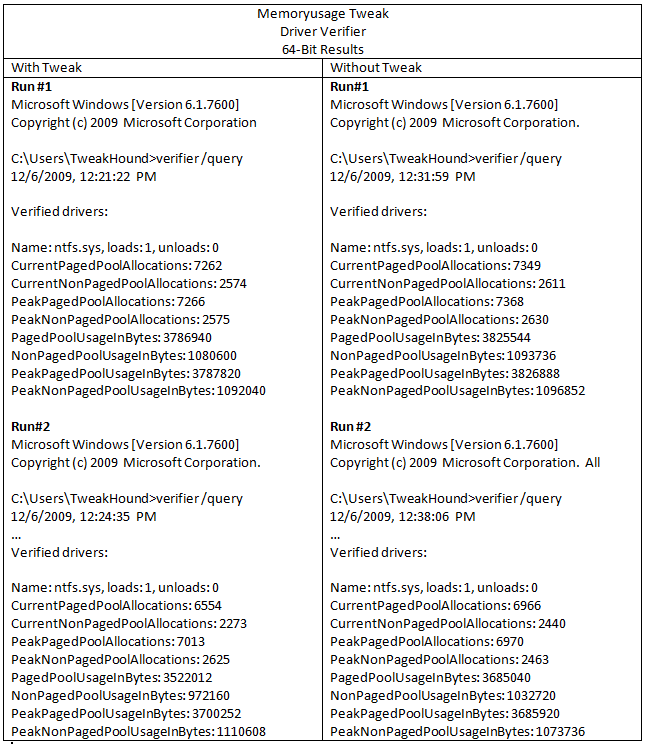
As you can see, there is no real difference with or without the tweak.
Let’s see if putting a heavy load on the computer will make a difference. I’m going to run PCMark Vantage, while under the debugger, and Driver Verifier querying ntfs.sys. That should put a very heavy load on the computer.
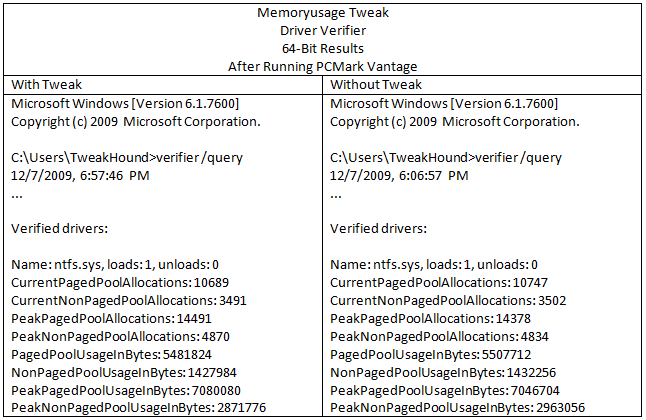
No difference here either.
OK, now let’s see what AS SSD Benchmark says:
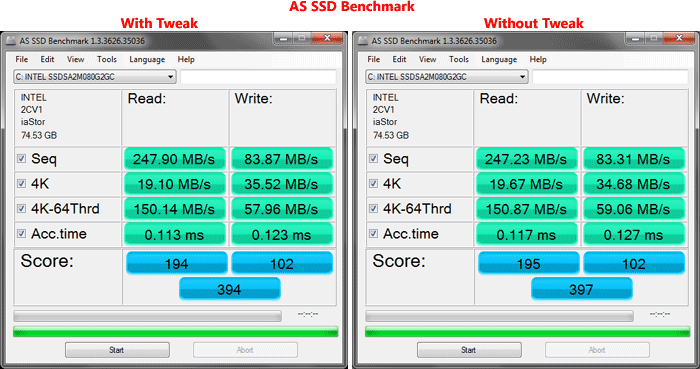
Again, no difference.
Conclusion
Everything I have tested has shown this tweak as having no effect at all.
My conclusion based on what little documentation is available and after running the aforementioned tests is:
For a PC this tweak is useless.
Postscript
After doing all this testing and writing this article something was nagging at me. The Ntfsmemoryusage key exists in the registry by default and Microsoft lists the options for this key. Yet, making changes to this key made absolutely no difference. I thought, “I’ve got to be missing something.” I kept going over my notes. I can’t see where I’ve missed anything. I need some input. I’ve always said I’m no Windows expert, but I do follow the works of some folks who are. So I sent an email out to a couple of people who know way more about the guts of Windows than I ever will, people that I highly respect. I don’t know either of them but I thought I would give it a shot. The email contained a link to the unpublished version of this article.
Only one of the two responded. Rafael Rivera of WithinWindows.com. Here is his reply:
“That registry value is only referenced in fsutil.exe. It is not referenced in any other system binary within Windows 7, meaning the value is purely there for compatibility reasons (otherwise does nothing). Increases in performance are purely imagined. You can quote me 😉” Rafael Rivera
So there you have it.
The purpose of the extended length of this post is to show you the kinds of steps I take to investigate a tweak.
This “tweak” will be added to the Tweaking Windows 7, Bad Tweaks section.
*Edit – 12DEC09 Just to be clear, this information applies to Windows 7.
Got a comment? Did I miss something? Give me a shout.