• Skip to primary navigation
  • Skip to main content
  • Skip to primary sidebar

TweakHound

Computer stuff...

  • Home
  • Windows XP
  • Windows Vista
  • Windows 7
  • Windows 8
  • Windows 10
  • Windows 11
  • Linux
  • Tweak Guides
  • Site Info
    • About
    • About Me
    • TweakHound’s World
    • Contact
    • My Computers
    • Old Articles
    • Privacy Policy
    • Old Index
    • Advanced Search

Android Phone On Your Home Network

November 25, 2010, 12:22(EST) By Eric (a.k.a. TweakHound)

There are various ways to transfer files to and from your Droid phone. This article will show you how I put my Droid X on my Windows / Linux home network.

I cannot verify which Android phones this all works on, I only know that it works from mine.

*Fair warning: This is a slightly advanced procedure that requires your phone to be rooted.

All this is done from Wi-Fi.

For those who do not know, Android runs off a modded Linux kernel. So a little explanation for those not familiar with Linux networking. I’m going to try and explain this in layman’s terms so please Geeks, cut me a little slack here. Linux requires a network “client” to go to another machine and a network “server” to allow other machines to access your machine. Linux uses Samba to network so the terms are Samba Client and Samba Server.

Your Windows / Linux computer(s) network and shares must already be setup. How to do this is beyond to scope of this article.

Accessing other computers from your Droid phone.

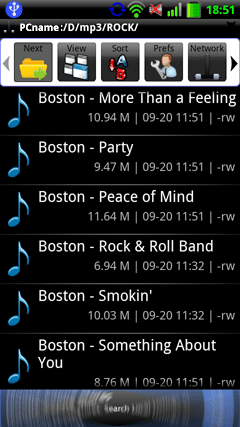
There are a few ways to do this. I use a program called Astro File Manager as my main file explorer and it has a Samba client add-on. Both are available in the Market.

Astro File Manager main app is here: http://androlicious.com/details/com.metago.astro

The Astro File Manager Samba client is called Astro SMB Module and is here: http://androlicious.com/details/com.metago.astro.smb
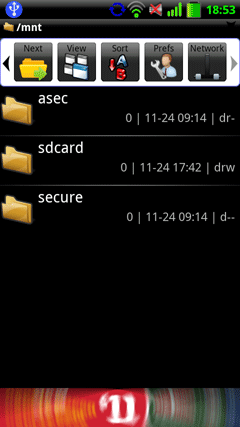
Once downloaded and installed. Open Astro, navigate to the Network icon, and click on it.
Click on New.
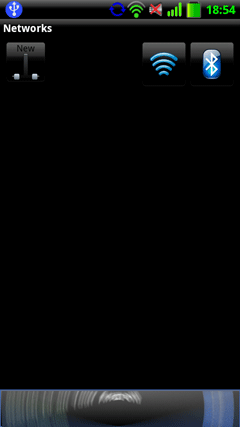
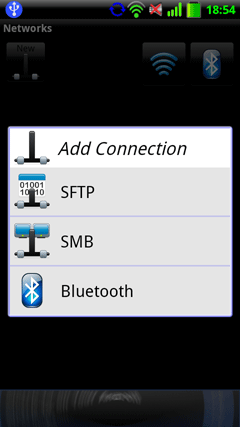
Click on SMB.
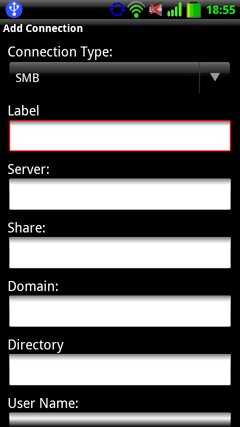
Fill in your info. Each computer is a “Server” and needs it’s own entry (that computers name).

Share, Domain, and Directory are not necessary.
Your new network connection will appear. Mine is labeled sambanet. Click on your entry.
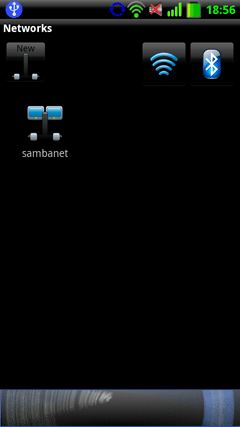
Now simply navigate to the folder of your choice.
Accessing your Droid phone from your computer.

I find accessing my phone from my computer to be faster and easier than the other way around. Fortunately someone has come up with a Samber server app. I am not going to go in to the details of how to install it, that info and the download link are here: http://forum.xda-developers.com/showpost.php?p=8239139&postcount=128 . See the entire thread for more info and questions. It is an excellent program and it is my hope that this will make it’s way to the Market.

*edit 31 January, 2011 – This app is now available in the market. Search for Samba Filesharing, or funkyfresh. It is also still available at the above link.
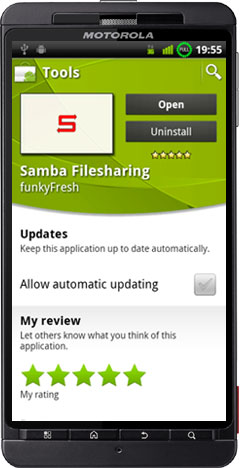
sfsmarket1

Once downloaded and installed open Samba Filesharing on Android.
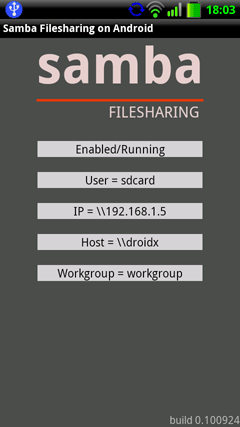
This is the option screen.
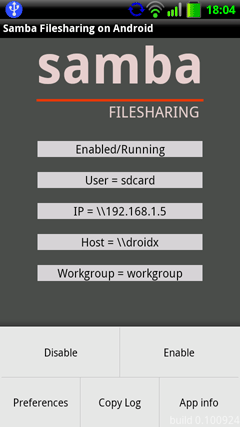
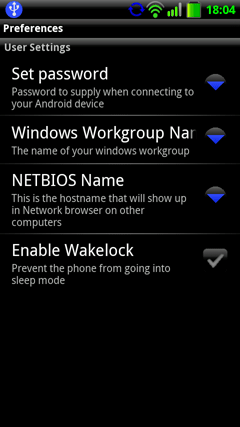
Click on Preferences and fill out each setting.

Click Enable when finished.

Advanced users: The samba configuration file is located at:  /data/data/com.funkyfresh.samba/files/smb.conf
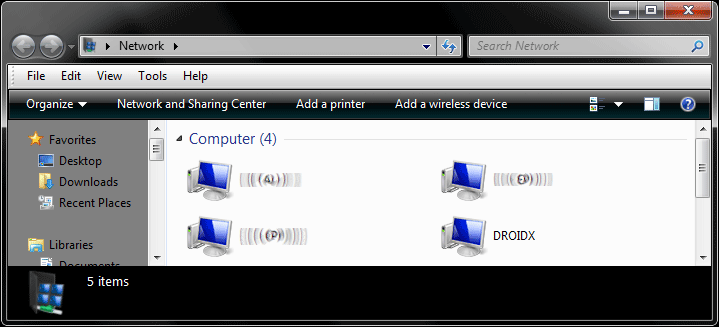
You should now see it on your network.
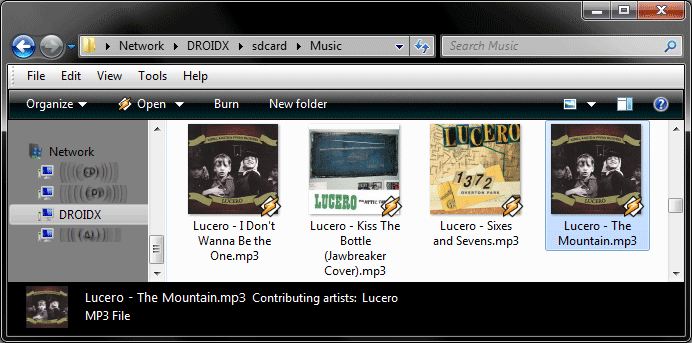
Browse to it just like any other computer.
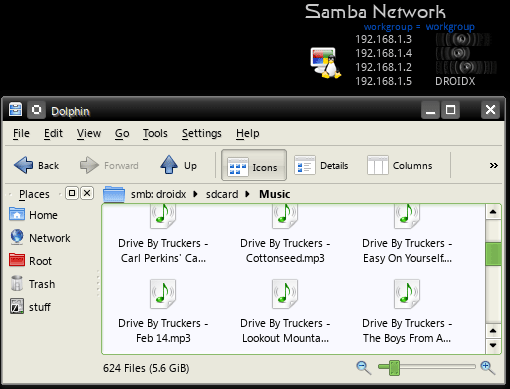
Yep, works on Linux too!
Conclusion

I hope my fellow Android users will find this info useful. Anyone got any tips on this issue?

Other Samba apps: http://www.appbrain.com/search?q=smb

created 25 November, 2010. Last edited 31 January, 2011

Primary Sidebar

Popular Articles

Windows 10

Tweaking Windows 10

My Windows 10 Tweaks

Windows 10 Privacy Settings

Win10 Diagnostics Tracking Service Gone?

Windows 10 Advanced Disk Cleanup

Win10 Customize Installation Options

Windows 10 Dark Theme

Win10 Wallpapers, Graphics, etc.

All Windows 10 Articles

Windows 8

Tweaking Windows 8.1

Advice On Installing Windows 8.1

Clean Install Windows 8.1

Cleanup After Windows 8.1 Upgrade

Create Shutdown, Restart, Logoff Tiles For Windows 8

Tweaking Windows 8

Install Windows 8 – Clean Install With Upgrade Media

Install Windows 8 – Upgrade

Windows 8 – Cleaning Up After You’ve Upgraded

Windows 8 Freeware Machine

Windows 8 SSD Settings, Etc.

How To Resize Your Windows 8 Partition

Create Windows 8 Recovery Media

Windows 8 – Elevated Command Prompt

How To Fix The Windows Bootloader

Windows 7

Installing Windows 7

Tweaking Windows 7

Windows 7 Diagnostics Tracking Service

The Windows 7 Freeware Machine

The Windows 7 Pagefile And Running Without One

Bad Tweaks

SSD Tweak Guide (sort of)

The noguiboot (no GUI Boot) Tweak

NtfsMemoryUsage=2 Tweak

More Windows 7 articles here.

Windows Vista

Installing Windows Vista

Tweaking Windows Vista

More Windows Vista articles here.

Windows XP

eXPired - The Last Windows XP Guide You'll Ever Need

The Right Way To Install Windows XP

Super XP Tweaking Guide

The Freeware XP Machine

Bad Tweaks

More XP Articles here and here.

Backup

Backup Article Greatest Hits – Vol. 1

Other

Cataloging Your Music Collection

Finding Good Album Art

Converting Vinyl Records To Digital Music – A Non-Audiophiles Guide

Windows All-In-One Recovery Flash Drive

SSD Tweak Guide (sort of)

Raidmax Blackstorm Case Review

Disk Partitioning

Ditch Those CD's! A Guide To Using USB Flash Drives

Checking Your Disks For Problems

Bad Tweaks

More articles here

Tags

Android Backup Beer Computer Hardware Computer News Cool Tools Freeware How-To's Linux Off Topic openSUSE Playlists Privacy Security Software This Site vacation Veterans Windows 7 Windows 8 Windows 10 Windows 11 Windows Vista Windows XP

TweakHound - Optimize Your Computing Experience! TweakHound - Optimize Your Computing Experience!

Copyright 2002-2025 by Eric Vaughan All material contain here is the property of the materials owner. Windows, Windows XP, Windows Vista, Windows Seven, Windows 8, Windows 10, Windows 11, Microsoft, and all associated logos are trademarks/property of Microsoft. You may not use or copy any material from tweakhound.com without expressed written permission. Hotlinking to any material within this site is forbidden. Privacy Policy