
• Skip to primary navigation
  • Skip to main content
  • Skip to primary sidebar

TweakHound

Computer stuff...

  • Home
  • Windows XP
  • Windows Vista
  • Windows 7
  • Windows 8
  • Windows 10
  • Windows 11
  • Linux
  • Tweak Guides
  • Site Info
    • About
    • About Me
    • TweakHound’s World
    • Contact
    • My Computers
    • Old Articles
    • Privacy Policy
    • Old Index
    • Advanced Search

Using the portable version of Wise Disk Cleaner (WDC)

November 28, 2025, 11:03(EST) By Eric (a.k.a. TweakHound) Leave a Comment

Although I’m showing WDC for this guide, this is meant to show you how to create a sort of toolbox for your PC.
I’m using Start11 for this guide. I use it on all my Windows machines. It’s a paid program. No, I don’t get a cut.
This is long. If you get confused, please see the pictures below.
I keep a folder of portable tools that I use on every system. From there I create a menu I can access by either my start menu (via Start11) or the system tray.
Once I setup the portable apps and their shortcuts, I can update all the folders on all my machines regularly because I keep my folder structures the same across machines (via SyncToy).
I going to use Wise Disk Cleaner as an example

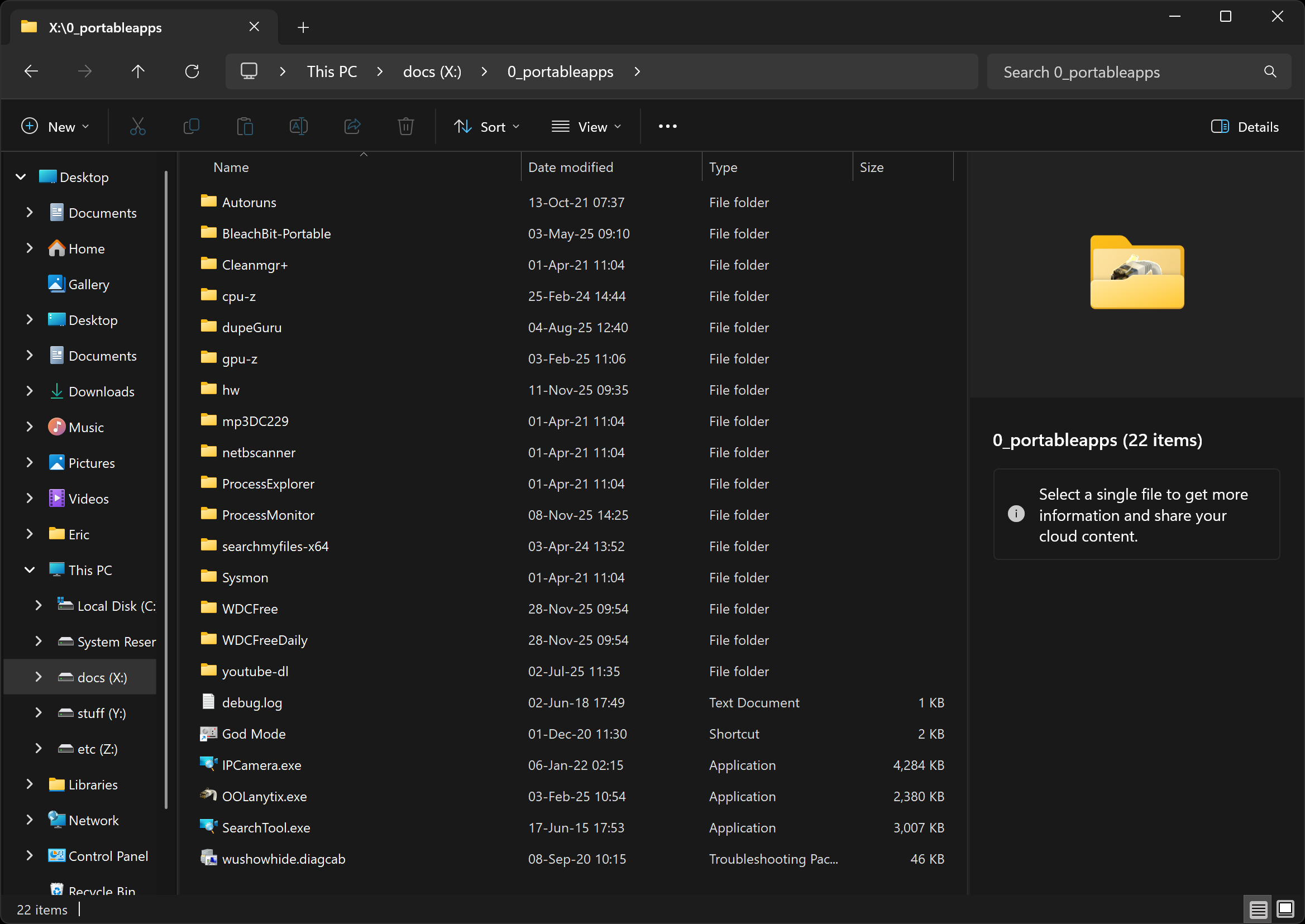
– Create a folder for your portable apps. I keep mine on a separate drive from Windows. In this case, X:\0_portableapps.
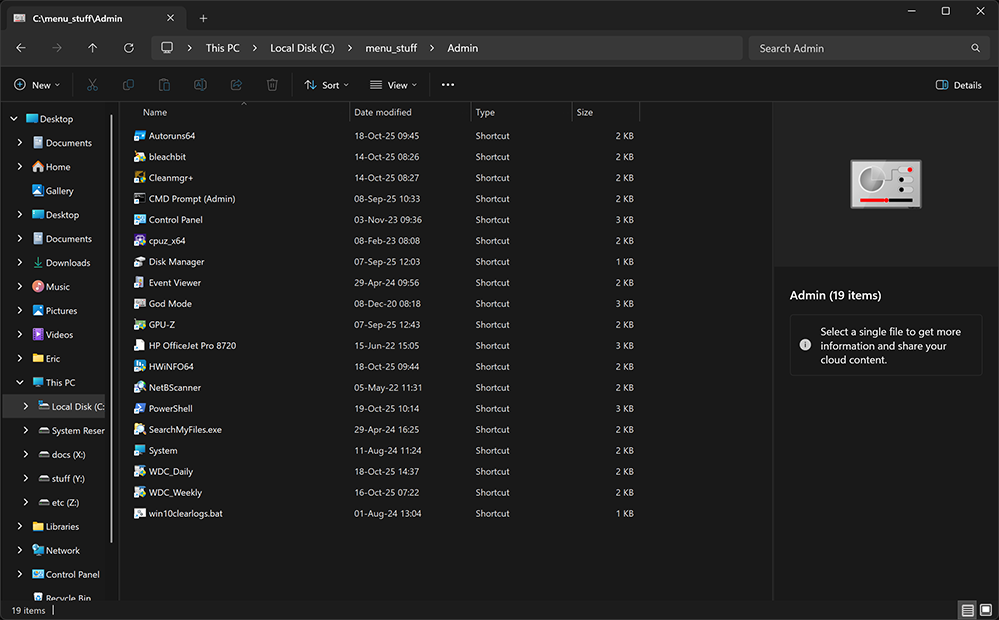
– Create a folder for your new portable apps menu. In my case, C:\menu_stuff\Admin. We are going to place ethe shortcuts we create here.
– Download and extract Wise Disk Cleaner portable.
– Choose your version (x86 or x64).
– The first time we do this we are going to copy the whole folder to our portable apps folder.
– After the first time, when WDC is updated we copy everything inside that folder EXCEPT the config.ini (these are your preferences/settings).
– Now, AFAIK WDC doesn’t allow for profiles. So I have 2 folders. One is for daily use and one for less often, thorough cleaning. I label them WDCFree and WDCFreeDaily.
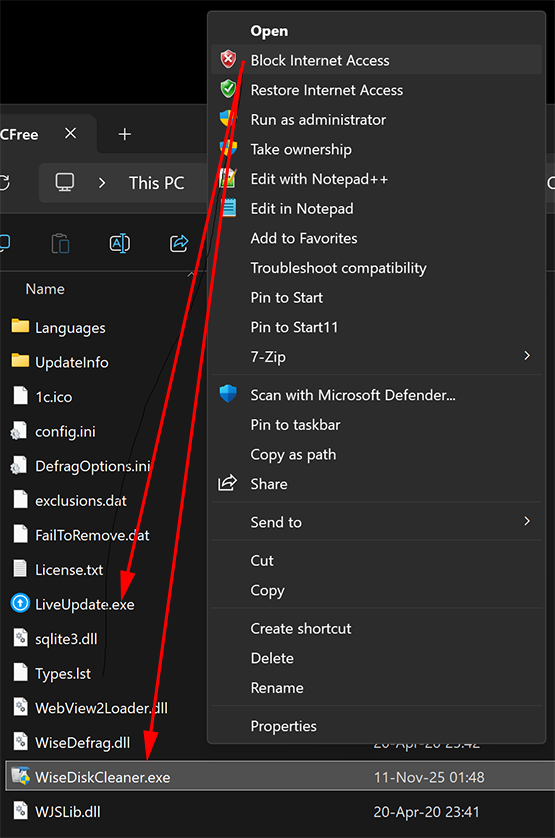
– Extra step. I’m, uh …”funny” about allowing my apps access to the internet. I block access more often than not. Back in 2018 I wrote, “Blocking A Programs Internet Access Via The Windows Firewall“. You can still do this manually but these days I just use OneClickFirewall by Winaero. Please note, you need to do this for every application (.exe) in a products folder because sometimes programs use a separate program to, let’s say, update (LiveUpdate.exe) and some programs are sneaky, sneaky.
– Settings. For full functionality you need to run WDC as Admin.
– Shortcut. From with the WDC folder in your portable apps, create a shortcut to WiseDiskCleaner.exe. Copy that to the folder you created for your shortcuts.
– Admin Menus via Start11
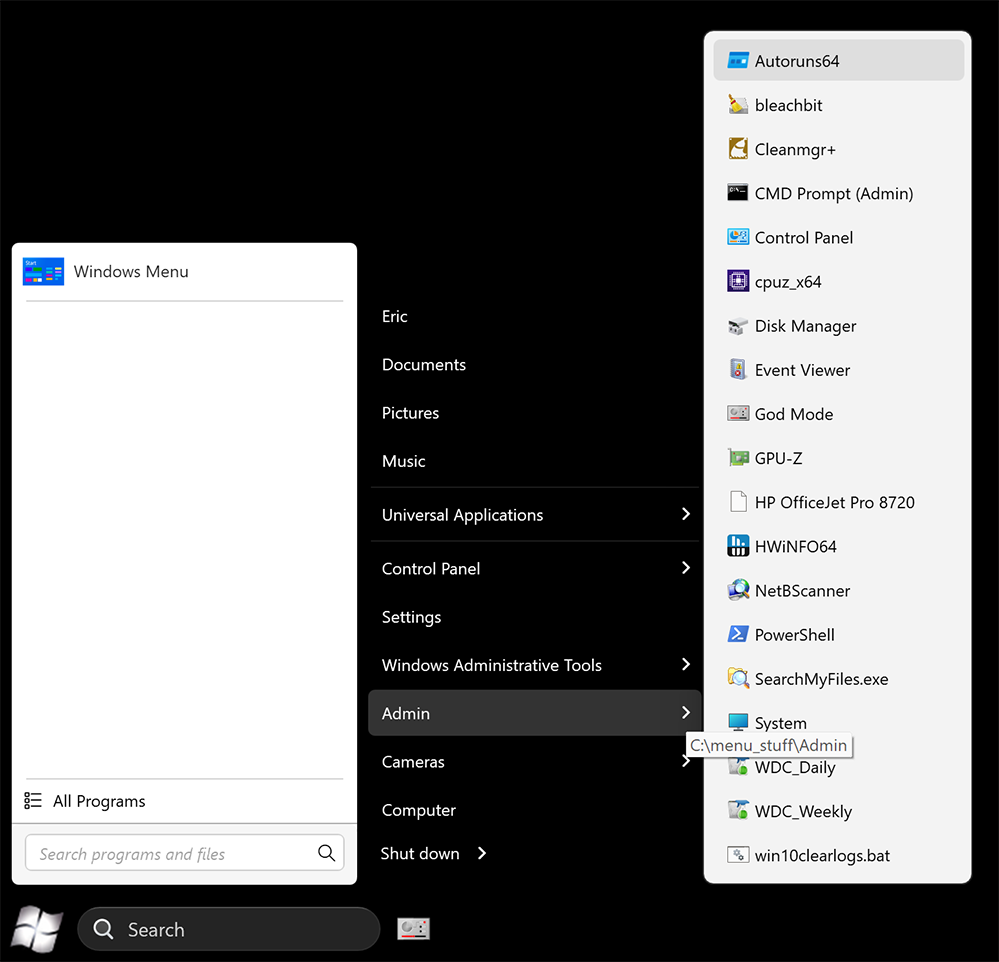
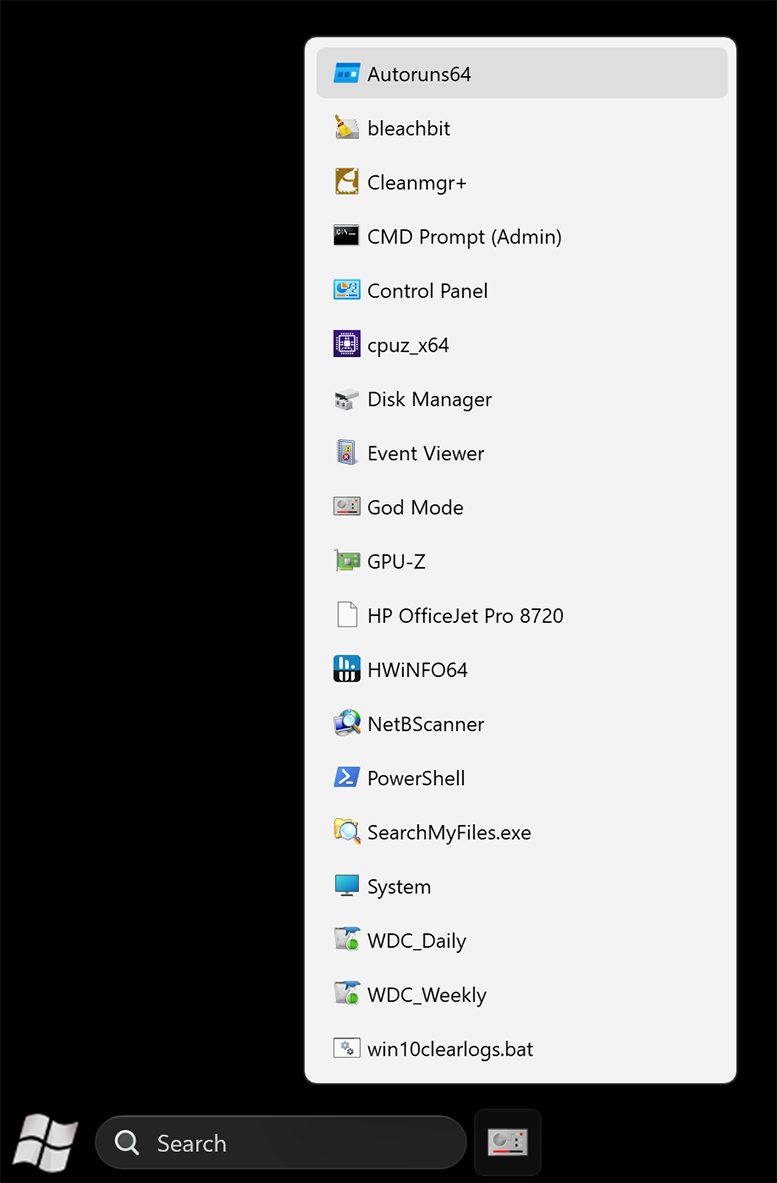
Start Menu: Go to > Taskbar, right-click, Configure Start11 > Start Menu > Configure menu > Quick access shortcuts > Add, navigate to the shortcuts folder you made > use Display as a menu.
Taskbar Folder: Go to > Taskbar, right-click, Configure Start11 > Taskbar Pins > Pin folder menu > enable Show folders as submenus

Picture examples
All my portable apps:
My Admin Menu folder:
Block internet access
Star Menu:
Taskbar Menu:
Tagged With: Cool Tools, How-To's, This Site, Windows 11

Reader Interactions

Comment Policy:
-You do not need an account or login to anything to comment.
-Comments are not posted until moderated and are filtered using Akismet among other things.
-NO POLITICS (unless post is political in nature.)
-Comments are closed after a time to cut down on spam.
-In addition the following comments will be deleted: trolling, posted in the wrong topic, bashing other people, profanity, links to adult or other questionable sites.
-Once you click submit your IP address is recorded (it is NOT posted...unless, perhaps, you violate the rules). FYI - All sites do this, I just tell you about it.
-The comment section is not a way to contact me. See here for that.
-In the end it is my site and not a public forum. I will decide what I do and do not want posted here.

Leave a Reply Cancel reply

Your email address will not be published. Required fields are marked *

This site uses Akismet to reduce spam. Learn how your comment data is processed.

Primary Sidebar

Popular Articles

Windows 10

Tweaking Windows 10

My Windows 10 Tweaks

Windows 10 Privacy Settings

Win10 Diagnostics Tracking Service Gone?

Windows 10 Advanced Disk Cleanup

Win10 Customize Installation Options

Windows 10 Dark Theme

Win10 Wallpapers, Graphics, etc.

All Windows 10 Articles

Windows 8

Tweaking Windows 8.1

Advice On Installing Windows 8.1

Clean Install Windows 8.1

Cleanup After Windows 8.1 Upgrade

Create Shutdown, Restart, Logoff Tiles For Windows 8

Tweaking Windows 8

Install Windows 8 – Clean Install With Upgrade Media

Install Windows 8 – Upgrade

Windows 8 – Cleaning Up After You’ve Upgraded

Windows 8 Freeware Machine

Windows 8 SSD Settings, Etc.

How To Resize Your Windows 8 Partition

Create Windows 8 Recovery Media

Windows 8 – Elevated Command Prompt

How To Fix The Windows Bootloader

Windows 7

Installing Windows 7

Tweaking Windows 7

Windows 7 Diagnostics Tracking Service

The Windows 7 Freeware Machine

The Windows 7 Pagefile And Running Without One

Bad Tweaks

SSD Tweak Guide (sort of)

The noguiboot (no GUI Boot) Tweak

NtfsMemoryUsage=2 Tweak

More Windows 7 articles here.

Windows Vista

Installing Windows Vista

Tweaking Windows Vista

More Windows Vista articles here.

Windows XP

eXPired - The Last Windows XP Guide You'll Ever Need

The Right Way To Install Windows XP

Super XP Tweaking Guide

The Freeware XP Machine

Bad Tweaks

More XP Articles here and here.

Backup

Backup Article Greatest Hits – Vol. 1

Other

Cataloging Your Music Collection

Finding Good Album Art

Converting Vinyl Records To Digital Music – A Non-Audiophiles Guide

Windows All-In-One Recovery Flash Drive

SSD Tweak Guide (sort of)

Raidmax Blackstorm Case Review

Disk Partitioning

Ditch Those CD's! A Guide To Using USB Flash Drives

Checking Your Disks For Problems

Bad Tweaks

More articles here

Tags

Android Backup Beer Computer Hardware Computer News Cool Tools Freeware How-To's Linux Off Topic openSUSE Playlists Privacy Security Software This Site vacation Veterans Windows 7 Windows 8 Windows 10 Windows 11 Windows Vista Windows XP

TweakHound - Optimize Your Computing Experience! TweakHound - Optimize Your Computing Experience!

Copyright 2002-2025 by Eric Vaughan All material contain here is the property of the materials owner. Windows, Windows XP, Windows Vista, Windows Seven, Windows 8, Windows 10, Windows 11, Microsoft, and all associated logos are trademarks/property of Microsoft. You may not use or copy any material from tweakhound.com without expressed written permission. Hotlinking to any material within this site is forbidden. Privacy Policy