
• Skip to primary navigation
  • Skip to main content
  • Skip to primary sidebar

TweakHound

Computer stuff...

  • Home
  • Windows XP
  • Windows Vista
  • Windows 7
  • Windows 8
  • Windows 10
  • Windows 11
  • Linux
  • Tweak Guides
  • Site Info
    • About
    • About Me
    • TweakHound’s World
    • Contact
    • My Computers
    • Old Articles
    • Privacy Policy
    • Old Index
    • Advanced Search

Recording an online video as a sound file

th

April 26, 2020, 14:16(EDT) By Eric (a.k.a. TweakHound)

Recording an online video as a sound file (Recording video as mp3)
I’m gonna first start off by saying this:
In general I do not believe in stealing other peoples work. I’m the guy that still buys CD’s and rips them. Yeah I know, “Ok Boomer“. I’ll take that even thought I’m not technically a “boomer”.
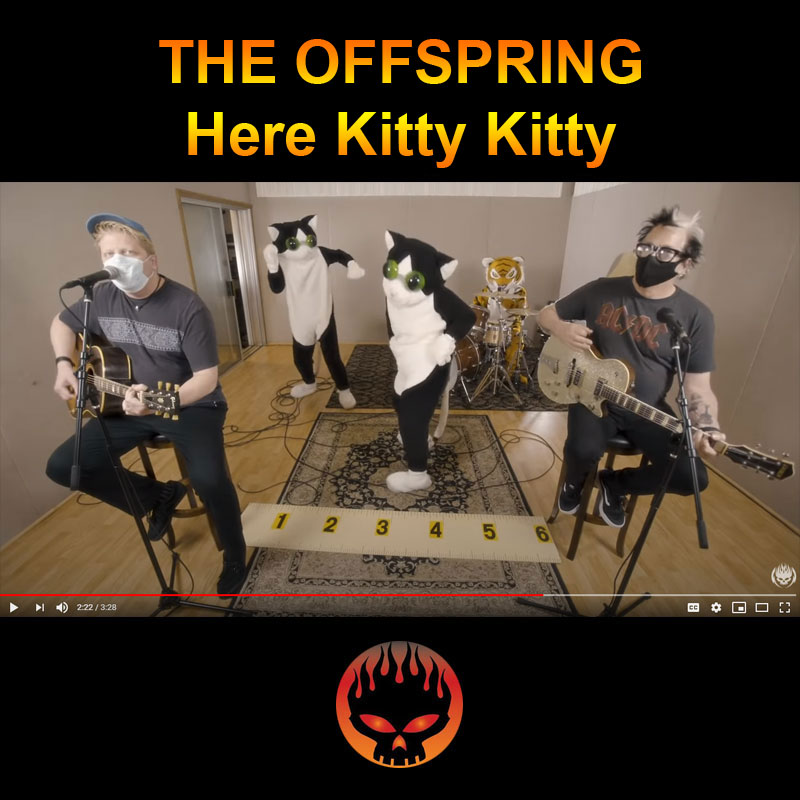
A couple of days ago I posted a video by The Offspring that is a cover of a band called the Clinton Johnson band (I looked high and low and I can’t find the original outside of the Tiger King Youtube version). Anyway, I’m pretty sure The Offspring don’t have publishing rights to it and if they do they haven’t released a single. I wanna listen to it on my phone so I’m gonna convert it. If they release a quality mp3 I will buy it (flac would be better). Yes, I know there are apps that will do this. I don’t trust them and I want control over the process.
So all that out of the way here is, IMHO, the best way to record online video as a sound file. As usual I’m gonna do this short and sweet…
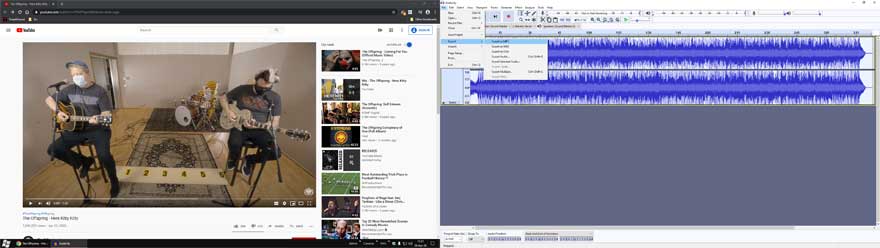
Software needed: Audacity (freeware audio software), and a web browser.

Recording Setup
Operating System Setup:
Regardless of OS you need to set it up so you can record the browser.
In Windows you’ll need to change this option to “What U Hear”.
Go to Settings > System > Sound > Input > choose What U Hear
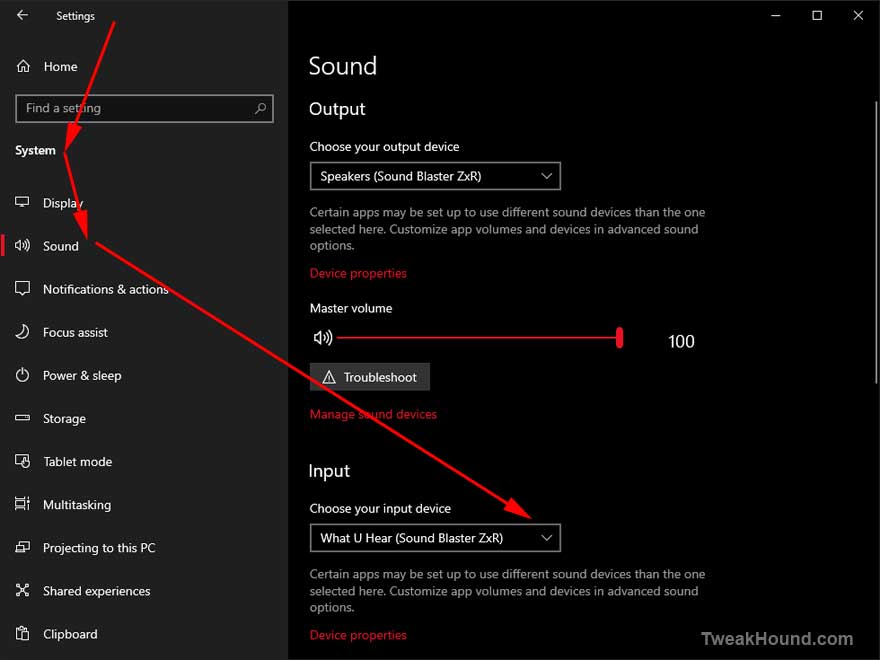
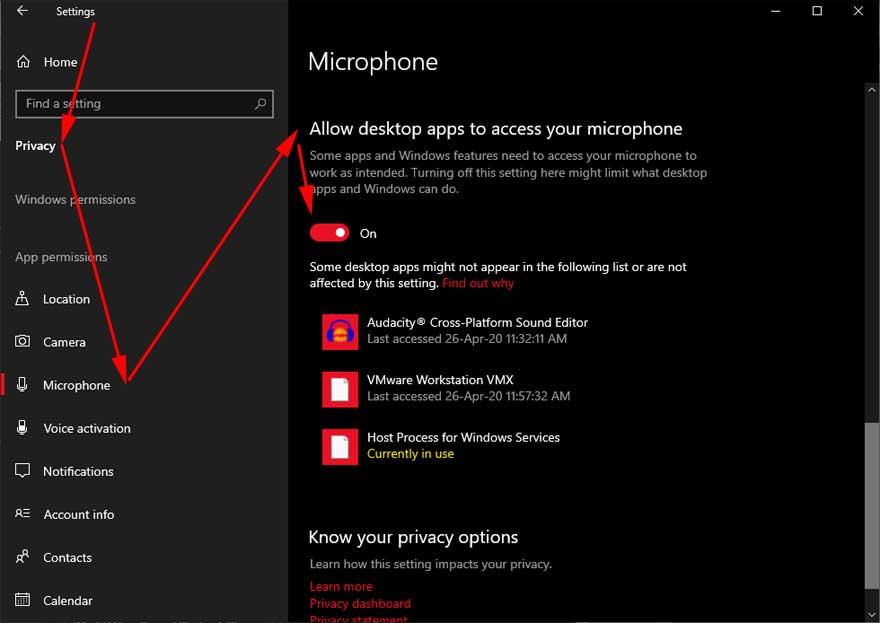
Next, because Win10 is so pleasant to use, you’ll have to make sure that Audacity can access the recording device.
Go to Settings > Privacy > Microphone > in section Allow desktop apps to access your microphone turn slider to On
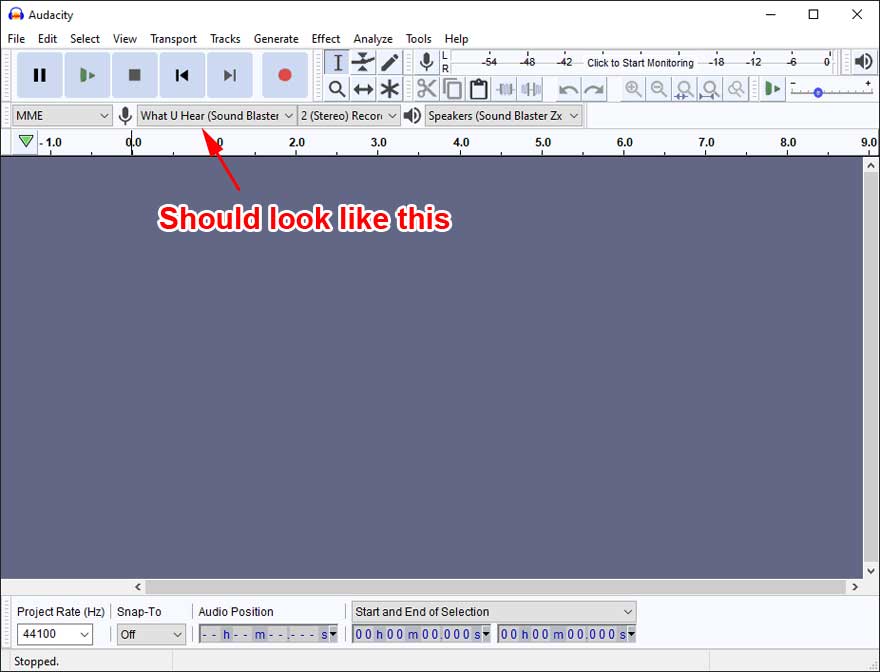
Audacity Setup
It should be setup correctly but double check. Input should be “What U Hear”.
Ready, Set, Go
Fire up your browser and navigate to the video > start Audacity > press the Record button > start the video.
Press the Stop button when the video is done playing.
Trim the unwanted stuff and the beginning and end.
Export to the file type you want. No use for lossless here, the quality of the incoming audio isn’t that good.
Add album art if you want. Little video of the process:

Album art I made:
*hey Noodles, You’re a millionaire, you don’t need to buy your shirts at Target 😉
– – – – – – – – – – – – – – – – – – – – – – – – – – – – –
The Offspring – Here Kitty Kitty

The original song by the Clinton Johnson Band. They sound damn good: Vids here. Tiger King dude DID NOT sing this, he is lip-synching.

Tagged With: How-To's, This Site

Reader Interactions

Comments

  1. JP says

    April 26, 2020, 14:37(EDT) at 14:37

    Why would you want to do all that when you can simply use the countless site that offers youtube to mp3 conversion.?

    • Eric (a.k.a. TweakHound) says

      April 26, 2020, 14:38(EDT) at 14:38

      Same reason I don’t use the apps.

  2. Tim says

    April 27, 2020, 23:10(EDT) at 23:10

    Thanks for posting those steps Eric. People don’t get those ‘easy’ methods are shady at best and don’t last cause you tube
    changes code or modifications. I’ll be rigging your way.

  3. Doug says

    May 5, 2020, 17:51(EDT) at 17:51

    Very helpful tutorial as always, Eric. Thank you for sharing this. I did run into an issue that you may or may not want to include in case others run into it too. I followed the instructions but at first it didn’t work. Audacity would show input, but playing the file resulted in no sound. After some fiddling I got it resolved by doing the following: unplugged my USB webcam and mic, disabled mobo onboard sound in the BIOS, and went into Control Panel -> Sounds and disabled all devices that weren’t the sound card (GPU, monitors, etc.). After all that the recording process worked beautifully.

    • Eric (a.k.a. TweakHound) says

      May 5, 2020, 18:01(EDT) at 18:01

      Yeah, recording in Win10 can be a PITA.
      Thanks!

Primary Sidebar

Popular Articles

Windows 10

Tweaking Windows 10

My Windows 10 Tweaks

Windows 10 Privacy Settings

Win10 Diagnostics Tracking Service Gone?

Windows 10 Advanced Disk Cleanup

Win10 Customize Installation Options

Windows 10 Dark Theme

Win10 Wallpapers, Graphics, etc.

All Windows 10 Articles

Windows 8

Tweaking Windows 8.1

Advice On Installing Windows 8.1

Clean Install Windows 8.1

Cleanup After Windows 8.1 Upgrade

Create Shutdown, Restart, Logoff Tiles For Windows 8

Tweaking Windows 8

Install Windows 8 – Clean Install With Upgrade Media

Install Windows 8 – Upgrade

Windows 8 – Cleaning Up After You’ve Upgraded

Windows 8 Freeware Machine

Windows 8 SSD Settings, Etc.

How To Resize Your Windows 8 Partition

Create Windows 8 Recovery Media

Windows 8 – Elevated Command Prompt

How To Fix The Windows Bootloader

Windows 7

Installing Windows 7

Tweaking Windows 7

Windows 7 Diagnostics Tracking Service

The Windows 7 Freeware Machine

The Windows 7 Pagefile And Running Without One

Bad Tweaks

SSD Tweak Guide (sort of)

The noguiboot (no GUI Boot) Tweak

NtfsMemoryUsage=2 Tweak

More Windows 7 articles here.

Windows Vista

Installing Windows Vista

Tweaking Windows Vista

More Windows Vista articles here.

Windows XP

eXPired - The Last Windows XP Guide You'll Ever Need

The Right Way To Install Windows XP

Super XP Tweaking Guide

The Freeware XP Machine

Bad Tweaks

More XP Articles here and here.

Backup

Backup Article Greatest Hits – Vol. 1

Other

Cataloging Your Music Collection

Finding Good Album Art

Converting Vinyl Records To Digital Music – A Non-Audiophiles Guide

Windows All-In-One Recovery Flash Drive

SSD Tweak Guide (sort of)

Raidmax Blackstorm Case Review

Disk Partitioning

Ditch Those CD's! A Guide To Using USB Flash Drives

Checking Your Disks For Problems

Bad Tweaks

More articles here

Tags

Android Backup Beer Computer Hardware Computer News Cool Tools Freeware How-To's Linux Off Topic openSUSE Playlists Privacy Security Software This Site vacation Veterans Windows 7 Windows 8 Windows 10 Windows 11 Windows Vista Windows XP

TweakHound - Optimize Your Computing Experience! TweakHound - Optimize Your Computing Experience!

Copyright 2002-2025 by Eric Vaughan All material contain here is the property of the materials owner. Windows, Windows XP, Windows Vista, Windows Seven, Windows 8, Windows 10, Windows 11, Microsoft, and all associated logos are trademarks/property of Microsoft. You may not use or copy any material from tweakhound.com without expressed written permission. Hotlinking to any material within this site is forbidden. Privacy Policy