New article up: openSUSE 11.4 Tips And Tricks
openSUSE 11.4 Tips and Tricks
(last updated 09JULY2011)
This page is devoted to making using openSUSE 11.4 a better experience.
I will continue to update this page as:
– Folks send in or post tips. Please send them in!
– I find tips somewhere else.
– I write tips myself.
Please keep in mind that I do not use and have no interest in any other desktop than KDE.
First and most important tip is where to get help: The openSUSE Forums
Download openSUSE 11.4: openSUSE, Get It
Installing openSUSE 11.4
openSUSE SDB:DVD installation for 11.4
TweakHounds quick installation tips:
1 – Deselect all Pulseaudio packages
2 – I do not install Apparmor because of all the issues I’ve had with it in the past (and a simple browse of the forums will show that 11.4 shipped with Apparmor related issues). Before someone whines at me about this, it is my very informed decision not to use it. more: http://en.opensuse.org/SDB:AppArmor , http://en.wikipedia.org/wiki/AppArmor.
Dual-Booting:
See: Dual-Booting Windows and openSUSE 11.3 and openSUSE 11.4
Add Repos:
See Additional package repositories for links.
The most important is the Packman repo.
If you do not know how to add repos then see: Add package repositories
Repos I Use:
Packman
Contrib
Mozilla
Virtualbox and Virtualization (see section below)
VLC (disabled mostly)
Wine (disabled mostly)
Muzlocker (see Make Fonts Clearer below)
Official repos added at install (updates, oss, etc.)
Other repos added by Codecs.ymp (see Codecs for KDE below)
KDE 3.5 (disabled mostly, see Install Amarok 1.4 below)
SSD Setup:
– You need to use ext4 or brtfs as the filesytem.
– You need to add discard as an option in your fstab for all the partitions on the SSD.
i.e. / , /home , but only for ext4 or btrfs formatted partitions (not swap, or Windows, etc.).
To edit your fstab to enable discard (trim)
– How I do it (openSUSE 11.3/KDE): press the alt + f2 keys > type kdesu kwrite > navigate to and open /etc/fstab >
find the partitions mentioned above > add discard to that line.
– What mine looks like:
/dev/sda2 / ext4 acl,user_xattr,noatime,discard
Install Video Drivers
Please note that I always use manual configuration (aka “the hard way”) in the links below:
AMD / ATI
Nvidia Easy Way, Nvidia Hard Way
openSUSE 11.4 Multimedia:
Codecs (click and run, or, click save as and the run):
Codecs for KDE
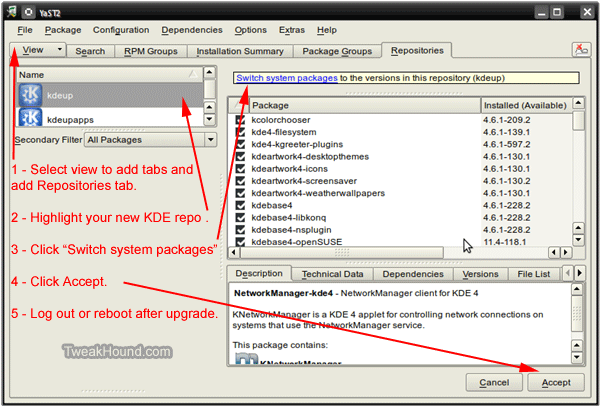
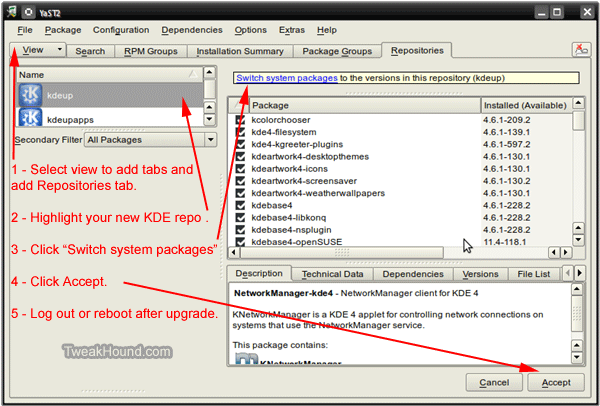
Upgrade KDE:
Add the Upstream Release repos from here (both Core and Extra):
http://en.opensuse.org/KDE_repositories#Upstream_release_aka._KR46_.28KDE_SC_4.6.29
Then follow the instructions in the screen below:
Make Fonts Clearer:
See: Get yer subpixel hinted fonts. (other good tips here too!)
openSUSE Networking
See: How To Network openSUSE 11.4 And Windows
See also: Swerdna’s Tutorials
Uninstall Pulseaudio and reconfigure sound card:
Pulseaudio is and has been the source of many issues. To uninstall it and reconfigure your sound card.
Go to YaST > Software Management:
– find and deselect pulseaudio
– optional, find and select alsamixergui
– find and select xine-ui (this installs the necassary packages for further steps).
– click Accept.
– Reboot.
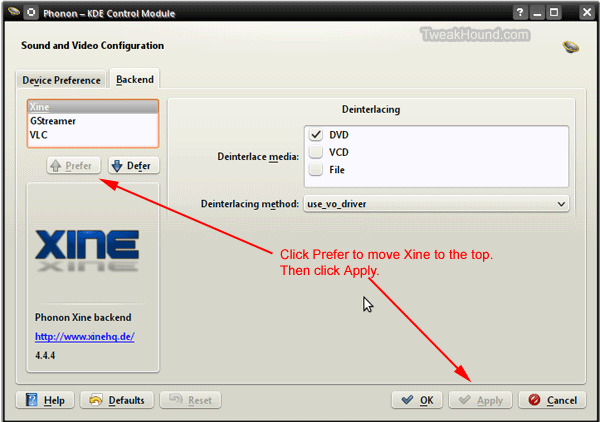
– press the Alt + F2 keys, a box will appear at the top of the screen, type phonon and hit enter. Then click on the Backend tab. Next, follow the instructions in the screen below:
Install Amarok 1.4
Hate Amarok 2? Me too! For most folks the alternative can be a program called Clementine. I still prefer Amarok 1.4
– First make sure Amarok 2 is uninstalled.
– Then add the KDE 3.5 repo, then highlight that repo in YaST Software Management (Amarok 1.4 is usually selected by default).
Install and configure VirtualBox:
See: Using VirtualBox 4 (still holds true for openSUSE 11.4).
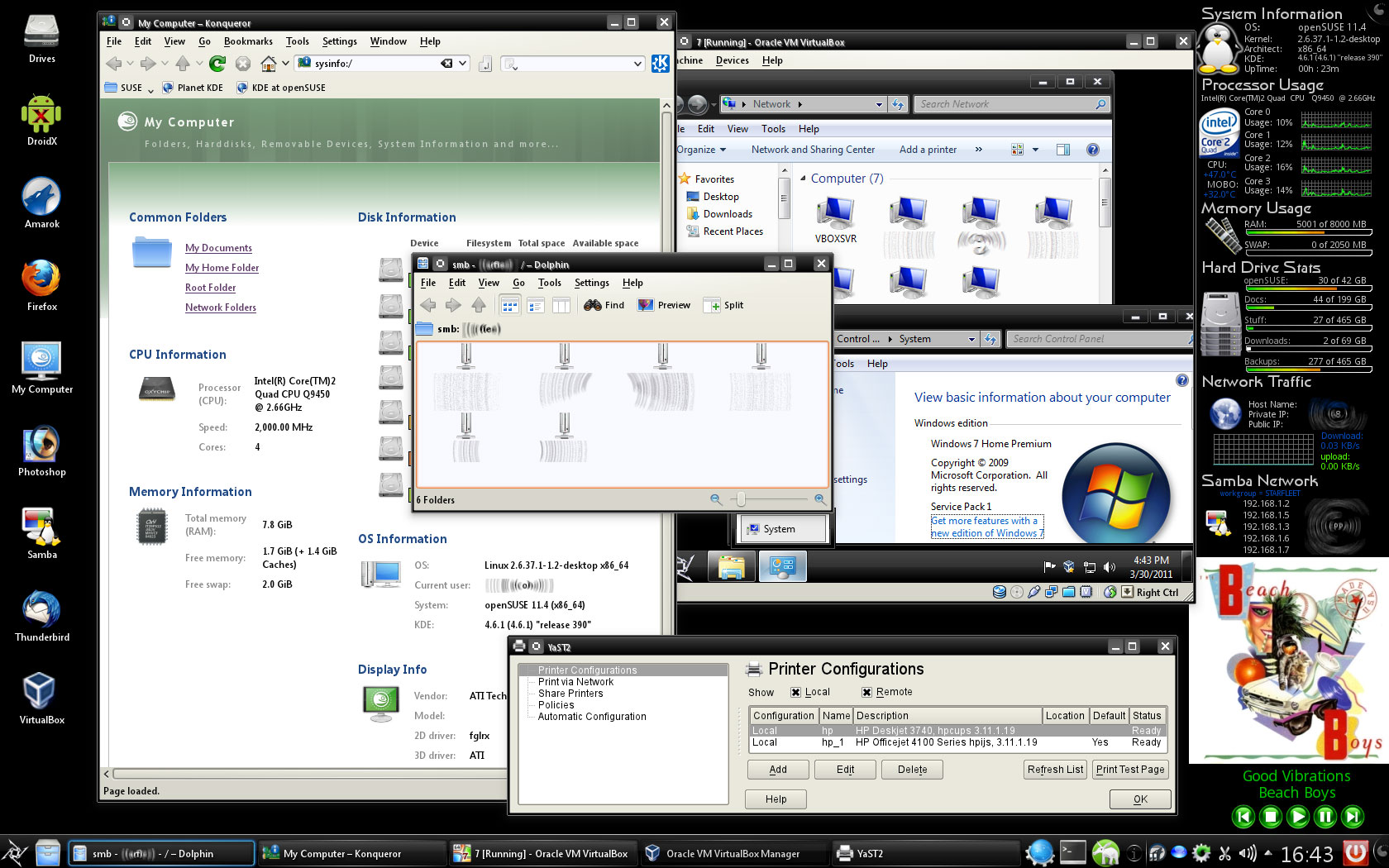
An example of my openSUSE 11.4 desktop is here.
External USB Issues
External drives formatted with NTFS may not be seen/mounted. To fix this:
1 – Update openSUSE via YaST (specifically udisks). If this does not fix the issue see step 2.
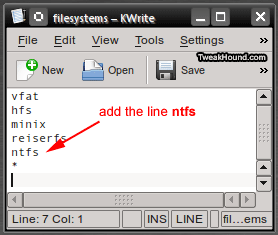
2 – Press the Alt + F2 keys and type (or copy/paste) kdesu /usr/bin/kwrite /etc/filesystems . Add ntfs to the file list.
Be sure to save changes. (source: openSUSE forums)
How To Install RPM’s Without Kpackagekit
If you are like me and have uninstalled / not installed default packages you will find Kpackagekit will always try to install / reinstall this stuff.
To get around using kpackagekit I do this:
1- I always download my rpm’s to my Downloads folder.
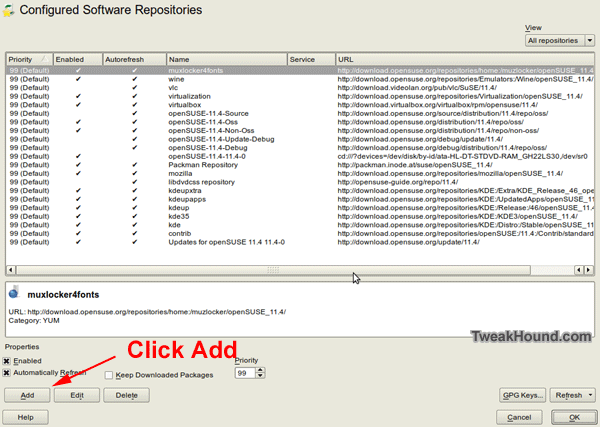
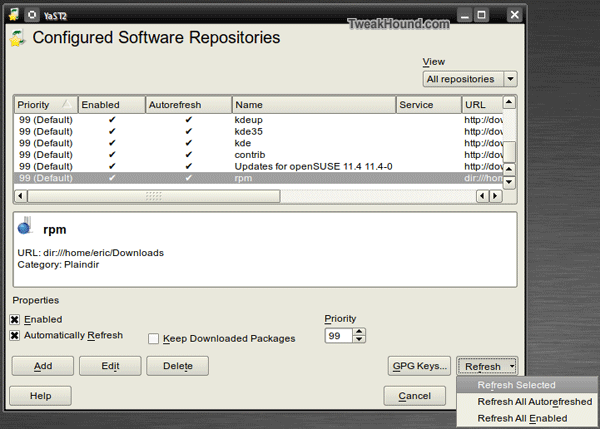
2 – Add the folder to YaST. Go to YaST > Software Repositories. Click Add.
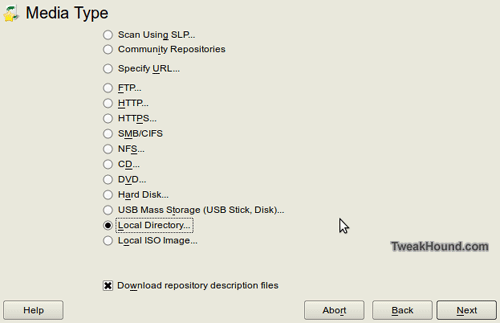
Choose Local Directory and click Next.
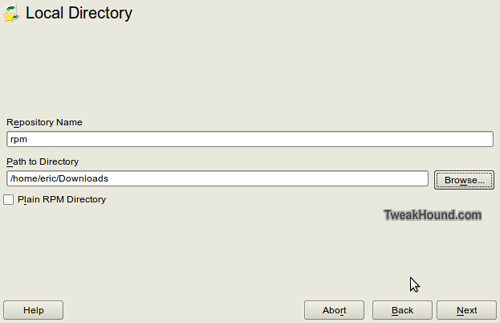
Choose a Repository Name and the Browse to your Downloads folder.
Then click Next
Back in the repo window, highlight your new repo.
Click the Refresh button and choose Refresh Selected.
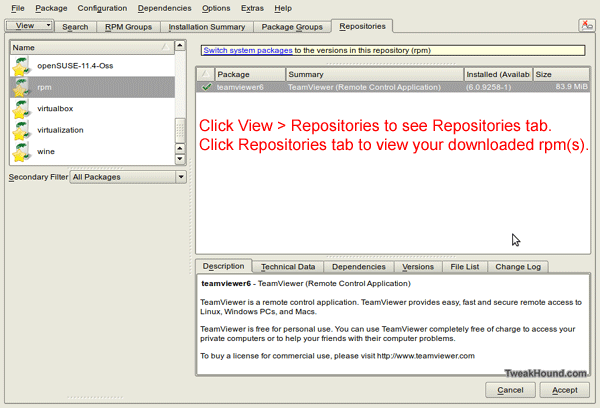
Your downloaded RPM’s are ready for installing (see screen below)
PLEASE send in your tips!