
I’ve been perusing the web and came across several articles and forum posts discussing the Core Parking tweak. Folks seem to still be misinterpreting what it actually does and sometimes posting the wrong instructions.
I thought I would try and set things straight.
I would appreciate some feedback on this article, does it make sense, did I get something wrong?
What is a CPU core?
A CPU is the part of your computer that executes command or instructions. Most modern CPUs are “multi-core”, meaning they contain two or more CPUs. These CPUs are called “cores”. More cores means you can run more commands at once. Typically this means better performance.
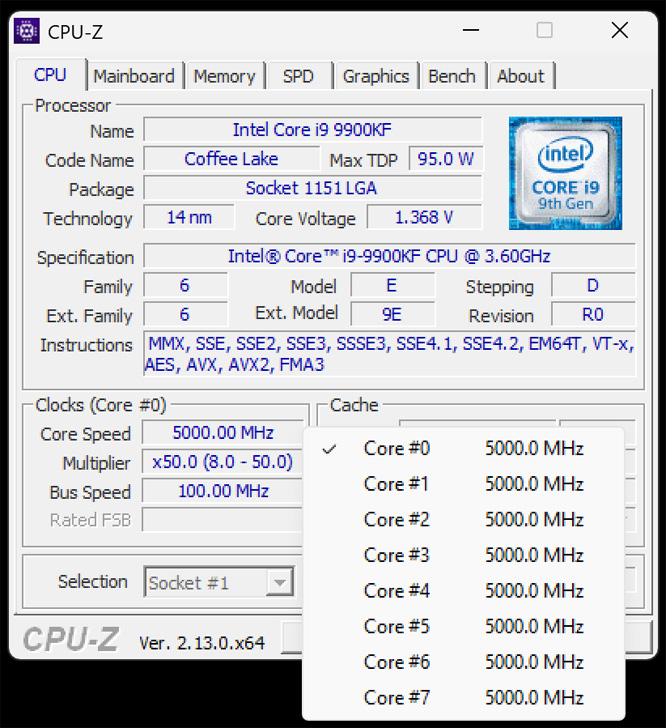
Example: My CPU is the Intel i9-9900KF. It has eight cores.
Additionally, each core has the ability to “hyper-thread”. Hyperthreading is the ability to run multiple tasks at once because the operating system sees each physical core as two logical cores
In the example above, all eight cores on my CPU have hyperthreading which means it can run 16 threads.
Cores operate at a frequency, the higher the frequency the faster it is. Many modern CPUs have a “base frequency” and a “turbo frequency”. Think of it just like a car turbo. You cruise down the highway at the “base frequency” of say 60MPH. When you put the pedal down to the floorboard the “turbo frequency” kicks in enabling the full power of the engine. Often this happens while listening to Sammy Hagar’s, I Can’t Drive 55 and frequently results in speeding citations.
In the example above, my CPU has a “base frequency” of 3.60 GHz and a “turbo frequency” of 5.00 GHz.
The downside to all this is that turbo mode draws more power and as a consequence gets hotter and can drain a laptop battery much faster.
What is core parking?
The operating system monitors every CPU core. When it isn’t being used over a certain amount of time it kicks down the CPU to an idle state. When needed, the core is kicked up again. This is ideal for efficient power use. For folks that need a lot of constant max CPU power (like gamers) the lag jumping from say 20% power to 100% power could, in theory, have a negative effect. I say “could, in theory” because this acceleration is virtually instantaneous. Many gamers steadfastly assert disabling core parking reduces lag and stuttering. I’ve got no argument with that.
Google AI says:
“Disabling core parking in Windows 11 can improve performance by ensuring all CPU cores are always active, which may reduce lag and stuttering, especially in games and demanding applications.”
You may ask, “Does this increase performance?”
Back in 2018 I tested it: Windows 10 Game Mode And Ultimate Performance Power Plan.
My conclusion, “I don’t see Game Mode and the Ultimate Performance Power Plan hurting things but they don’t seem to help either.”
Even after that I still have core parking disabled on my two main desktops and my laptop while plugged in. Why? Because I’m a guy and “more power” is what we do.
FWIW those desktops are liquid cooled.
YMMV

Disabling Core Parking
Adjust The BIOS
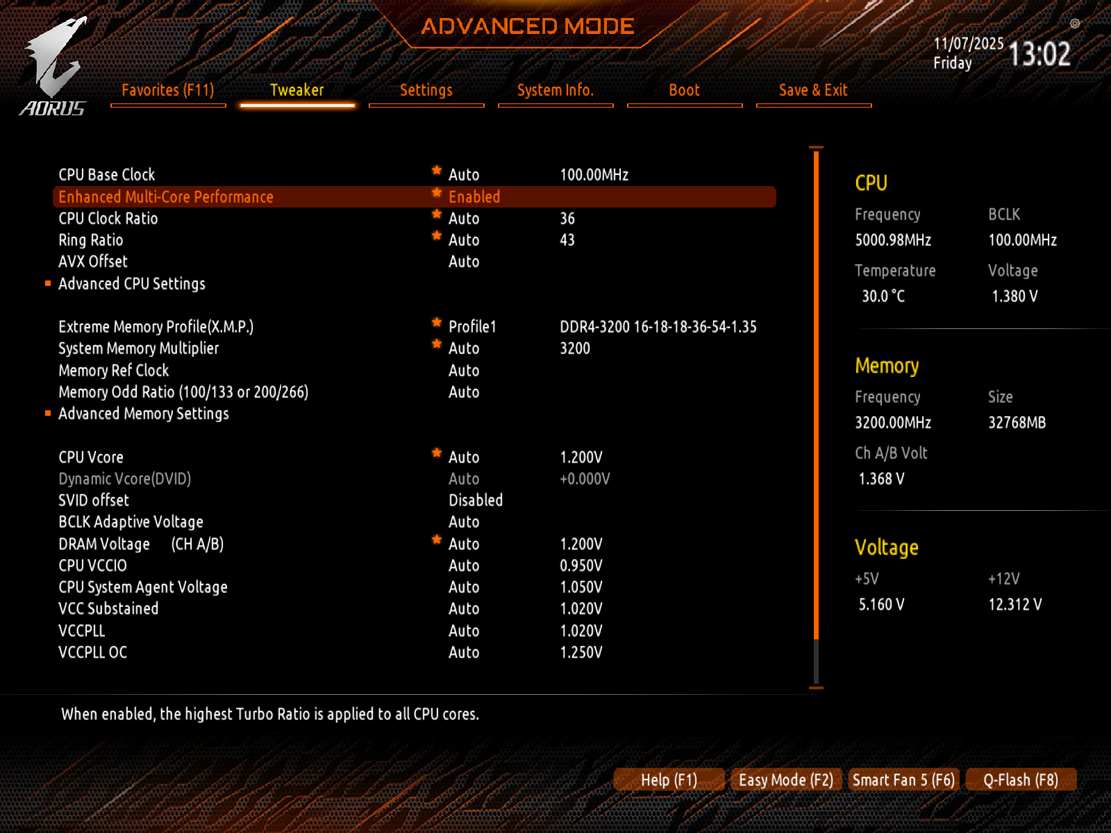
Some motherboards have the ability to lock to CPU at max in the BIOS. On my computer the setting is called “Enhanced Multi-Core Performance”. By enabling this all cpu cores are locked at max turbo.
Disable Core Parking Within Windows
The Easy Way
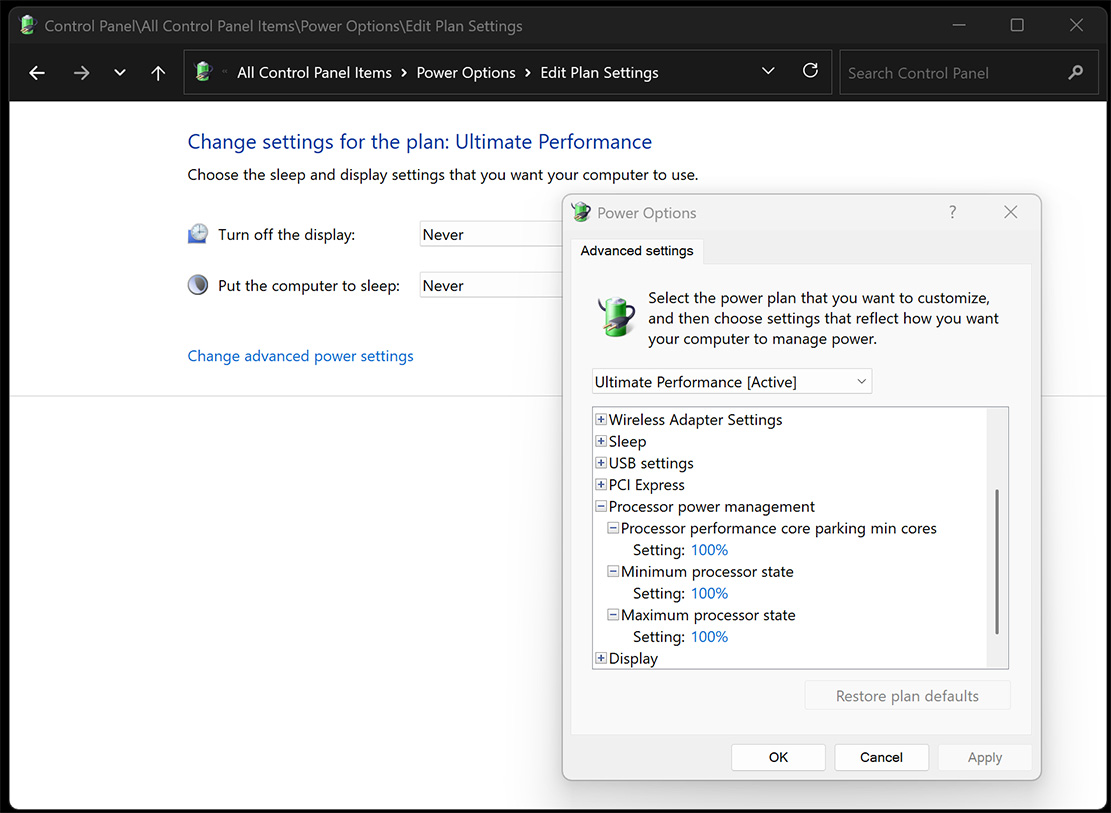
Enable the Ultimate Performance power plan. This power plan disables core parking.
Press the Windows + R keys > type powercfg.cpl > Choose Ultimate Performance
If you do not see the Ultimate Power Plan, then do this:
– Open an elevated command prompt ( Press the Windows + X keys, choose Command Prompt (Admin) )
– type powercfg -duplicatescheme e9a42b02-d5df-448d-aa00-03f14749eb61
– Press Enter, reboot
If the core parking settings are not visible in the Advanced Power options you may have to edit the registry.
Press the Windows + R keys > type regedit < navigate to the following key:
[HKEY_LOCAL_MACHINE\SYSTEM\CurrentControlSet\Control\Power\PowerSettings\54533251-82be-4824-96c1-47b60b740d00\0cc5b647-c1df-4637-891a-dec35c318583]
Find the key “Attributes” and change the value to 0.
“Attributes”=dword:00000000
Download file (right-click > save as): https://www.tweakhound.com/files/showcpumaxmin.reg
This allows you to see the setting in Advanced Power options but you still may have to change the setting.
I’ve seen several posts through the years incorrectly interpreting the correct value for this setting is 0 when it is 100. If they would have just hovered the mouse over it the answer is there.
“Specify the minimum number of unparked cores/packages allowed (in percentage)”
Unparked cores is what we’re after here so 100% is the answer.

3rd Party Tools
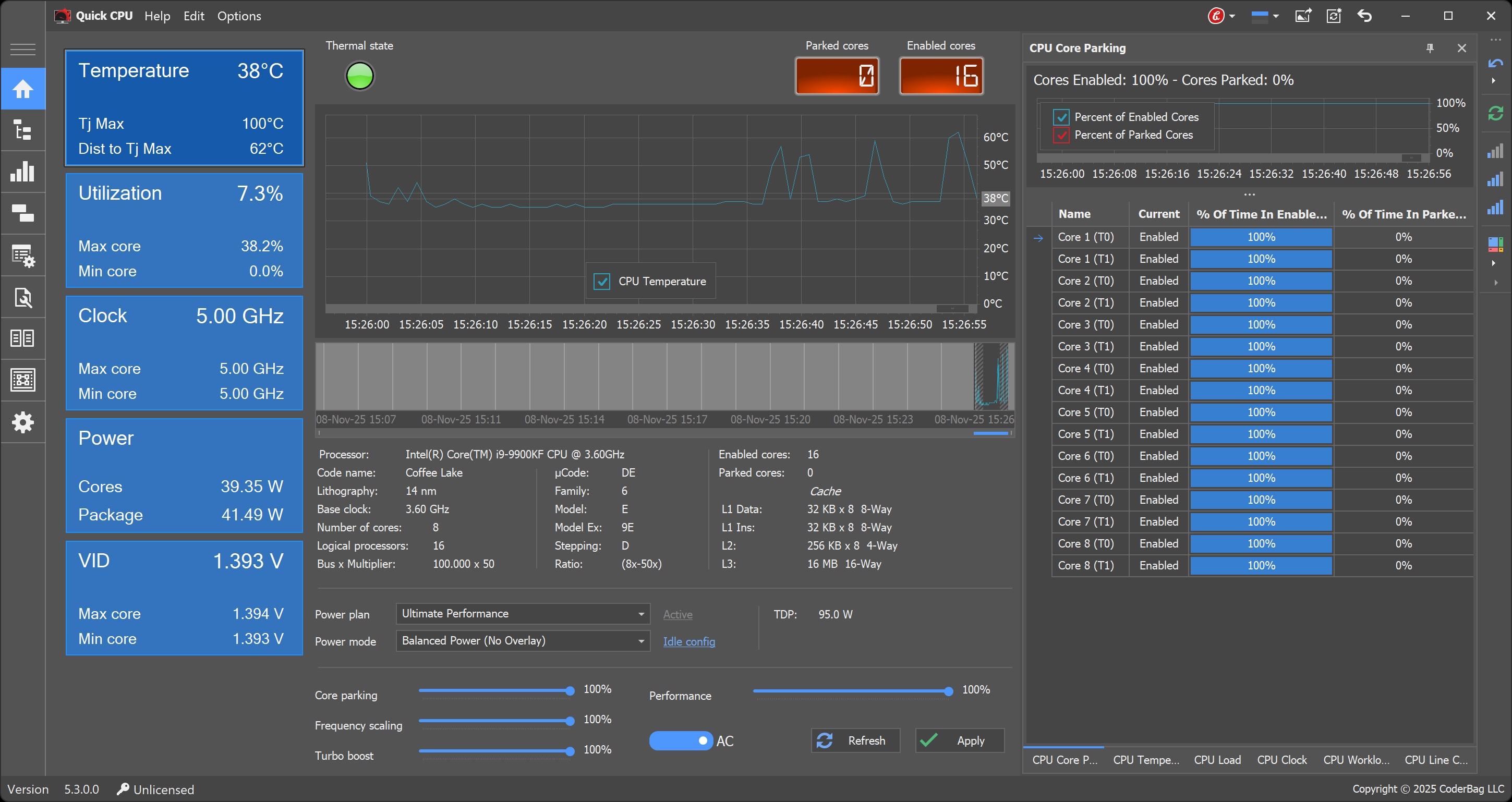
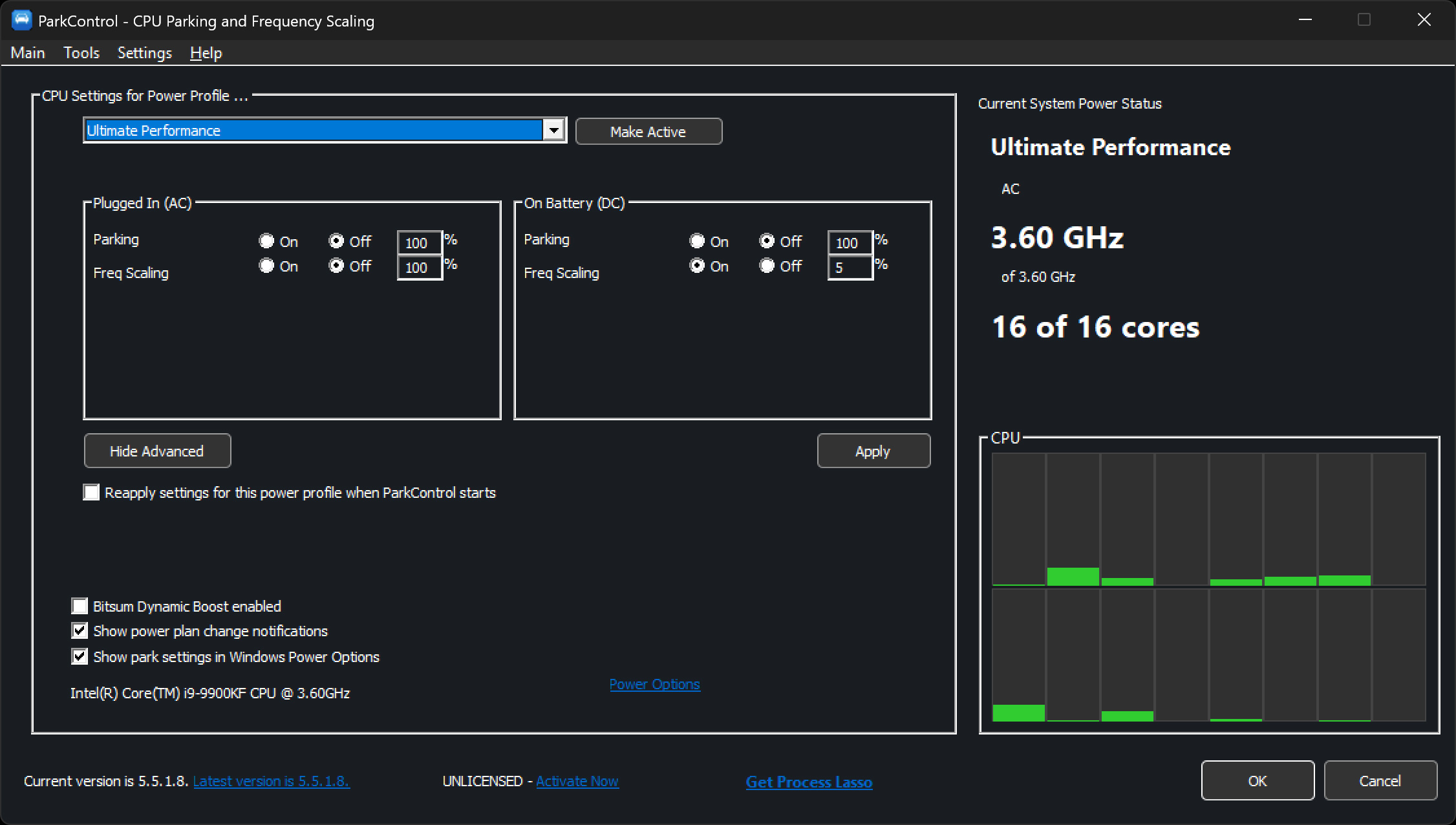
QuickCPU and ParkControl can adjust these settings and more.
QuickCPU (click on image for full size)
ParkControl (click on image for full size)
You’ll notice it displays the CPUs standard clock and not what it is actually running.
-END-
Comment Policy:
-You do not need an account or login to anything to comment.
-Comments are not posted until moderated and are filtered using Akismet among other things.
-NO POLITICS (unless post is political in nature.)
-Comments are closed after a time to cut down on spam.
-In addition the following comments will be deleted: trolling, posted in the wrong topic, bashing other people, profanity, links to adult or other questionable sites.
-Once you click submit your IP address is recorded (it is NOT posted...unless, perhaps, you violate the rules). FYI - All sites do this, I just tell you about it.
-The comment section is not a way to contact me. See here for that.
-In the end it is my site and not a public forum. I will decide what I do and do not want posted here.