
Windows Backup And Recovery Options
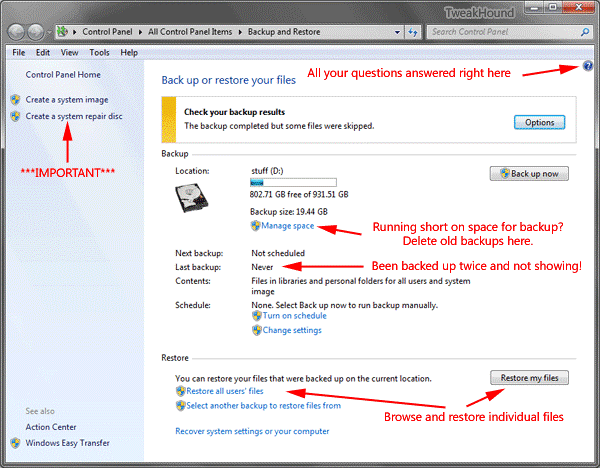
I am not going to cover much on this topic as Microsoft has fully documented this. It is my belief that the average user should fully utilize the backup options that Windows 7 offers.
Having said that… (*note – I love overusing and misusing ellipses because it drives some folks nuts!)
While I use and configure the Windows backup options on other folk’s computers I don’t use any of them on my personal computers. I use Acronis True Image.
Just about every question you could have as well as how to do something involving backup is available right in the Backup and Restore help file.
New to Windows 7 is the fact that all versions can do a System Image backup. This is similar to Acronis True Image or Norton Ghost. A System Image is an exact copy of your drive or partition.
***VERY IMPORTANT – The system image backup is virtually useless without a Restore CD, especially for those who bought computers and didn’t get an actual Windows 7 disk. Be sure to create one.
You can get to your system image without a System Restore Disk by using the Windows 7 install disk but it takes longer to get there. Boot from the install CD > choose Repair > choose System Recovery Options > System Image Recovery.
I recommend that most users use Windows 7’s built-in backup options as well as third party backup options (see below).
Links:
Microsoft – Back up your files (with how-to video)
Windows Backup and Restore Center
Back up and restore: frequently asked questions
What backup settings should I use to maximize my disk space?
To open Backup and Restore: Type backup and restore in the Start Menu search box (Control Panel (view large icons) > Backup and Restore).
Configure Or Disable System Restore
Why: User preference. Less disk use. You use other backup methods.
Why not: This is a useful feature that can quickly get you out of trouble, especially when it comes to drivers or system tweaking.
“System Restore affects Windows system files, programs, and registry settings…System Restore does not affect personal files, such as e-mail, documents, or photos, so it cannot help you restore a deleted file…Restore points are created automatically every week, and just before significant system events, such as the installation of a program or device driver. You can also create a restore point manually.” from the Help file.
This is not a performance tweak per-se. System Restore does not actively use system resources unless an event triggers it. It does use up disk space. I don’t use System restore on my desktop (because I use Acronis True Image) but I do use it on my laptop. Be sure you have another backup/restore option BEFORE you do this. Disabling System Restore means that you will not be able to use Shadow Copies or Driver Rollback.
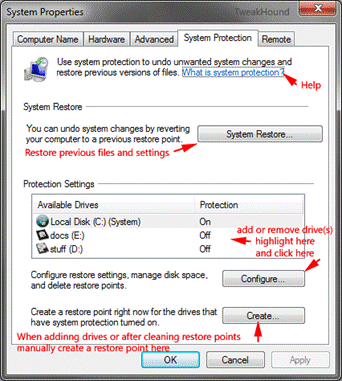
To open System Restore > press the Windows + R keys > type rstrui.exe.
or
Go to Start Orb > All Programs > Accessories > System Tools > System Restore
To Configure Which Drives To Protect With System Restore
or
Disable System Restore
Press the Windows + Pause Break keys > in the left pane click on Advanced system settings.
In the resulting window, switch to the System Protection pane.
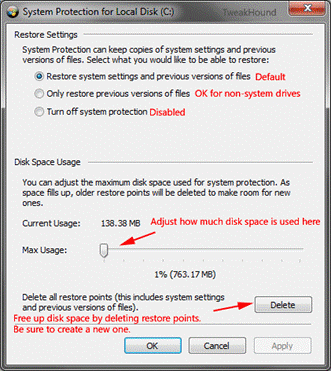
Select the drive you want to protect or remove protection from > click the Configure button > pick either “Restore…” or ” Turn off…”
If removing drives – A pop-up will happen asking “Are you sure…” (what, are you my wife? stop freakin’ nagging me!), click Turn System Restore Off, the click Apply.
If checking(adding) drives – be sure to create a restore point.
Downside Of Windows Built-In Backup Options
– File backups slower than some other backup methods.
– File backups are images vs. a traditional folder to folder backup.
– Moving User folders can create error messages.
– System Images backup is often slower than third party backup programs.
– No offline backup.
Backup Programs I Prefer
– SyncToy – for file backups.
– Acronis True Image – for system images.