Power Options
Power Options
This section is new to the tweak guides because I’ve found so many people do not have these settings configured optimally. Windows 7 is configured by default with a Balanced power plan. While this is a safe middle of the road plan it is neither optimal for desktop performance or plugged-in performance or battery life for laptops. These settings are easily adjusted to your needs.
Why I recommend not using hibernate / hybrid sleep for desktops:
-Sleep is a power saving mode that powers down your computer after a predetermined time.
-Hibernate is a power saving mode primarily aimed at laptops. What it does is save your work and shut off the computer after a predetermined time. It does this by saving this work to hard disk.
-Hybrid Sleep is a cross between Sleep and Hibernate designed for desktops. What it does is save your work and shut off the computer after a predetermined time. It does this by saving this work to both memory and hard disk.
Hibernate and Hybrid Sleep by default create a file called hiberfil.sys that is 75% of your RAM in size. This can be a fragmentation issue for your hard drive (also, Windows 7 cannot defrag this file though some third-party defraggers can). Although I do not consider it a major performance issue for most people (in the short term) it will also populate your RAM with these files. While all this makes booting up faster my observations are that Hybrid Sleep does cause performance issues long term as most systems I’ve dealt with tend to get sluggish over time. However this is easily remedied by rebooting.
It should also be noted that for a variety of reason hibernate / hybrid sleep has been known to cause many a folk no end of issues (Google search it).
In the end Windows 7 boots fast and I do not believe the few seconds Hibernate / Hybrid Sleep saves you outweighs the aforementioned issues for desktops. IMHO it is better performance wise to just shut the computer off when you’ll be away from it.
To Disable Hibernate / Hybrid Sleep Permanently
Press the Windows + R keys > type cmd > type powercfg.exe /hibernate off
(note – this removes hibernate / hybrid sleep options from the Power Plan settings. It also deletes hiberfil.sys.)
(*warning – This is a global setting that disables hibernate for ALL power plans. It should not be used on a laptop.)
To Re-enable Hibernate
Press the Windows + R keys > type cmd > type powercfg.exe /hibernate off
Source: How to disable and re-enable hibernation on a computer that is running Windows
To just disable Hybrid Sleep
Open Control panel Power Options (see below) > select your current plan > choose Change plan settings >
go to Sleep > Hibernate after > under setting choose or type Never.
More reading on this subject: Sleep and hibernation: frequently asked questions, Reducing the Disk Footprint for Windows 7 Hibernation.
To configure Power Options:
Press the Windows + R keys > type powercfg.cpl (this is Control Panel/Power Options).
To disable all power options:
1 – Disable hibernate (shown above)
2 – Choose the High performance plan > Change plan settings > turn all options to OFF or Never. (note – You may have to manually type in Never)
Power Plans I Use
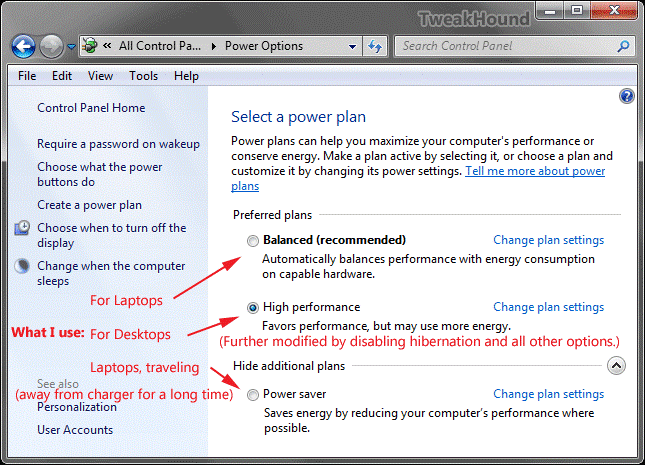
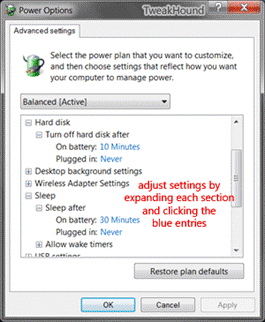
Change Plan Settings
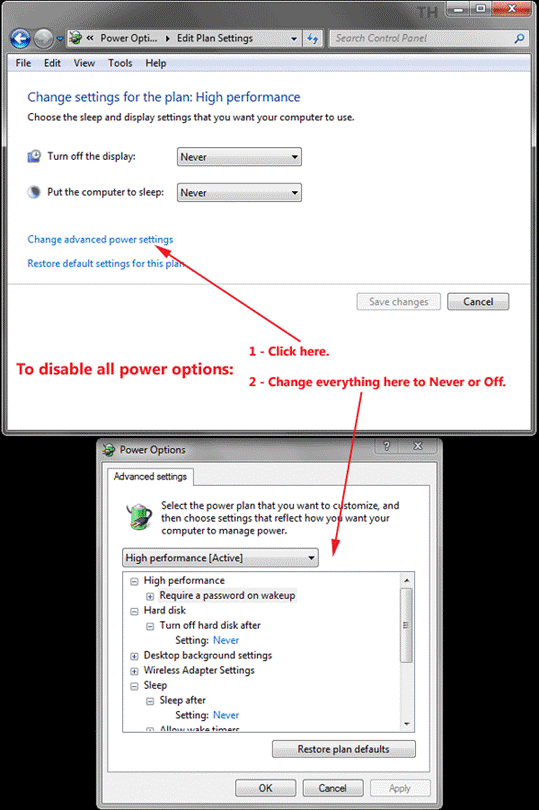
Power Plans For Laptops
Windows 7 allows for 3 separate power plans. Configuring each plan according to your needs is easy, can increase performance while plugged in, and increase battery life while you are not.
For Plugged in there is no reason not to disable/turn off all power settings (do not disable hibernate as mentioned earlier).
For On battery how much you turn a setting up or down will depend entirely on how you use your laptop. You’ll want to play with these settings over time to fine tune it to your specific needs.
There is a third power plan called Power Saver. These default settings are very low and I only recommend this when you know you are going to be away from a charger a long time.
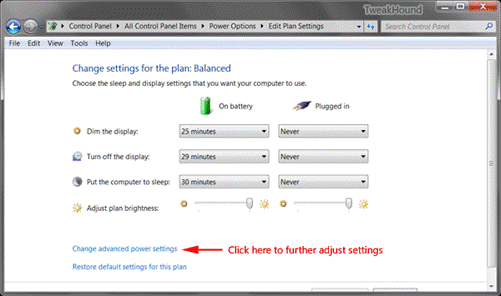
Notice the separate settings for On battery and Plugged in.
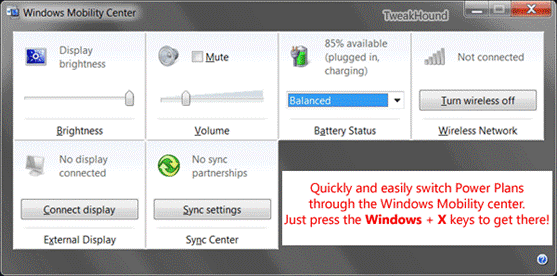
Easily switching between power plans.
Quickly switching between power plans is as easy as pressing the Windows + X keys.
This brings up the under publicized and under appreciated Windows Mobility Center.
Click the arrow in the Battery Status section to switch plans.
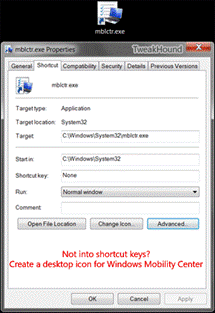
Not a shortcut key fan? Add a Windows Mobility Center shortcut to your desktop.
There are 2 ways to do this.
1 – While in Control Panel (view – Large icons) drag the Windows Mobility Center icon to the desktop.
or
2 – Right-click on the desktop and choose New > Shortcut > browse to (or type) C:\Windows\System32\mblctr.exe and click Next >
optionally type a different name for the shortcut > click Finish.