• Skip to primary navigation
  • Skip to main content
  • Skip to primary sidebar

TweakHound

Computer stuff...

  • Home
  • Windows XP
  • Windows Vista
  • Windows 7
  • Windows 8
  • Windows 10
  • Windows 11
  • Linux
  • Tweak Guides
  • Site Info
    • About
    • About Me
    • TweakHound’s World
    • Contact
    • My Computers
    • Old Articles
    • Privacy Policy
    • Old Index
    • Advanced Search

Windows 7

Two Windows 7 Articles Updated

February 24, 2016, 15:29(EST) By Eric (a.k.a. TweakHound)

win7orb

win7orbInstalling Windows 7 has received a much needed overhaul.
Remove And Block GWX In Windows 7 updated with a trimmed down script.
Comments and suggestions welcome.

Tagged With: Windows 7

Upgrade To Win10 And Keep Previous Windows Version

February 6, 2016, 11:39(EST) By Eric (a.k.a. TweakHound)

th

thI’m going to show you how I upgraded to Windows 10 and kept my Windows 7 install. I alluded to this method earlier. Although not tested this should work for Windows 8.1 too.
I searched the Windows 10 EULA and I can find nothing that restricts this but I’m not a lawyer either.
[Read more…] about Upgrade To Win10 And Keep Previous Windows Version

Tagged With: How-To's, This Site, Windows 10, Windows 7, Windows 8

Warning, GWX KB3035583 Re-released, Again

December 15, 2015, 13:29(EST) By Eric (a.k.a. TweakHound)

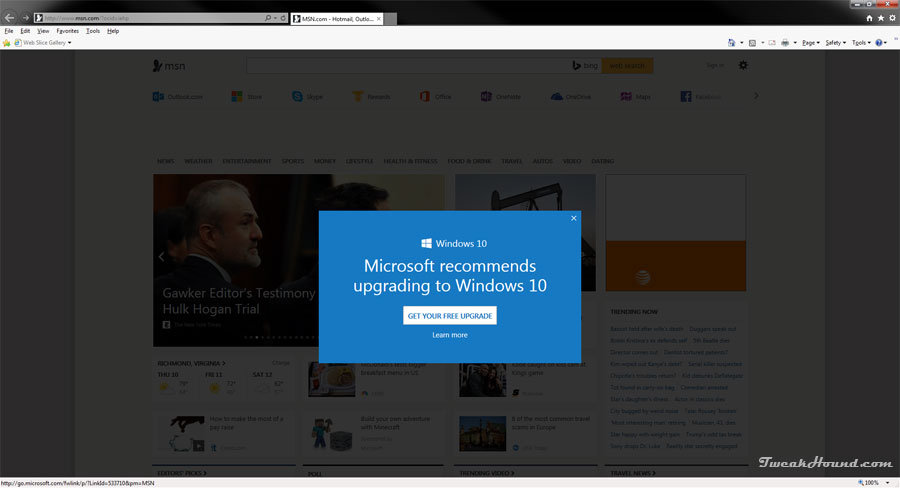
win10_logon_logoThe Microsoft update that provides GWX has been re-released and is back in the OPTIONAL updates.
KB3035583 – Update installs Get Windows 10 app in Windows 8.1 and Windows 7 SP1
By now you should have set Windows Update to NOT give recommended updates. Be sure to hide this again.

Tagged With: Windows 7, Windows 8

More GWX Related Updates

December 1, 2015, 15:59(EST) By Eric (a.k.a. TweakHound)

th

thMicrosoft has released OPTIONAL updates for Windows 7 & 8.1 that address upgrade issues to Win10.
Obviously, if you don’t want to upgrade to Win10 you don’t need them. Recommend you hide it too.
[Read more…] about More GWX Related Updates

Tagged With: Windows 10, Windows 7, Windows 8

Windows 7 Diagnostics Tracking Service

November 2, 2015, 08:32(EST) By Eric (a.k.a. TweakHound)

win7orb

*last updated 24OCT2016
Well it’s official. The Diagnostics Tracking Service is now a permanent part Windows 7.
Microsoft first introduced DiagTrack with KB3022345. Then they tried to sneak it back in with KB3068708 and again with KB3080149.
With these patches you could install or uninstall them and everything else was fine.
Now it is back with KB3192403 – October 2016 Preview of Monthly Quality Rollup for Windows 7 SP1 and Windows Server 2008 R2 SP1.
As the name suggests, this update is a preview of what is to come and is an optional update. It will become a standard update next month.
So, if you are a responsible and intelligent Windows user who keeps your system patched you are stuck with DiagTrack being installed. Since as Mary Jo put it, “Each monthly rollup will supersede the previous month’s rollup. The ultimate goal is for these monthly rollups to become fully cumulative, which will happen as the team adds patches released in the past, so users need only to install the latest single rollup.”
Now you must disable it via services.msc or in the registry.
Aren’t update rollups awesome! Welcome to the new Microsoft, “Resistance is futile. You will be assimilated.”

Diagnostics Tracking Service
“Start”=dword:00000002 is default . 2=auto, 3=manual, 4=disabled
HKEY_LOCAL_MACHINE\SYSTEM\CurrentControlSet\Services\DiagTrack
“Start”=dword:00000004

*edit 25OCT2016
I’m not sure what the confusion is but apparently I did not make myself clear above…
DISABLE this via the Services snap-in (services.msc) or manually via the registry. I provided the key above.


– – – – – – – – – – – – – – – – – – – – – – – – – – – – – – – – –
For some time now I’ve been seeing posts about disabling the Diagnostics Tracking Service in Windows 7.
This is unnecessary. Uninstall it instead.

Go to Control Panel > Windows Update > Installed updates (bottom left of windows) > find and uninistall KB3022345 (right-click > Uninstall)
Re-run Windows update > find KB3022345 and hide it (right-click > Hide update)

Microsoft continues to play games with its customers. The new update is below.

Go to Control Panel > Windows Update > Installed updates (bottom left of windows) > find and unnistall KB3080149 and/or KB3068708 (right-click > Uninstall)
Re-run Windows update > find KB3080149 and/or KB3068708 and hide it (right-click > Hide update)
Done

Diagnostics Tracking Service
“Start”=dword:00000002 is default . 2=auto, 3=manual, 4=disabled
HKEY_LOCAL_MACHINE\SYSTEM\CurrentControlSet\Services\DiagTrack
“Start”=dword:00000004


More info: KB3080149 – Update for customer experience and diagnostic telemetry

Tagged With: Windows 7

Remove And Block GWX In Windows 7

November 1, 2015, 13:17(EST) By Eric (a.k.a. TweakHound)

thpinpostlogo

Last updated 12DEC2019

This is version 8 of my scripts to remove and block Windows 10 updates and related telemetry.
I’ve seen multiple posts at websites and forums telling folks how to deal with GWX. Most of them either don’t go far enough, or usually, they go way too far and break stuff.
This applies to Windows 7 ONLY.

Comments are closed after a while for security reasons. You can comment here if you like:
Remove And Block GWX In Windows 7 UPDATED 2

Since it has become obvious that this will be a running battle with Microsoft I’ve decided to make this page the permanent place to these scripts rather than a new post every time I update it.

You’ll need to check back here monthly for updates as Microsoft keeps re-releasing updates that in effect unhides them.
You’ll also want to keep the script handy and rerun it monthly for the same reason.

Thanks to:
Though info on all this stuff has come from dozens of sources, much of this info has come from the MDL forums.
In particular this thread: Remove Telemetry and Windows 10 Related Updates from Windows 7

Download my batch file: https://www.tweakhound.com/downloads/block_GWX_V8.zip
YOU MUST read the README.txt file.
The second half of this calls HideGWXetcV8.vbs to hide updates.
This will take a while.
DO NOT CLOSE WINDOW UNTIL YOU SEE: ” – Finished … All operations complete. Reboot now. Press any key to continue . . .”

Inspiration for this came from a variety of sources but started HERE.
The level of support you will receive is equal to the amount you paid for this 😉
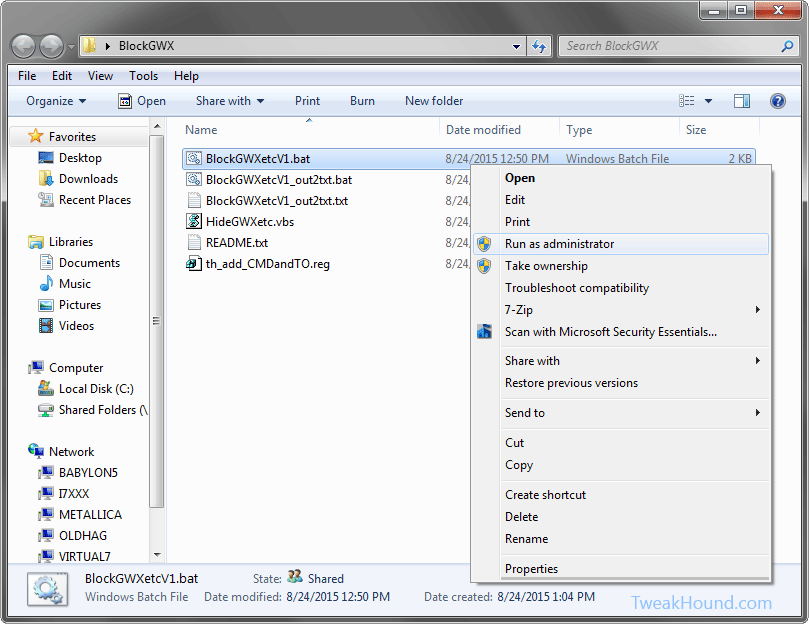
This folder contains:
BlockGWXetcV8.bat – Removes and Hides GWX related updates like in step 2 above.
HideGWXetcV8.vbs – Automatically run by the above .bat files. This hides the updates the batch file uninstalled.
README.txt – Instructions
th_add_CMDandTO.reg – Adds open command windows here (standard and admin) ,and Take Ownership to right-click.

The .bat file and the .vbs files MUST be in the same folder!

(code is listed below)

To do this:
Either right-click the folder and choose Open Command Window Here as Administrator.
In the resulting command window type BlockGWXetcFINAL.bat and hit enter.
OR
right-click the BlockGWXetcFINAL.bat file (see above) and choose Run as Administrator.
If you do not have these right-click options, double-click in included th_add_CMDandTO.reg file and logout/reboot.

Let it run, when the .bat file runs HideGWXetc.vbs it will take a while.
It may look like things have stopped, they haven’t.
DO NOT CLOSE WINDOW UNTIL YOU SEE: ” – Finished … All operations complete. Reboot now. Press any key to continue . . .”

block_gwx_1


-END-

Tagged With: Windows 7

Remove And Block GWX In Windows 7 v2.0

September 11, 2015, 14:13(EDT) By Eric (a.k.a. TweakHound)

th

Article moved here: https://www.tweakhound.com/2015/11/01/remove-and-block-gwx-in-windows-7-2/

Tagged With: How-To's, This Site, Windows 10, Windows 7

Remove And Block GWX In Windows 7

August 24, 2015, 14:03(EDT) By Eric (a.k.a. TweakHound)

th

Article moved here: https://www.tweakhound.com/2015/11/01/remove-and-block-gwx-in-windows-7-2/

Tagged With: This Site, Windows 7

How I Set Up My Laptop

May 11, 2015, 09:48(EDT) By Eric (a.k.a. TweakHound)

th

thSeveral folks had specific questions about how I went about setting up my laptop.
For those who do not want to click on the link above here is where this starts:
[Read more…] about How I Set Up My Laptop

Tagged With: How-To's, This Site, Windows 7

Alternative To Moving Libraries

January 28, 2015, 15:54(EST) By Eric (a.k.a. TweakHound)

thpinpostlogo

thpinpostlogoAs many of you know, I consider moving libraries an essential part of my backup strategy.
I decided to post this article because through the years I’ve discovered some folks don’t get it and some folks don’t want to do it.
There is an alternative. [Read more…] about Alternative To Moving Libraries

Tagged With: How-To's, This Site, Windows 10, Windows 7, Windows 8

« Previous Page
Next Page »

Primary Sidebar

Popular Posts

Tweaking Windows 10

Software I Use – 2021 Edition

Timer Tweaks Benchmarked

Win10 – Get Auto-Login Back

Recent Posts

  • Patch Tuesday
  • Weekend News
  • Weekend News
  • Patch Tuesday
  • Friday News
  • Patch Tuesday
  • Using Wise Disk Cleaner
  • Using Cleanmgr+
  • O&O ShutUp10++ 2.2.1024
  • Friday News
buywin10th2

Tags

  • Android
  • Backup
  • Beer
  • Computer Hardware
  • Computer News
  • Cool Tools
  • Freeware
  • How-To's
  • Linux
  • Off Topic
  • openSUSE
  • Playlists
  • Privacy
  • Security
  • Software
  • This Site
  • vacation
  • Veterans
  • Windows 10
  • Windows 11
  • Windows 7
  • Windows 8
  • Windows Vista
  • Windows XP

Catagories

  • Android
  • Backup
  • Beer
  • Computer Hardware
  • Computer News
  • Cool Tools
  • Freeware
  • Freeware Machines
  • How-To's
  • Linux
  • News From The Web
  • Off Topic
  • openSUSE
  • Privacy
  • Security
  • Software
  • Tweak Guides
  • Veterans
  • Windows
  • Windows 10
  • Windows 11
  • Windows 7
  • Windows 8
  • Windows Vista
  • Windows XP

TweakHound - Optimize Your Computing Experience! TweakHound - Optimize Your Computing Experience!

Copyright 2002-2025 by Eric Vaughan All material contain here is the property of the materials owner. Windows, Windows XP, Windows Vista, Windows Seven, Windows 8, Windows 10, Windows 11, Microsoft, and all associated logos are trademarks/property of Microsoft. You may not use or copy any material from tweakhound.com without expressed written permission. Hotlinking to any material within this site is forbidden. Privacy Policy