Desktop, Start Menu, Taskbar, and Notification Area
Auto Login
Why: Quick login.
Why not: Security risk. Anyone can run your computer.
Press the Windows + R keys > type netplwiz > uncheck Users must enter a user name and password to use this computer. > in the resulting screen pick the appropriate User and type in the password and click Apply.
New features in pictures.
Jump Lists
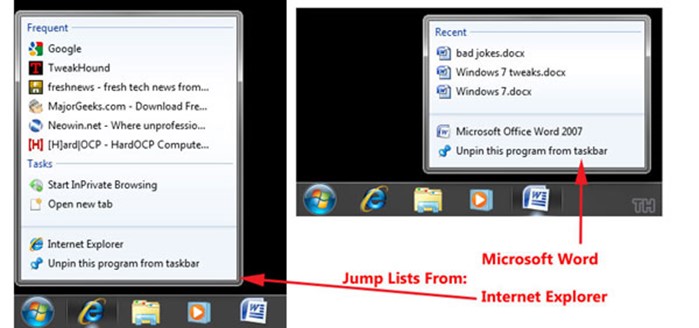
Microsoft links: Windows 7 Jump Lists, Using Jump Lists to open programs and items (with instructional video),
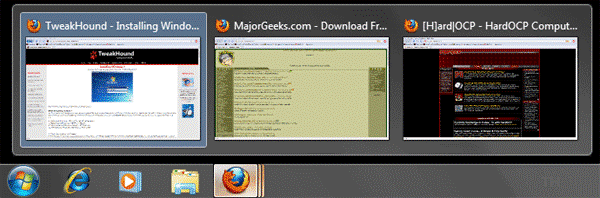
Aero Peek (Window Preview)
Customize The Desktop
Why: Uses less memory, especially video memory. User preference.
Why not: It can get downright ugly.
Most tweak guides will immediately tell you to disable everything (including Aero) that make Windows 7 look good, taking all of the enjoyment out of using it. I’m going to show you the options and my recommendations. These recommendations maintain Aero, Aero peek, and good looking fonts. This section is as much for “where the settings are” as it is for tweaking.
For a dual-core or better computer with a 512MB or higher video card the only thing I disable is transparent glass. That’s it. I simply do that because I find it annoying. FWIW, It is the one thing that has been shown in benchmarks to improve scores.
Lets get to Aero. It’s what makes using Windows 7 enjoyable. I’ve no earthly idea why anyone would use Windows 7 and then disable it. I haven’t seen a single benchmark that shows disabling Aero does anything and benchmarks for Aero under Vista showed that in fact it made little to no difference. But, to each his own.

This is what Windows 7 looks like with all visual effects off (click for full size image)
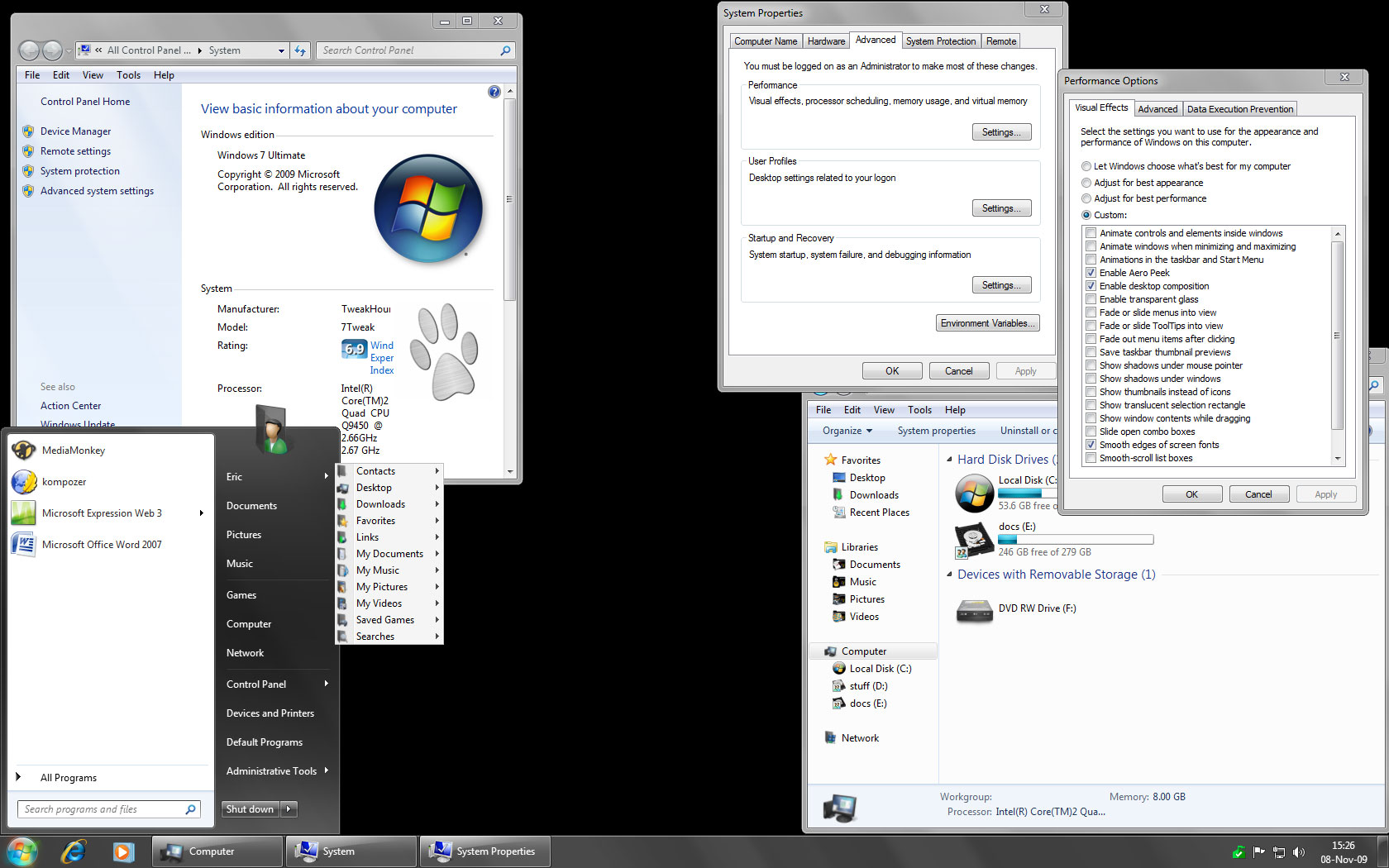
This is what a barebones fully functional Aero (with smooth fonts) desktop looks like (click for full size image)
Gray / black are my desktop colors.
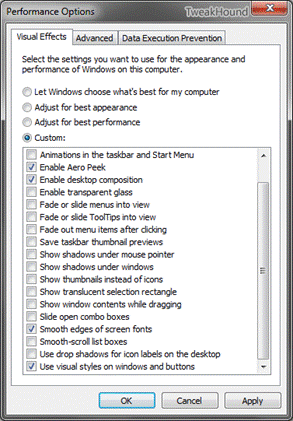
Below are the settings for minimal but fully functional Aero with smooth fonts.
Hit the Windows + R keys > type sysdm.cpl > click the Advanced tab > in the Performance section click the Settings button.
Uncheck all boxes except the 4 in the picture below and click Apply.
Themes and Colors
Why: User preference.
Why not: Can’t think of a reason not to!
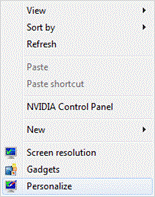
To get there, right-click on the desktop and choose Personalize.
In this window double-click to change Themes.
Change the visuals and sounds on your computer.
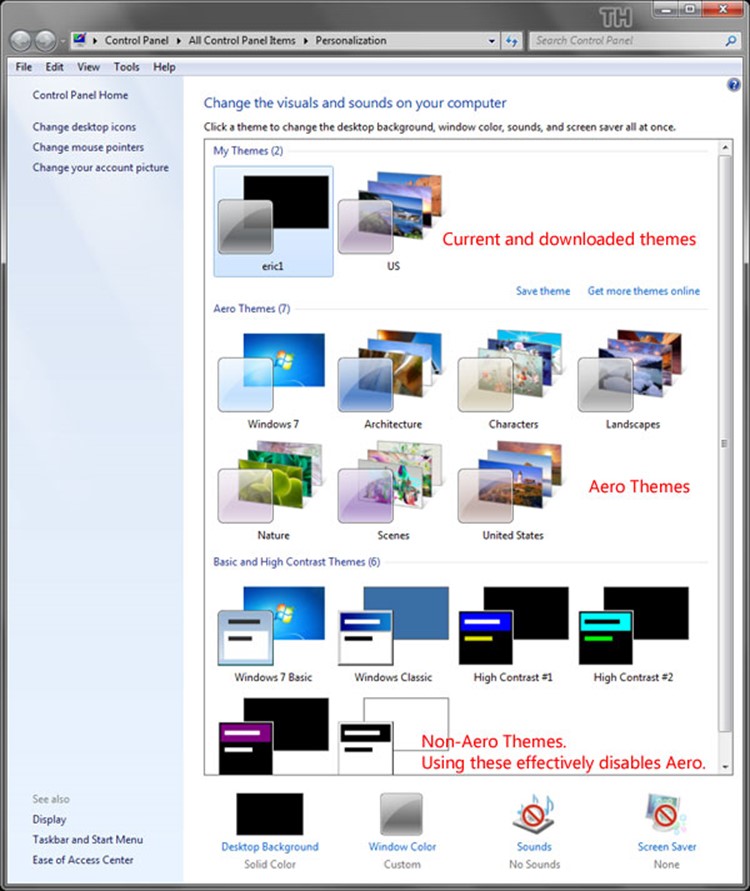
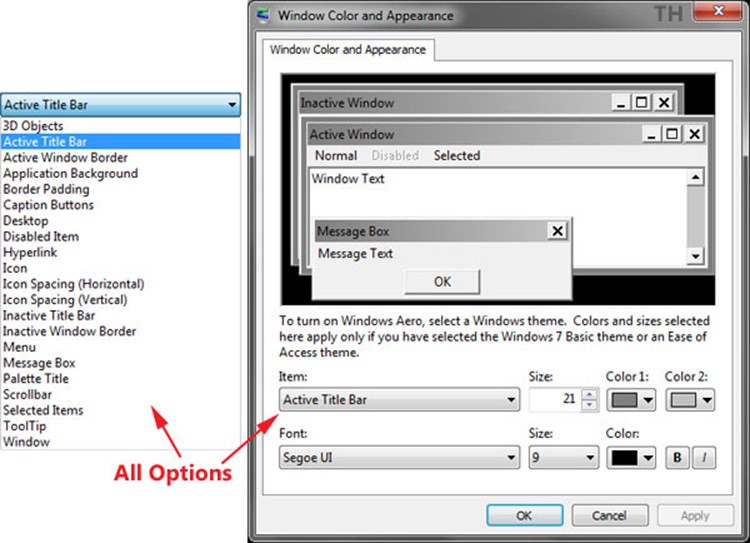
In the above screen double-click on Window Color for more advanced settings.
In the above screen double-click on Desktop Background to make a Solid Color your background.
Right-clicking on any picture anywhere on your computer will give you the option of Set as desktop background.
Settings in the Active Title Bar section effect several other sections and is the quickest way to change many color /font settings.
Turn Off System Sounds
Why: User preference.
Why not: Can’t think of a reason not to!
What this does is disable the Sound Scheme. The sound scheme contains things like the sound you hear when you click on something. I’m really not concerned so much with the resources it uses but I just find the sounds to be annoying. Either way…
Right-click on the Volume icon in your System Tray and choose Sounds > First save your current scheme, click on the Save As… button, enter a name, I used “1”, and click OK > Next, under Sound Scheme: choose No Sounds and click Apply at the bottom, right.
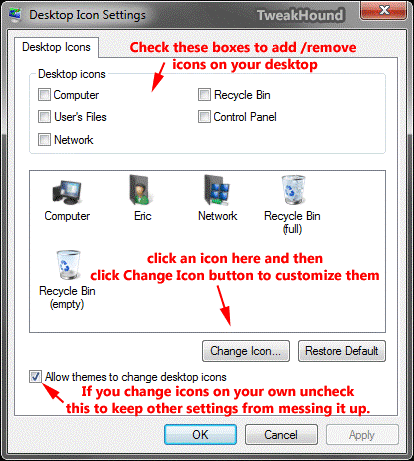
Desktop Icons
Why: User preference.
Why not: Can’t think of a reason not to!
To get there, right-click on the desktop and choose Personalize. In the left pane click Change desktop icons.
Choose your options.