
Security Related Tweaks
Windows 7 security settings are far better and more configurable than previous Windows versions. It is my recommendation that non-Geeks not play too much with these settings. For Geeks, keep on reading.
Configure Or Disable UAC
Why: User preference.
Why not: See comments below.
I am completely tired of the arguments and accusations being tossed back and forth over UAC. I disable it and here is why: Windows 7 UAC – Quick notes on why I disable it.
Folks a lot more learned on this topic than myself have come to the conclusion that there are only 2 settings worth your effort; all the way up, or all the way off.
Please, don’t contact me to argue this. If you want to argue over UAC see here: Neowin – The Great UAC Debate.
***Very important.
If you intend to disable User Access Control (UAC) as I have then you should do this BEFORE YOU INSTALL ANY PROGRAM. It should actually be the very first thing you do on your first boot. Not doing so can lead to problems later.
To Disable UAC:
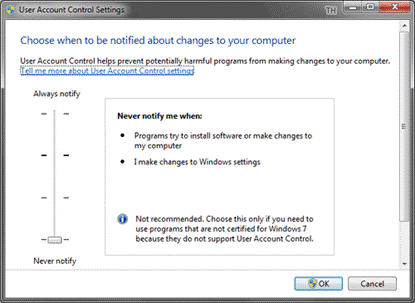
– Type or copy and paste UserAccountControlSettings.exe into the Start menu search box (or Run box).
– In the resulting window, move the slider all the way to the bottom.
– Reboot
To Configure UAC:
– Type or copy and paste UserAccountControlSettings.exe into the Start menu search box (or Run box).
– In the resulting window, move the slider all the way to the top (see comments above).
– Reboot
Configure Or Disable Windows Defender
Why: You have replaced it with another product.
Why not: High security risk if another product isn’t installed.
Windows Defender is Microsoft’s Anti-Spyware. The only legitimate reason to disable this is because you’ve installed another anti-spyware product (or anti-virus with anti-spyware).
To disable it.
Option #1 – Disable the Service. Press the Windows + R keys > type services.msc > double-click on the Windows Defender service > set Startup type to disabled then Stop the service or reboot.
Option #2 – Uninstall it. Press the Windows + R keys and type appwiz.cpl > Turn Windows Features on or off > uncheck Windows Defender, click OK.
note – The free anti-virus Microsoft Security Essentials takes control of Windows Defenders functions.
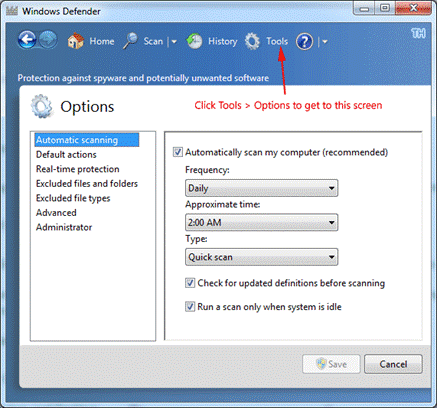
To configure Windows Defender type Windows Defender in the Search box (Control Panel > Windows Defender).
Most of the options you want to configure are under Tools > Options.
I’m currently using Microsoft Security Essentials .
Configure Or Disable Automatic Updates
Why: You update manually or want to change frequency of update checks.
Why not: High security risk for unpatched systems.
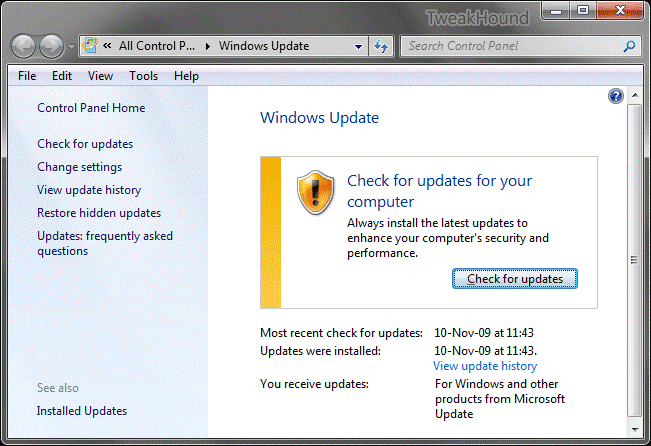
To change settings type update in the Start Menu search box and hit enter (Control Panel > Windows Update).
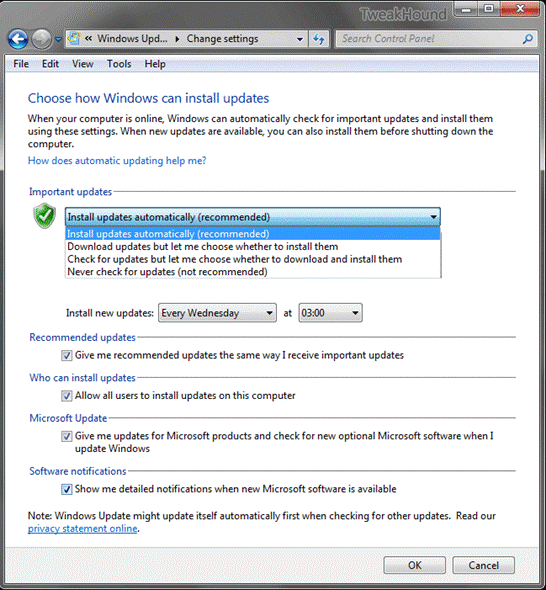
In the left pane double-click Change settings.
Microsoft usually releases updates on Tuesday (known as Patch Tuesday) (time is pacific time/PST).
However, recently this has changed. More and more often they are releasing critical updates as they are ready (known as Out-Of-Band Updates). In the last year or so the number of out-of-band updates has increased. I now recommend that you use Install updates automatically or at least choose Everyday next to Install new updates.
You can set the options below to fit your needs.
To disable Automatic Updates choose Never check for updates (not recommended).
Unless you are someone who is keeps up with when updates are released I highly recommend you do not choose this option.
For other security related settings see the section Action Center earlier in this guide.