• Skip to primary navigation
  • Skip to main content
  • Skip to primary sidebar

TweakHound

Computer stuff...

  • Home
  • Windows XP
  • Windows Vista
  • Windows 7
  • Windows 8
  • Windows 10
  • Windows 11
  • Linux
  • Tweak Guides
  • Site Info
    • About
    • About Me
    • TweakHound’s World
    • Contact
    • My Computers
    • Old Articles
    • Privacy Policy
    • Old Index
    • Advanced Search

Eric (a.k.a. TweakHound)

TweakHound’s Super XP Tweaking Guide – SP3 Final

July 26, 2011, 16:54(EDT) By Eric (a.k.a. TweakHound)

This is a reformatted and updated version of TweakHound’s Super XP Tweaking Guide – SP3 Final (previously here)
 

TweakHound’s Super XP Tweaking Guide – SP3 Final

A guide to Tweak & Optimize XP.

Last updated: June, 2009

tweak – to change slightly, esp. in order to make something more effective or correct.
optimize– get the most out of, make optimal, modify to achieve maximum efficiency in storage capacity or time or cost

   This was the first comprehensive, step-by-step XP tweaking guide on the net. It’s over 7 years old (first version in 2002) and has continued to evolve. I started working with XP during its RC1 stage. After a time I began looking for ways to tweak it. I haven’t “invented” any of these tweaks. They were scattered all over the web, a couple at one site, a few more at another. Some were good and as I discovered over time, some were bad. What I have done here is to investigate/test them, try and organize them in a coherent manner, and present them in a step-by-step guide. This was also the first guide to debunk several myths regarding popular tweaks.

   This will be the final version of this guide. That means there will be no further updates. XP is a good operating system and is still a good choice for older computers but it is time to move on as far as guides go (I will keep XP on my P4 computer until it dies). XP was released in 2001 and although it will receive security updates until 2014 no new features will be added. That means there is nothing more to add to this guide.

   This guide wouldn’t be here without the input I’ve received from others and the hundreds of thousands of people who have stopped by. To all of you, THANK YOU!
PLEASE SEE – eXPired – The Last Windows XP Guide You’ll Ever Need

Tweaking Levels

Most guides just provide the tweaks and leave you on your own to figure out which to use. For every step in this guide I provide my recommendation on who should use that particular tweak. I do this by assigning a “level #” to the tweak. Again, these are just recommendations. I’ve tried to provide a good explanation as to what every tweak does so that you can decide for yourself what you do/don’t want to do. The levels provided in this guide are as follows:
*All Levels – Safe for everyone. The safest settings but not tweaked much.

Level 1 – It keeps XP pretty, but faster and a little more secure. Full functionality is maintained.

Level 2 – Faster still and a tad more secure. Not quite Level 3. Still pretty. Keeps the useful features around.

Level 3 – Very close to the settings I use. Tweaked hard. All the pretty and annoying stuff is gone. It’s much faster and much more secure. Aimed at those who want to run Windows their way.

Level 4 – For Gamers only. Level 3 with a few more tweaks aimed at gamers.
Tweaking is best done on a new installation of XP. See, The Right Way To Install Windows XP.


Ed Bott’s Windows Expertise, October 4, 2005
“The Web is littered with Windows tips and tweaks, may of dubious quality and accuracy. Eric Vaughan’s TweakHound is one of the few sites that actually tests and rejects the bogus tweaks. If you’re thinking about making some changes to your registry because some random site told you it would speed things up, I suggest visiting the Bad Tweaks page first. Nicely done, Eric.”

—

Guide Contents

Introduction

1 – Before You Begin Tweaking XP…

2 – Windows Built-In Tweaks

3 – Windows Built-In Tweaks Part 2

4 – The Page File

5 – Services

6 – Registry Hacks

7 – Tweaking Apps

8 – Creating Your Own Registry Files

9 – Broadband Tweaks

9a- Internet Explorer 8 & Firefox Tweaks

10 – Make your own free Tweaking Toolbox

10a- The Look

11 – Bad Tweaks

12 – Clean, Defrag, Optimize

13 – XP Tweaking Guide Notes & FAQ’s

My Thoughts On Tweaking And This Guide

You can get a printable version of this guide for $5 (U.S.) See here for more info.

Have You Found This Guide Useful?
Please help me keep helping you!

Help me keep helping you!

Pages: Page 1 Page 2 Page 3 Page 4 Page 5 Page 6 Page 7 Page 8 Page 9 Page 10 Page 11 Page 12 Page 13 Page 14 Page 15 Page 16 Page 17

Tagged With: How-To's, Windows XP

Ditch Those CD’s! A Guide To Using USB Flash Drives

July 26, 2011, 15:16(EDT) By Eric (a.k.a. TweakHound)

Ditch Those CD’s! A Guide To Using USB Flash Drives

This guide is intended to show the average PC user how to create bootable USB Flash Drives as a replacement for rescue disks and “Live” CD’s.

Article Index – Ditch Those CD’s! A Guide To Using USB Flash Drives
Page 1 – Article Intro, Flash Drive Booting, Advanced USB Drive Formatting
Page 2 – Install Windows 7 or Windows Vista From A USB Flash Drive
Page 3 – Install Windows XP From A USB Flash Drive
Page 4 – Install a Linux Operating From A USB Flash Drive
or           Boot from one or more Linux Live CD’s on a USB Flash Drive
Page 5 – Utility And Rescue Bootable USB Flash Drive
Page 6 – Portable Apps And USB Flash Drive PC Toolbox
Page 7 – What I Use & Other USB Info

Many utilities exist that can help you manage PC’s. This can be operating system installation, virus removal, data recovery, disk management, etc.
In addition, there are Windows and Linux “live” CD’s that allow you to boot into Windows or Linux to perform the aforementioned, try Linux distros, or to simply have a portable Operating System.

Why use USB flash drives (aka: thumb drives) instead of CD’s? Speed, size, and portability.
1 – USB flash drives are far faster than CD’s and DVD’s.
2 – USB flash drives range in sizes and currently max out at 256 gigabytes.
3 – USB flash drives are small and thus highly portable. Many Geeks carry them on their key chains.

There are literally dozens of ways to create a bootable USB flash drive. I’m only going to cover the ones I use.
This guide is aimed at the home user, Geeks or Geek Wanna-Be, and folks like me who are your family and friends “computer guy”.
All the tools listed are free, at least for home users.

*Note – The research and testing that went into this guide has taken several weeks. I have used every program listed (and then some) and tested them as best I could. I’ve formatted and flashed and booted up, formatted and flash………………

Tips On Buying USB Flash Drives
1 – Quality and reliability. Stick with name brands or at least well reviewed drives. Check the reviews for the drives. Using a site like Newegg has reviews built-in.
2 – USB flash drives range in speed and faster ones come on the market all the time. Do a search on the product and check the manufacturers site.

Tools Used:
Please note that all tools listed are all FREE.
RMPrepUSB
Windows 7 USBDVD Download Tool
WinToFlash
YUMI
Winbuilder Win7PE
Unetbootin
nLite
RT7Lite
UBCD4Win
LiveUSB Install
SARDU
XBOOT
EasyBCD
Katana
plus a few others listed elsewhere.

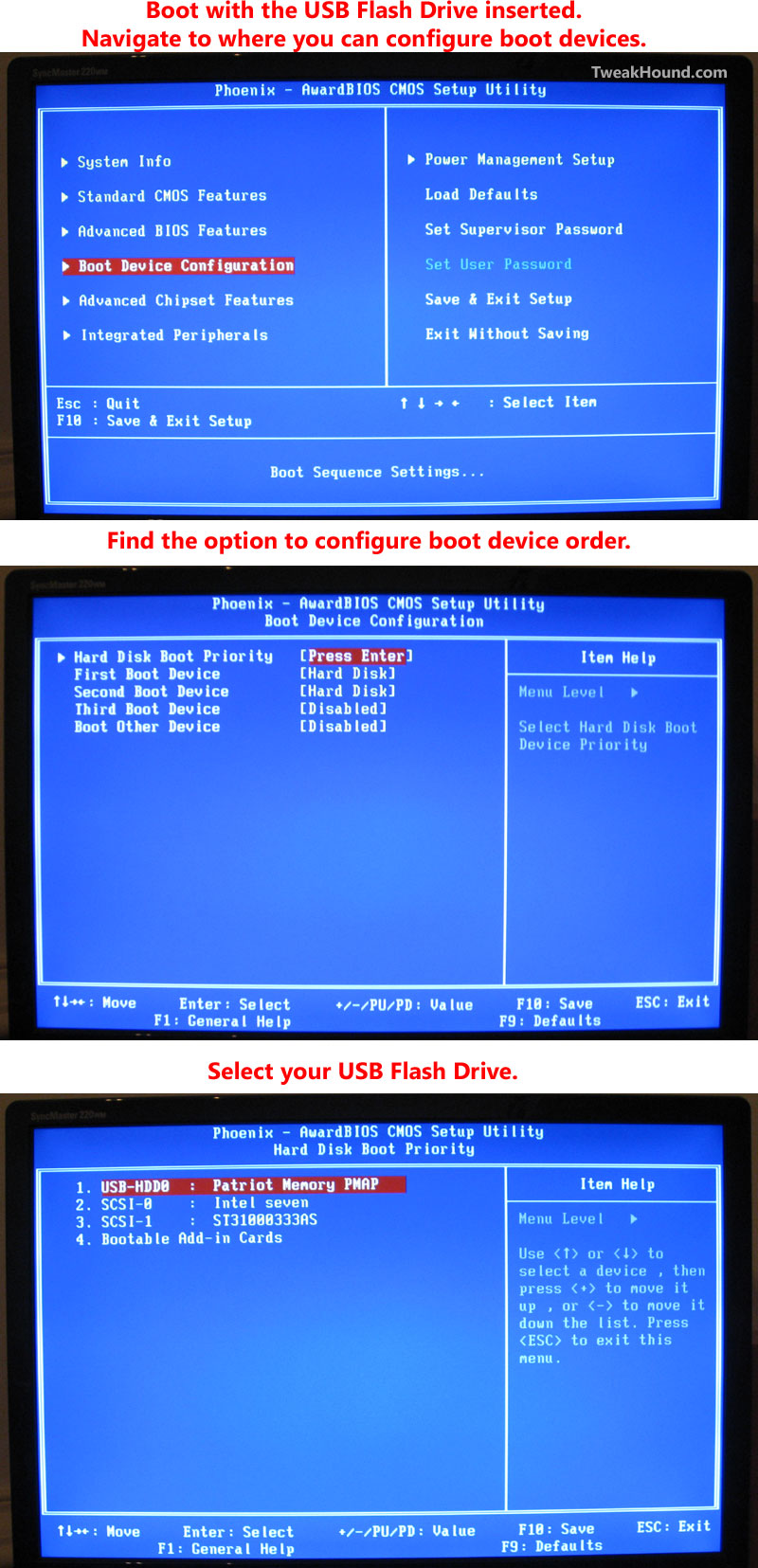
Your BIOS
You must be able to boot from a USB Flash Drive. The options for that are in your BIOS or in some cases by hitting a key at boot.
You’ll have to consult your computer manual or do a search for your particular computer on exactly how.
Below is an example from one of my computers. Click on the pic for a larger image.
usb boot xyz

Advanced USB Drive Formatting
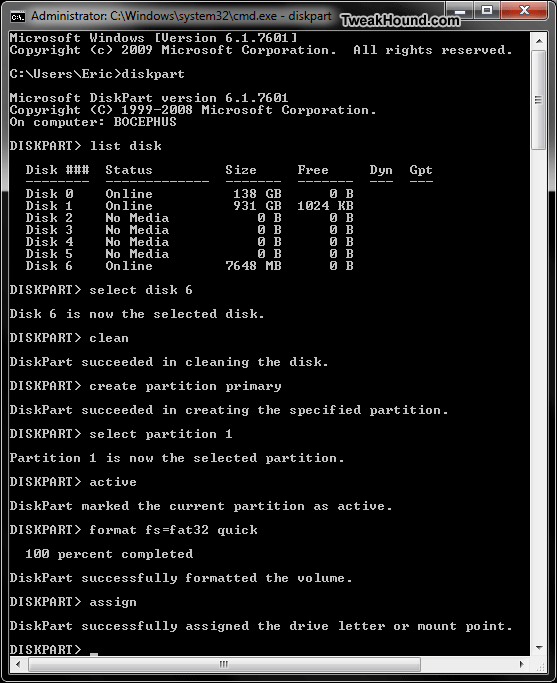
This method allows you to delete the partition on the flash drive, make it an active partition (bootable), and format it.
I always use this method when creating bootable flash drives.
We will use the built-n Windows tool called diskpart. It’s free and fast.
-Insert your flash drive.
-Open a command prompt. ( press the Windows + R keys and type cmd).
– Here are the commands in order.
1 – diskpart
2 – list disk   (find the number of your flash drive)
3 – select disk X   (where X is the number of your flash drive. Make absolutely sure you have the right number!)
4 – clean
5 – create partition primary
6 – select partition 1
7 – active
8 – format fs=fat32 quick
9 – assign

usbdiskpart

Pages: Page 1 Page 2 Page 3 Page 4 Page 5 Page 6 Page 7

About Me

July 23, 2011, 15:40(EDT) By Eric (a.k.a. TweakHound)

FAQ’s about me…
Name: Eric Vaughan
Location:Virginia, USA
Education: BS Computer Networking
Certifications:
Microsoft Certified Systems Engineer (MCSE)
Microsoft Certified Professional (MCP)
CompTIA Linux+
CompTIA A+ Certified Technician

Highlights: – Mentioned in a few magazines including Computer Power User and PC World.
– Article featured in Linux World Magazine.
– Featured in the book, How To Do Everything With Windows XP.
– Quoted in an NSA doc.
Computing experience: I’ve built too many to count. My first personal computer was a 386 the first month they hit the shelves. The first one I built was a Pentium.
Number of computers: Varies, I’ve got 6 running right now.
See My Computers, etc.

My Music
My CD Collection
My Vinyl Album Collection SOLD
My Digital Music Collection

Contact

July 23, 2011, 15:22(EDT) By Eric (a.k.a. TweakHound)

Advertisers, Product Reviews, Etc..
I get a lot of contact regarding these topics.

Sponsored Posts
Under no circumstances will I allow a sponsored post. It’s is unethical and beneath contempt.

Advertisers
Unless you are a major hardware or software company I’m not interested.
Don’t bother contacting me. This includes “guest posts”.

Software Giveaways
I will review your product (see below).
If I think it doesn’t suck then I will gladly offer it up for a giveaway.

Product Reviews
– For software please provide a link and license / key to full version of the software. I do not evaluate time-limited, trial, or otherwise crippled software.
– For hardware contact me at the address below.

Others
If you contact me with tech support questions:
1 – Know that I do not have time to respond to all of them. Please do not take offense.
2 – There is a chance that the content of your email will be published. Names and other personal detail will be left out.

I will not allow return receipts or “click on a link to be approved” or “added” to your email. This practice is quite rude.
Remember to fill in the subject line. Emails without a subject line go straight to the trash via the spam filter.

I get a lot of email. I can’t promise I will respond to every email I receive.

Eric
Contact: tweakblog1@gmail.com

About

July 23, 2011, 12:13(EDT) By Eric (a.k.a. TweakHound)

Site Info
This site has been around since May, 2002.
To contact me, see the Contact Page.
If you want to know more about me, see my page.

Where did you get the name for the site?
When I began searching for a name for this site I wanted a “.com” address. I started thinking of things and nothing seemed to fit. Then I came up with the name “TweakHound”

What exactly is a TweakHound?
Since I made it up, I get to define it.
tweak – to change slightly, esp. in order to make something more effective or correct
hound – One who eagerly pursues something.
So we get…
TweakHound – n , English-American (twi:k-haund)
1 – A subspecies of homo sapien caught frequently using and tweaking computers. Often sighted banging head against wall after conversations with other humans.
2 – One who is never satisfied with the efficiency of a computer.
syn. geek, nerd

Chances are, if you made your way here, you’re a TweakHound too!

What this site is:
A computer enthusiast site.
This site is just a hobby of mine and I’ve managed to help some people along the way. I’ve no dreams of becoming the next big tech portal. I do this because it’s fun. When it ceases to be, I’ll shut the doors. When an idea strikes me I write about something. If I buy a computer part that I feel someone may be interested in, or that I have a different take on, I write about it. When I see a news item of interest, I post it. Pretty simple really.

What this site isn’t:
A “hardware” site. A “review” site. A free tech support service. By using the links on this site, search engines, and forums, you can find the answers to just about everything.

To the hundreds of thousands of different people who have found their way here, thanks for stopping by!
To those who don’t like the site…goodbye!

Privacy Policy
See here: https://www.tweakhound.com/about/privacy-policy/

Disclaimer
You assume total responsibility for using this site and its content. I am not responsible for loss of or damage to equipment, person, profits, information or anything else. All material in this site belongs to that materials owner. You may use material created by me for personal use only.

Working On The Site

July 23, 2011, 11:18(EDT) By Eric (a.k.a. TweakHound)

th

thPardon the mess. I will be slowly changing the site over to WordPress.

Tagged With: This Site

PerfectCache?

July 19, 2011, 17:14(EDT) By Eric (a.k.a. TweakHound)

cooltools

cooltoolsI checked the Raxco blog today and saw a mention of a new program called PerfectCache which I find to be very interesting.
Rather than regurgitate the blog post I’ll just post the link for you:
PerfectCache — automatic disk caching to improve PC and server performance
Here is a screenie of my quick benchmark (click thumbnail for larger image):

Tagged With: Computer News, Cool Tools, Software

VirtualBox 4.1

July 19, 2011, 14:22(EDT) By Eric (a.k.a. TweakHound)

virtualbox

virtualboxDownload & Info

Oracle today released VirtualBox 4.1, a new major release. Introducing VM clones, increased capability for very large hosts, and Windows Aero support.

Tagged With: Cool Tools, Freeware

Process Explorer v15

July 18, 2011, 19:51(EDT) By Eric (a.k.a. TweakHound)

cooltools

cooltoolsThe Microsoft / Sysinternals freeware tool Process Explorer has been updated.
They also released a new tool called FindLinks that looks pretty cool.
Links:
Process Explorer
Findlinks
More info at Sysinternals Site Discussion

Tagged With: Cool Tools, Freeware

40% Off Acronis True Image!

July 18, 2011, 14:09(EDT) By Eric (a.k.a. TweakHound)

trueimage

trueimageAcronis has just pushed out a new promotion, 40% of Acronis True Image Home 2011!
There is also a 15% off coupon for Acronis Disk Director!

Tagged With: Cool Tools

« Previous Page
Next Page »

Primary Sidebar

Popular Articles

Windows 10

Tweaking Windows 10

My Windows 10 Tweaks

Windows 10 Privacy Settings

Win10 Diagnostics Tracking Service Gone?

Windows 10 Advanced Disk Cleanup

Win10 Customize Installation Options

Windows 10 Dark Theme

Win10 Wallpapers, Graphics, etc.

All Windows 10 Articles

Windows 8

Tweaking Windows 8.1

Advice On Installing Windows 8.1

Clean Install Windows 8.1

Cleanup After Windows 8.1 Upgrade

Create Shutdown, Restart, Logoff Tiles For Windows 8

Tweaking Windows 8

Install Windows 8 – Clean Install With Upgrade Media

Install Windows 8 – Upgrade

Windows 8 – Cleaning Up After You’ve Upgraded

Windows 8 Freeware Machine

Windows 8 SSD Settings, Etc.

How To Resize Your Windows 8 Partition

Create Windows 8 Recovery Media

Windows 8 – Elevated Command Prompt

How To Fix The Windows Bootloader

Windows 7

Installing Windows 7

Tweaking Windows 7

Windows 7 Diagnostics Tracking Service

The Windows 7 Freeware Machine

The Windows 7 Pagefile And Running Without One

Bad Tweaks

SSD Tweak Guide (sort of)

The noguiboot (no GUI Boot) Tweak

NtfsMemoryUsage=2 Tweak

More Windows 7 articles here.

Windows Vista

Installing Windows Vista

Tweaking Windows Vista

More Windows Vista articles here.

Windows XP

eXPired - The Last Windows XP Guide You'll Ever Need

The Right Way To Install Windows XP

Super XP Tweaking Guide

The Freeware XP Machine

Bad Tweaks

More XP Articles here and here.

Backup

Backup Article Greatest Hits – Vol. 1

Other

Cataloging Your Music Collection

Finding Good Album Art

Converting Vinyl Records To Digital Music – A Non-Audiophiles Guide

Windows All-In-One Recovery Flash Drive

SSD Tweak Guide (sort of)

Raidmax Blackstorm Case Review

Disk Partitioning

Ditch Those CD's! A Guide To Using USB Flash Drives

Checking Your Disks For Problems

Bad Tweaks

More articles here

Tags

Android Backup Beer Computer Hardware Computer News Cool Tools Freeware How-To's Linux Off Topic openSUSE Playlists Privacy Security Software This Site vacation Veterans Windows 7 Windows 8 Windows 10 Windows 11 Windows Vista Windows XP

TweakHound - Optimize Your Computing Experience! TweakHound - Optimize Your Computing Experience!

Copyright 2002-2025 by Eric Vaughan All material contain here is the property of the materials owner. Windows, Windows XP, Windows Vista, Windows Seven, Windows 8, Windows 10, Windows 11, Microsoft, and all associated logos are trademarks/property of Microsoft. You may not use or copy any material from tweakhound.com without expressed written permission. Hotlinking to any material within this site is forbidden. Privacy Policy